George Chandra Eka
The seamless operation of mobile applications is a cornerstone of modern digital life, yet the frustrating experience of an Android app repeatedly crashing remains a common inconvenience for millions of users worldwide. When a frequently used application malfunctions, it disrupts workflows, social interactions, and access to essential services, prompting users to seek swift and effective solutions. This comprehensive guide delves into the common causes of app instability and outlines a structured approach to troubleshooting, ranging from fundamental fixes to more advanced interventions, all aimed at restoring device functionality and user peace of mind.
The Digital Lifeline Interrupted: Understanding App Instability
Android, as the world’s most popular mobile operating system, powers billions of devices and hosts an ecosystem of over 3 million applications in the Google Play Store alone. This vast and dynamic environment, while offering unparalleled choice and innovation, is also susceptible to technical glitches. App crashes are not merely random occurrences; they often stem from a confluence of factors, including software bugs, conflicts with the operating system, memory management issues, or even network connectivity problems. Industry reports frequently highlight app stability as a critical metric for user satisfaction, with developers constantly striving to minimize crash rates. A significant percentage of app uninstalls can be attributed to persistent performance issues, underscoring the direct impact on user retention and developer reputation.
The primary culprit behind many sudden app crashes is often a recent software update. While updates are crucial for introducing new features, enhancing security, and fixing existing bugs, they can occasionally introduce new, unforeseen flaws. These "buggy updates" may interact poorly with specific device configurations, older Android versions, or other installed applications, leading to instability. Beyond updates, other factors contribute to app instability: insufficient device storage, corrupted application data, an overloaded system RAM, or even conflicting permissions can trigger unexpected shutdowns. Identifying the root cause is the first step towards an effective resolution, and users are often advised to begin with the most straightforward troubleshooting methods before escalating to more complex solutions.
First Line of Defense: The Google Play Store and Timely Updates
When an Android application begins to exhibit erratic behavior, the initial and most frequently effective troubleshooting step involves leveraging the very platform from which it originated: the Google Play Store. This digital storefront serves not only as the primary distribution channel for Android applications but also as the central hub for developers to push critical updates designed to enhance functionality and, crucially, rectify bugs. Given that buggy updates are a common trigger for app instability, ensuring an application is running its latest stable version is paramount.
To initiate this check, users should navigate to the Google Play Store application on their device. Tapping on their profile picture, typically located in the top-right corner, reveals a menu that includes "Manage apps & device." Within this section, under "Updates available," users can quickly ascertain if a newer version of the problematic application is awaiting installation. Developers frequently release patches shortly after a major update if significant bugs are reported, making this a vital first port of call. Installing pending updates can often resolve performance issues, compatibility conflicts, and security vulnerabilities that contribute to crashes, restoring the app to its intended operational state. This proactive approach not only addresses immediate problems but also ensures users benefit from the latest improvements and security enhancements, aligning with Google’s ongoing efforts to maintain a robust and secure app ecosystem.
Targeted Interventions: Managing App Data and Processes
Should updating the application via the Google Play Store fail to resolve persistent crashing issues, the next logical step involves delving into the app’s specific settings to address potential internal conflicts or corrupted temporary files. Android’s robust app management system provides users with granular control over individual applications, allowing for targeted interventions that can often stabilize erratic behavior without requiring a full reinstallation.
Accessing an application’s information page, often referred to as the "App info" page, is the gateway to these deeper settings. There are generally two convenient methods to reach this:
- Long-press shortcut: On the home screen or within the app drawer, users can long-press the icon of the troublesome application. A contextual menu will typically appear, featuring a small "i" icon (for information) or a direct "App info" option. Tapping this will lead directly to the desired settings.
- Via device settings: Alternatively, users can navigate through the device’s main "Settings" menu. From there, selecting "Apps" or "Apps & notifications" (depending on the Android version and device manufacturer) will present a comprehensive list of all installed applications. Locating and tapping on the specific app will open its "App info" page. It is worth noting that specific labeling may vary slightly across different Android versions (e.g., Android 12, 13, 14) and OEM custom interfaces (e.g., Samsung’s One UI, OnePlus’s OxygenOS).
Once on the "App info" page, two crucial actions can be performed:

Clearing the App’s Cache:
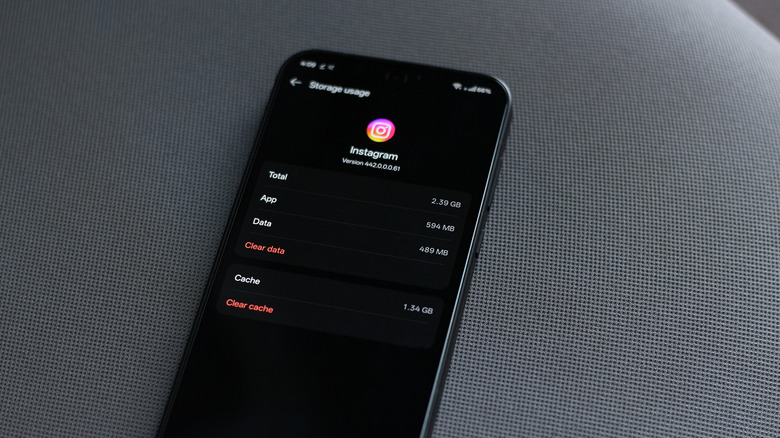
Within the "App info" settings, users will typically find an option labeled "Storage & cache." Tapping this reveals two distinct options: "Clear cache" and "Clear data." The "Clear cache" option is the less intrusive of the two and should be attempted first. The cache comprises temporary data files that an app stores to improve performance and load times. Over time, these cached files can become corrupted, outdated, or accumulate excessively, leading to errors, sluggishness, or crashes. Clearing the cache removes these temporary files without affecting user-specific data, settings, or login credentials. This process essentially gives the app a clean slate for its temporary storage, often resolving minor glitches and performance hiccups. Android has featured this efficient per-app cache management system for many years, proving its utility in maintaining app health and responsiveness.
Force Stopping the Application:
After clearing the cache, or even as an independent initial step, force stopping an application can be highly effective. From the main "App info" page, a prominent "Force stop" button is usually available. Tapping this will immediately terminate all processes associated with the application, effectively shutting it down completely, even if it appears to be closed. This action is distinct from simply swiping an app away from the recent apps screen, which might leave some background processes running. Force stopping ensures a complete reset of the app’s operational state in the device’s memory. Following a force stop, users should attempt to relaunch the app. This often resolves issues stemming from memory leaks, stuck processes, or temporary conflicts that prevent the app from functioning correctly. It provides the app with a fresh start, allowing it to load all its components anew, potentially bypassing the point of previous failure.
These targeted interventions are often sufficient for addressing transient bugs or minor data corruptions, representing a critical middle ground between a simple update and a more drastic reinstallation.
A Deeper Cleanse: Reinstallation and Data Management
When clearing the cache and force-stopping an application fail to resolve persistent crashing issues, a more thorough approach involving the removal and reinstallation of the app, or a direct "Clear data" operation, becomes necessary. These methods are more drastic because they impact user-specific data stored locally by the application.
Clearing App Data:
Within the same "Storage & cache" section on the app’s "App info" page, alongside "Clear cache," is the "Clear data" option. This action goes beyond clearing temporary files; it completely wipes all user data associated with the application. This includes login credentials, custom settings, media files stored within the app, game progress (if not cloud-synced), and any other preferences. Effectively, clearing an app’s data reverts it to the state it was in immediately after installation, as if it were a brand-new download. This can be highly effective if the core issue lies within corrupted user profiles or critical application files rather than just temporary cache.
The primary downside to clearing data is the loss of locally stored information. Users must be aware that they will likely need to sign back into the app, reconfigure settings, and potentially lose unsynced progress. For applications that offer cloud backup functionalities – such as Google Drive integration for photos, game progress synchronization, or specific app-provided cloud services – this data loss can be mitigated. Before proceeding with "Clear data," it is highly advisable to verify if the app supports cloud backup and if it has been enabled. This precautionary step can preserve invaluable user information.
Full Reinstallation:
Alternatively, and often considered the most thorough option for resolving persistent crashes, is to completely uninstall the application and then download it afresh from the Google Play Store. While functionally similar to clearing an app’s data in terms of wiping local user information, reinstallation offers a slightly more comprehensive reset. It ensures that every component of the app, including core installation files that might have become corrupted, is downloaded anew. This can be particularly effective for issues that might not be fully addressed by merely clearing data, such as deeply integrated file system errors or corrupted installation packages.
The process involves long-pressing the app icon and selecting "Uninstall," or uninstalling it from the "App info" page. Following the uninstall, users should visit the Google Play Store, search for the application, and reinstall it. The drawback, as with clearing data, is the loss of local data and the need to re-login and reconfigure settings. However, if connected to a reasonably fast internet connection, the reinstallation process is usually quick and provides the most definitive fresh start for a problematic app. This method is often recommended for users experiencing persistent and inexplicable crashes, especially after major system updates or if the app has been problematic for an extended period.
System-Wide Refresh: Restarting Your Device and OS Updates
While the focus often remains on individual applications, sometimes the root cause of instability lies within the operating system itself or the device’s overall state. Two fundamental yet surprisingly effective solutions involve system-level interventions: restarting the phone and ensuring the Android operating system is up-to-date.
The Power of a Simple Reboot:
It may seem like an overly simplistic suggestion in an era of complex technology, but restarting an Android phone can often provide a quick and effective fix for a multitude of issues, including app crashes. A restart does several important things:

- Clears RAM: It flushes the device’s Random Access Memory (RAM), getting rid of any lingering processes, memory leaks, or corrupted data that might be hogging resources or causing conflicts.
- Closes Background Processes: All background applications and services are terminated, ensuring a fresh start for the entire system. Over time, numerous apps running in the background can consume resources and lead to sluggish performance or instability.
- Resets System Services: Core Android system services are reinitialized, which can resolve minor glitches or temporary software conflicts that develop during extended uptime.
- Re-establishes Network Connections: It can refresh cellular, Wi-Fi, and Bluetooth connections, sometimes resolving app issues related to network instability.
For most Android phones, a force restart can be initiated by holding down the power button for an extended period (typically 10-30 seconds) until the screen goes black and the device logo reappears. Some models, particularly newer ones with more integrated power buttons, might require holding down the power button simultaneously with either the volume up or volume down button to trigger a restart or bring up the power menu. This basic maintenance step, though not needed daily, can significantly improve overall device responsiveness and app stability when performed periodically or in response to minor issues.
Criticality of Android OS Updates:
Beyond individual app updates, maintaining an up-to-date Android operating system is crucial for optimal device performance and app compatibility. Major OS updates (e.g., from Android 13 to Android 14) and even smaller security patches often include critical bug fixes, performance optimizations, and security enhancements that operate at a system level.
- Bug Fixes: OS updates frequently address system-level bugs that could be causing widespread app instability or specific app-OS conflicts. Developers often rely on the latest OS features and bug resolutions to ensure their applications run smoothly.
- Security Patches: These updates are vital for protecting the device from emerging threats and vulnerabilities. While primarily security-focused, a more secure and stable OS environment can indirectly reduce instances of malicious software interfering with legitimate applications, thereby preventing crashes.
- Performance Enhancements: New Android versions often bring improvements in memory management, battery optimization, and processor efficiency, which can lead to a more stable and responsive user experience across all applications.
- App Compatibility: As app developers update their applications to leverage new Android features and APIs, older OS versions might struggle with compatibility, leading to crashes. Staying updated ensures the device can run the latest apps efficiently.
To check for and install pending OS updates, users should navigate to Settings > System > Software update (or similar paths like "About phone > Software information" depending on the device). Installing any available updates ensures the device benefits from the latest stability improvements and security measures, significantly reducing the likelihood of system-induced app crashes. This proactive approach to system maintenance is foundational to a robust and reliable mobile experience.
Advanced Maneuvers: Sideloading Older App Versions (Caution Advised)
In situations where a specific app version, particularly a recent update, is unequivocally identified as the cause of persistent crashes across multiple devices or after exhausting all other troubleshooting steps, a more advanced and somewhat riskier solution involves sideloading an older, known-stable version of the application. This approach leverages Android’s inherent flexibility, allowing users to install applications from sources other than the Google Play Store, typically using Android Package Kit (APK) files. However, this flexibility comes with significant security implications that users must fully understand.
Android’s Flexibility vs. Security:
Historically, Android has been more open than competing mobile operating systems in allowing users to install applications from "unknown sources." This capability empowers users with greater control but also introduces a potential vector for malware and security vulnerabilities if not handled with extreme caution. Google has progressively implemented stricter security measures for sideloading to protect users from social engineering attacks and malicious apps. On newer versions of Android, simply enabling "Install unknown apps" permission is no longer a one-time toggle for all sources; it’s now often tied to specific apps (e.g., allowing your browser to install unknown apps) and may involve additional steps.
Enabling Developer Mode and Unknown Sources:
To sideload an application, users typically first need to enable "Developer options" on their device. This is achieved by navigating to Settings > About Phone and repeatedly tapping on the "Build Number" (usually seven times) until a message confirms that developer mode has been activated. Within the Developer options, users may find settings related to "Install unknown apps" or similar permissions that need to be granted to the source from which the APK will be installed (e.g., a file manager or web browser). Furthermore, Google has introduced a "one-time security process" on some newer Android versions, which might require a device restart and a waiting period (e.g., 24 hours) after enabling certain developer-related security permissions, as a deterrent against immediate malicious exploitation.
Risks of Sideloading:
The primary risk associated with sideloading is security. APK files obtained from untrusted sources can be tampered with to include malware, spyware, or other malicious code. Such apps can compromise user data, privacy, and device security. Therefore, extreme caution and vigilance are paramount.
Recommended Sources:
If sideloading is deemed necessary, it is crucial to obtain APK files from reputable and trusted sources. One widely recognized and generally trustworthy platform for downloading older or alternative versions of legitimate apps is APKMirror (apkmirror.com). This site verifies the cryptographic signatures of APKs to ensure they match the legitimate versions released by developers, thus mitigating the risk of tampered files. Users should still exercise discretion and verify the integrity of any downloaded file.
The Process of Sideloading:
- Uninstall the problematic version: First, completely remove the crashing app from the device.
- Download the stable APK: Using a trusted source like APKMirror, find and download an older, stable version of the app that worked correctly. Note that some complex apps use "split APKs," which may require a dedicated installer app (like the APKMirror Installer) to combine multiple components into a single installation.
- Install the APK: Open the downloaded APK file from the device’s file manager. The system will prompt for permission to install from the "unknown source" (e.g., the file manager itself or the browser used for download). Grant the necessary permissions.
- Disable Unknown Sources: After successful installation, it is strongly recommended to revoke the "Install unknown apps" permission from the respective source to reduce future security risks.
Temporary Nature of the Fix:
It is important to emphasize that sideloading an older app version is typically a temporary workaround. It addresses a specific bug in a newer version but isolates the user from future official updates delivered via the Google Play Store. To receive future bug fixes, new features, and security patches from the developer, users will eventually need to uninstall the sideloaded version and reinstall the official, updated version from the Play Store once the developer has released a stable fix. This method is a last resort, best employed by technically proficient users who understand the associated risks and the temporary nature of the solution.
Beyond the App: Web Alternatives and Developer Engagement
When all direct app-centric troubleshooting methods prove ineffective, or if the user prefers to avoid the complexities of sideloading, alternative strategies can help maintain functionality and contribute to the overall improvement of the app ecosystem. These include leveraging web versions of applications and actively engaging with app developers.
Utilizing Web Versions as a Stopgap:
Many popular mobile applications have corresponding web versions that offer similar, if not identical, functionalities. For instance, social media platforms, email services, streaming platforms, and productivity tools often have robust web interfaces optimized for mobile browsers. If an app is consistently crashing, resorting to its web version through a mobile browser like Chrome or Firefox can provide an immediate and stable alternative.
- Accessibility: Web versions can be accessed from any device with a browser, circumventing app-specific issues.
- Optimization: Most developers ensure their web interfaces are responsive and user-friendly on mobile screens.
- Convenience Features: Modern mobile browsers allow users to enable notifications for supported websites and even "pin" web applications to their home screen as Progressive Web Apps (PWAs), creating an experience remarkably similar to a native app without the installation overhead. This can serve as a highly effective temporary solution until the native app’s issues are resolved.
Engaging with App Developers:
While frustrating, persistent app crashes are often symptoms of bugs that developers are actively working to fix. Providing constructive feedback to the app developer is crucial for expediting these fixes.
- Reporting Bugs via Play Store: The Google Play Store allows users to leave reviews and provide feedback directly on an app’s page. While not always the most direct channel, developers often monitor these reviews.
- In-App Feedback Mechanisms: Many apps include dedicated "Send Feedback" or "Report a Bug" options within their settings menus. These often capture device logs and specific crash data, which are invaluable for developers.
- Developer Support Channels: Most developers maintain official support websites, email addresses, or social media channels dedicated to user assistance. Reaching out through these channels with detailed descriptions of the problem, including device model, Android version, and steps to reproduce the crash, can significantly aid the debugging process.
Active user engagement helps developers identify widespread issues, prioritize fixes, and ultimately enhance the stability and functionality of their applications for the entire user base.
The Broader Landscape: Implications for Users, Developers, and the Ecosystem
The phenomenon of Android app crashes, and the subsequent troubleshooting efforts, extends beyond individual user frustration to have broader implications for the entire digital ecosystem. It touches upon user trust, developer reputation, and Google’s ongoing commitment to platform stability and security.
Impact on User Experience and Trust:
For users, consistent app crashes erode trust and diminish the overall mobile experience. In an era where smartphones are indispensable tools for communication, work, and entertainment, a malfunctioning app can severely disrupt daily life. This can lead to app abandonment, negative reviews, and a general reluctance to adopt new applications or even update existing ones, fearing instability. The psychological impact of digital friction, however minor, contributes to user fatigue and a sense of unreliability in their essential digital tools.
Developer Reputation and Economic Implications:
For app developers, stability is paramount. High crash rates directly correlate with lower user retention, fewer downloads, and negative app store ratings, which can significantly impact an app’s visibility and commercial success. In a highly competitive market, an app’s reputation for reliability is a key differentiator. Developers invest substantial resources in quality assurance, bug testing, and rapid deployment of patches to maintain user satisfaction and protect their brand. The financial implications are clear: unstable apps lose users, and lost users translate to lost revenue.
Google’s Role in Platform Stability:
Google, as the steward of the Android ecosystem, plays a critical role in fostering a stable and secure environment. This involves continuous development of the Android OS, providing robust developer tools, implementing stricter Play Store policies (e.g., app review processes, security scans), and enhancing mechanisms for user protection against malicious software. The evolution of security measures for sideloading, such as the one-time security process and granular permissions for "unknown sources," reflects Google’s ongoing efforts to balance user flexibility with paramount security concerns. Their commitment to rapid security updates and fostering a vibrant yet secure developer community is central to the long-term success of Android.
The Perpetual Cycle of Innovation and Bug Fixing:
Ultimately, app crashes are an inherent part of the software development lifecycle, a consequence of continuous innovation, diverse hardware, and complex interactions within a dynamic ecosystem. The journey from identifying a bug to deploying a fix involves a collaborative effort between users, developers, and platform providers. While frustrating, the processes of troubleshooting, updating, and providing feedback are vital components of this ongoing cycle, ensuring that the Android experience continues to evolve, improve, and meet the ever-increasing demands of its global user base. Mastering these troubleshooting steps empowers users not only to resolve their immediate problems but also to contribute actively to a more robust and reliable digital future.