George Chandra Eka
Despite Apple’s assurances of all-day battery performance for its iPhones, many users frequently find their devices struggling to last through a full day of typical usage. This discrepancy often stems not from a faulty battery, but from the dynamic interplay between user habits, app functionality, and iOS settings. Understanding which applications are covertly consuming power and how to manage these demands is crucial for optimizing an iPhone’s longevity and ensuring it remains operational when needed most. This guide delves into the native iOS tools available for battery diagnostics, explains the nuances of app power consumption, and outlines actionable strategies to significantly extend an iPhone’s battery life.
Understanding iPhone Battery Dynamics and Apple’s Promise
Apple engineers design iPhone batteries, primarily lithium-ion cells, to deliver a consistent level of performance throughout a typical day. The company’s official statements often highlight rigorous testing protocols aimed at achieving this "all-day" standard. However, this benchmark is often based on an average user profile under specific conditions, which may not align with the diverse and often intensive usage patterns of real-world consumers. Factors such as network signal strength, ambient temperature, screen brightness, and, most significantly, the types of applications used and their background activities, can drastically alter actual battery endurance. Modern smartphones are multitasking powerhouses, constantly performing operations ranging from push notifications and location tracking to data synchronization and media streaming, many of which occur without direct user interaction, contributing to what is often perceived as inexplicable battery drain.
Navigating iOS for Comprehensive Battery Insights
Apple has long equipped iOS with robust diagnostic tools, empowering users to pinpoint the exact culprits behind dwindling battery percentages. This transparency, initially introduced with iOS 8 in 2014, marked a significant step towards user control over device performance. To access this critical information, users need only navigate to the Settings app on their iPhone. Within the main menu, locating and tapping the Battery option, typically adorned with a green battery icon, unveils a wealth of data.
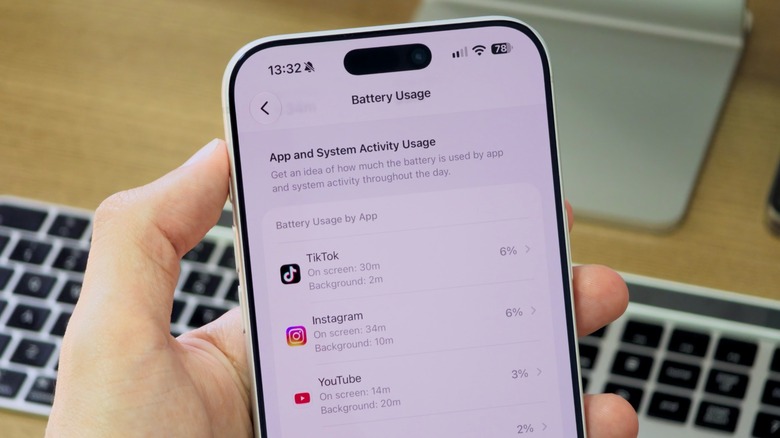
Upon entering the Battery menu, users are presented with a detailed graphical representation of their iPhone’s power consumption over the last 24 hours or the past 10 days. This chart visually illustrates periods of heavy usage versus standby time. Crucially, below this graph lies a list of applications and system services, ranked by their percentage contribution to the overall battery drain. For an even more granular breakdown, tapping "View All Battery Usage" reveals specific timeframes for each app’s activity.
A key distinction within this usage data is between "On Screen" and "Background" time. "On Screen" quantifies the duration an app was actively open and displayed on the screen, directly interacting with the user. Conversely, "Background" time indicates how long an app was operating in the background, performing tasks such as fetching new data, updating content, or maintaining an active connection, even when the user was engaged with another application or the screen was off. This background activity is often the silent killer of battery life, as it can occur unnoticed for extended periods. For instance, a social media app might constantly refresh feeds, a navigation app might continuously track location, or a music streaming service might buffer content, all while residing in the background.
Identifying Major Battery Culprits: Beyond Obvious Usage
While it is intuitive that actively using graphically intensive games, streaming high-definition video, or engaging in prolonged video calls will consume significant battery power, the real challenge lies in identifying apps that drain power inefficiently in the background. Social media applications like TikTok, Instagram, and Facebook are frequently cited in user reports and independent analyses as major contributors to battery drain, often due to their constant refreshing of feeds, location tracking, and push notification systems. Similarly, navigation apps such as Google Maps or Apple Maps, while indispensable, can become power hogs if allowed to continuously track location in the background. Music streaming services like Spotify or Apple Music, when actively streaming with the screen off, also contribute to background drain.
Games, particularly those with sophisticated 3D graphics and complex physics engines, inherently demand more processing power from the iPhone’s CPU and GPU, leading to faster battery depletion. Augmented reality (AR) applications also fall into this category, as they utilize cameras, sensors, and intense processing simultaneously. Even utilities like Weather apps, if configured to provide frequent, precise location-based updates, can subtly chip away at battery life. The key is to correlate high battery usage percentages with minimal "On Screen" time, which strongly suggests inefficient background activity.
Strategic Settings Adjustments for Enhanced Battery Life
Understanding which apps are draining the battery is merely the first step; the next is to implement actionable strategies to mitigate this drain. Rather than simply uninstalling frequently used applications, users can employ several iOS settings to regain control over their device’s power consumption.
Optimizing Background App Refresh
One of the most impactful settings to manage is Background App Refresh. This feature allows applications to periodically check for new content and refresh their data even when they are not actively in use. While designed to provide a seamless, up-to-date experience (e.g., your email app having new messages ready as soon as you open it), it can be a substantial drain on resources if enabled for too many apps, especially those that don’t genuinely require constant updates.
To manage this, navigate to Settings > General > Background App Refresh. Users have three primary options:
- Off: Completely disables background app refresh for all applications, maximizing battery savings but potentially leading to delayed content updates.
- Wi-Fi: Allows background refresh only when the iPhone is connected to Wi-Fi, saving cellular data and some battery.
- Wi-Fi & Cellular Data: Allows background refresh on both Wi-Fi and cellular networks.
Beneath these global settings, users will find a toggle switch for each installed application. A strategic approach involves selectively disabling Background App Refresh for apps that do not require real-time updates (e.g., photo editors, old games, utilities) while keeping it enabled for essential communication or productivity tools where immediate data is crucial.
Refining Location Services Usage
The Global Positioning System (GPS) module in an iPhone is a significant power consumer. Apps that constantly access location data, even in the background, can rapidly deplete the battery. Managing Location Services is therefore paramount for battery optimization.
Access these settings via Settings > Privacy & Security > Location Services. Here, users will see a list of applications that have requested access to their location. For each app, there are typically several options:
- Never: Prevents the app from ever accessing location data.
- Ask Next Time Or When I Share: Prompts the user for permission each time the app attempts to access location.
- While Using the App: Allows the app to access location only when it is actively open and on screen. This is often the ideal balance for navigation and ride-sharing apps.
- Always: Permits the app to access location data at all times, even when in the background. This setting should be reserved for apps where continuous tracking is genuinely essential, such as health trackers or critical safety applications.
It is strongly advised to review this list and set location access to "While Using the App" for most applications. For apps that have no logical need for location data (e.g., a calculator or a basic game), setting it to "Never" is appropriate. A critical caveat: users should avoid completely disabling Location Services, as this would impair vital functionalities like "Find My iPhone," which is essential for locating a lost or stolen device.
Beyond App-Specific Settings: General Battery-Saving Practices
While managing app-specific settings is highly effective, several broader iOS features and user habits can further contribute to improved battery longevity:
- Low Power Mode: Accessible from Control Center or Settings > Battery, Low Power Mode temporarily reduces background activity, visual effects, and display brightness to conserve power when the battery level is low.
- Auto-Brightness: Allowing the iPhone to automatically adjust screen brightness based on ambient light (Settings > Accessibility > Display & Text Size > Auto-Brightness) can save significant power, as the display is often the single largest power consumer.
- Dark Mode: For iPhones with OLED screens (iPhone X and newer), Dark Mode (Settings > Display & Brightness) can reduce power consumption as black pixels are effectively turned off, requiring no power.
- Wi-Fi Over Cellular: When available, using Wi-Fi generally consumes less power than cellular data, especially in areas with poor cellular signal where the phone expends more energy searching for a connection.
- Push vs. Fetch for Mail: In Settings > Mail > Accounts > Fetch New Data, users can choose between "Push" (instant delivery, more battery drain) and "Fetch" (periodic checks, less drain) or "Manual" for email accounts. Fetching less frequently can save power.
The Crucial Role of Battery Health
Even with diligent app and settings management, an iPhone’s battery life will inevitably degrade over time. Lithium-ion batteries have a finite number of charge cycles before their capacity diminishes. Apple itself notes that a normal battery is designed to retain up to 80% of its original capacity at 500 complete charge cycles.
Users can check their iPhone’s battery health by navigating to Settings > Battery > Battery Health & Charging. Here, the "Maximum Capacity" percentage indicates the current battery capacity relative to when it was new. A lower percentage signifies a degraded battery. Below this, "Peak Performance Capability" will inform users if their battery is supporting normal peak performance or if it has degraded to a point where performance management (e.g., CPU throttling) has been applied to prevent unexpected shutdowns.
If the Maximum Capacity falls significantly below 80%, or if the device frequently experiences unexpected shutdowns, a battery replacement may be the most effective solution. Apple offers official battery replacement services, which can breathe new life into an aging device, often extending its usable lifespan by several years and restoring its "all-day" performance capabilities.
Broader Implications and User Empowerment
Proactive battery management is more than just a convenience; it is a fundamental aspect of digital literacy in an increasingly mobile world. A well-maintained battery ensures that an iPhone remains a reliable tool for communication, navigation, emergencies, and productivity throughout the day. By understanding the underlying mechanisms of power consumption and leveraging the diagnostic tools provided by iOS, users gain greater control over their devices. This empowerment not only enhances the individual user experience but also contributes to the broader goal of device longevity, reducing the frequency of upgrades and the associated environmental impact of electronic waste. In an era where smartphones are integral to daily life, mastering battery life management is an essential skill for sustainable and efficient technology use.