George Chandra Eka
Graphics card driver updates are paramount for maintaining peak performance, ensuring system stability, and accessing the latest features on a Windows 11 personal computer, yet the process of locating and installing these critical software packages can often be a source of confusion for many users. While operating system and application updates frequently introduce exciting new functionalities, hardware driver updates, particularly for Graphics Processing Units (GPUs), primarily focus on refining the intricate communication between hardware and software, resolving underlying issues, and unlocking the full potential of a system’s graphical capabilities. Despite their less flashy nature, consistently updating these drivers is a fundamental practice for any PC user aiming to ensure their computer’s internal components operate at their best, especially in graphically intensive scenarios like modern gaming, professional content creation, or high-resolution media consumption.
The Crucial Role of Graphics Drivers in Modern Computing
Modern computing relies heavily on the efficient functioning of the Graphics Processing Unit, a specialized electronic circuit designed to rapidly manipulate and alter memory to accelerate the creation of images, videos, and animations. The GPU driver acts as a crucial intermediary, a sophisticated piece of software that translates the high-level instructions from the operating system and applications into commands that the graphics card hardware can understand and execute. Without an up-to-date and properly functioning driver, the GPU cannot perform optimally, leading to a myriad of potential issues ranging from minor visual glitches to significant performance bottlenecks and system instability.
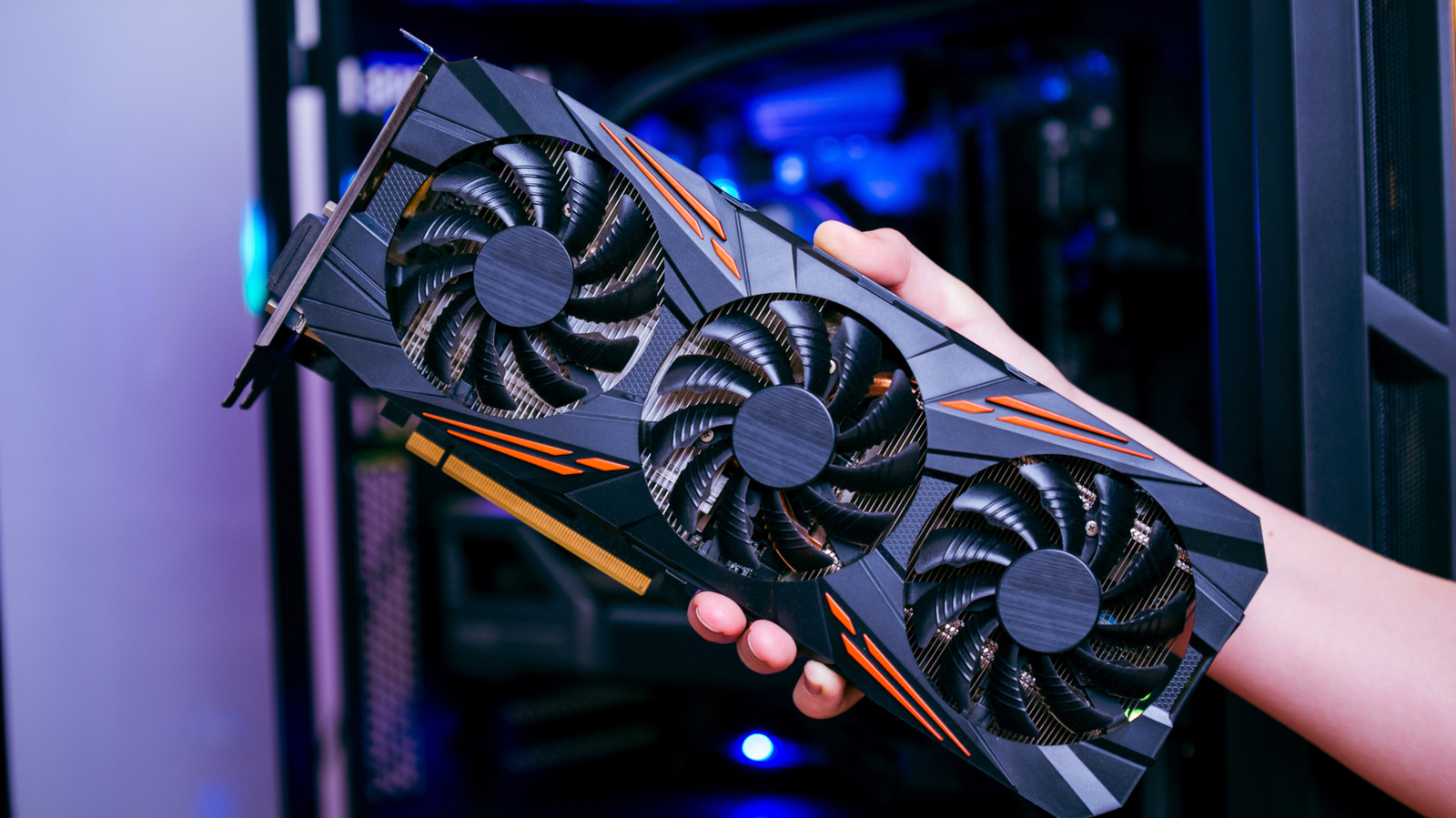
One of the most immediate and noticeable benefits of updated GPU drivers is enhanced performance. Game developers frequently optimize their titles to take advantage of the latest driver revisions, and graphics card manufacturers collaborate closely with these developers to release "Game Ready" drivers coinciding with major game launches. These specialized drivers often include specific optimizations, profiles, and bug fixes tailored for new titles, which can translate into tangible improvements in frame rates, reduced latency, smoother gameplay, and a more immersive experience. For instance, a new driver might introduce optimizations for a specific rendering technique used in a recently released AAA game, leading to a significant uplift in performance that would otherwise be unattainable with older driver versions. Beyond gaming, professionals using applications for video editing, 3D rendering, CAD design, or scientific simulations also benefit immensely. Updated drivers can accelerate rendering times, improve viewport performance, and ensure compatibility with new features in their respective software suites, directly impacting productivity and workflow efficiency.
Beyond performance, stability and bug fixes represent another cornerstone of driver updates. Graphics drivers are complex pieces of software, and like any software, they can contain bugs that lead to crashes, freezes, visual artifacts (such as flickering screens or corrupted textures), or compatibility issues with other hardware or software components. Manufacturers continuously monitor user feedback, conduct extensive testing, and release updates to address these known issues. An outdated driver might cause a specific game to crash randomly, prevent a monitor from displaying at its native resolution, or conflict with a new Windows update, leading to a frustrating user experience. Regular updates are thus essential for maintaining a reliable and consistent computing environment.
Furthermore, GPU drivers are instrumental in enabling support for new technologies and features. This includes compatibility with new graphics APIs like DirectX 12 Ultimate or Vulkan, which offer developers more direct control over hardware and enable advanced rendering techniques such as ray tracing or variable rate shading. Drivers also introduce support for proprietary technologies like NVIDIA’s DLSS (Deep Learning Super Sampling) or AMD’s FSR (FidelityFX Super Resolution), which use AI or spatial upscaling to boost performance while maintaining image quality. Similarly, support for new display technologies (e.g., HDR, higher refresh rates, adaptive sync standards like G-Sync and FreeSync) and virtual reality (VR) or augmented reality (AR) devices often hinges on having the latest drivers installed. Without these updates, users might find themselves unable to utilize their hardware’s full capabilities or access the cutting-edge features that enhance their digital interactions.
Finally, though less frequent, driver updates can sometimes address security vulnerabilities. While core operating system updates handle the majority of security patches, specific vulnerabilities within a graphics driver could potentially be exploited. Manufacturers, in conjunction with security researchers, release updates to patch these vulnerabilities, safeguarding users’ systems against potential threats. Therefore, understanding and implementing effective GPU driver update strategies is not merely a recommendation but a necessity for optimal system health.
Navigating Driver Updates on Windows 11: An Overview of Methods
While the importance of keeping GPU drivers current is clear, the actual process of updating them on a Windows 11 PC can sometimes appear convoluted due to the multiple available avenues. Users often encounter a dilemma: should they rely on Windows’ built-in update mechanisms, leverage manufacturer-specific companion applications, or opt for a manual download and installation process? Each method offers distinct advantages and disadvantages, catering to different user preferences and technical proficiencies. Understanding these approaches is key to making informed decisions about driver management.
Method 1: Utilizing Windows Update and Device Manager – The Built-in Approaches
Windows 11 provides integrated tools for managing hardware drivers, offering a baseline level of convenience for users who prefer a hands-off approach. These methods are straightforward but come with certain limitations that advanced users or gamers should be aware of.
Windows Update: The most accessible method for many users is through the operating system’s primary update service.
- Process: To check for updates, users can navigate to Settings > Windows Update and then click on "Check for updates." If Windows Update identifies available graphics card drivers, it will typically download and install them automatically alongside other system updates.
- Pros: This method is extremely simple and requires minimal user intervention. It ensures that critical security patches and basic compatibility drivers are installed, maintaining a functional system without much effort.
- Cons: A significant drawback of Windows Update is that the drivers it provides are often not the very latest versions available directly from the GPU manufacturer. Microsoft typically tests and certifies drivers extensively before pushing them through Windows Update, a process that can introduce a delay of several weeks or even months compared to direct manufacturer releases. This means users relying solely on Windows Update might miss out on crucial performance optimizations for new games, support for cutting-edge features, or immediate bug fixes that are available from AMD, NVIDIA, or Intel. In some cases, Windows Update might even install an older, less optimized driver over a newer one previously installed by the user, leading to unexpected performance regressions. This has led to a perception among tech enthusiasts that Windows Update’s handling of GPU drivers is not always ideal for performance-critical scenarios.
Device Manager: Another built-in utility, Device Manager, offers a slightly more granular approach to driver management.
- Process: Users can open the Start Menu, search for "Device Manager," and launch the application. Within Device Manager, expand the "Display adapters" section to reveal a list of all graphics hardware connected to the computer. Typically, this will be a GPU from AMD, NVIDIA, or Intel. Double-clicking on the GPU’s name opens its properties window. From there, navigating to the "Driver" tab and clicking on "Update Driver" presents two options: "Search automatically for drivers" or "Browse my computer for drivers." Selecting "Search automatically for drivers" will prompt Windows to look for a suitable driver on the system and, if connected to the internet, potentially online.
- Pros: This method is useful for diagnosing driver issues, confirming the currently installed driver version, or quickly attempting to update a problematic driver without delving into manufacturer websites. It’s a convenient first step for basic troubleshooting.
- Cons: Similar to Windows Update,