George Chandra Eka
Handing a smartphone to a child for a brief period of entertainment should not entail the risk of them inadvertently navigating into sensitive applications such as banking portals, email clients, or private messaging platforms. This common concern resonates with many Samsung Galaxy owners seeking a straightforward method to restrict app access, akin to the simplified app locking mechanisms available to iPhone users. However, Samsung’s approach to this critical aspect of digital security and privacy diverges significantly from its primary competitor, opting for a multi-faceted strategy rather than a single toggle. Instead of a direct equivalent to Apple’s quick long-press and biometric authentication for individual apps, Galaxy devices distribute this responsibility between two distinct, yet complementary, features: the robust Secure Folder and the more temporary App Pinning. While neither mirrors Apple’s solution precisely, their combined functionality provides comprehensive coverage, ensuring that unauthorized individuals are effectively prevented from accessing applications and data they should not. This strategic divergence reflects Samsung’s broader philosophy on mobile security, rooted in its enterprise-grade Knox platform, prioritizing a deeply integrated and encrypted environment over a superficial lock for every application.
The Evolving Landscape of Mobile Security and Samsung’s Stance
The increasing ubiquity of smartphones as central hubs for personal and professional life has amplified the demand for sophisticated security measures. With devices now housing everything from financial records and health data to intimate communications and work-related documents, the need to safeguard this information from both malicious actors and accidental intrusions has become paramount. For parents, the challenge of managing children’s device usage is particularly salient, often leading to worries about unintended purchases, exposure to inappropriate content, or accidental deletion of critical data.
Historically, mobile operating systems have offered varying degrees of app-level security. Apple’s iOS, for instance, has integrated features like Face ID or Touch ID authentication for purchases and app downloads, extending to individual app access via Guided Access and Screen Time limits, which can effectively lock users into specific applications or require authentication to exit. Many other Android manufacturers have also incorporated a simple "app lock" feature, allowing users to secure any installed application with a PIN, pattern, or fingerprint.
Samsung, however, made a deliberate decision to phase out a basic, universal app lock option in favor of a more comprehensive and robust system: the Secure Folder. This shift was not merely a design choice but a strategic enhancement built upon Samsung Knox, the company’s formidable security platform. Rather than merely gating an application behind a password, Secure Folder establishes an entirely separate, encrypted space within the phone’s storage. Applications placed within this secure enclave operate as isolated copies, maintaining their own distinct data, settings, and sign-ins, completely compartmentalized from the rest of the device’s environment. This containerization approach offers a level of security far exceeding a simple password prompt, particularly against sophisticated threats and data breaches.

This philosophical difference has, at times, generated pushback from a segment of users who found the absence of a straightforward, lightweight app lock inconvenient for everyday scenarios, such as preventing a child from casually exiting a game to browse TikTok. These users often desired the simplicity of an instant, one-tap lock without the setup complexity of a full encrypted environment. Acknowledging this gap for quick, temporary restrictions, Samsung introduced App Pinning, a feature designed to serve as a makeshift version of screen-lock tools, addressing the need for immediate, albeit less robust, control.
Deep Dive: Samsung Knox and the Secure Folder
At the heart of Samsung’s advanced security ecosystem lies Knox. Launched in 2013, Samsung Knox is an industry-leading, government-grade security platform that provides multi-layered protection from the moment a device is powered on. It integrates hardware-backed security mechanisms with comprehensive software features to safeguard data against malware, unauthorized access, and other threats. Knox has received numerous certifications from government agencies and industry bodies worldwide, underscoring its reliability for enterprise and highly sensitive applications.
The Secure Folder leverages the power of Knox to create a digitally impenetrable vault on a user’s device. When an app is moved into Secure Folder, or a new instance of an app is installed within it, it gains its own separate data space. This means that, for example, a banking app inside Secure Folder will require a separate login and store its data independently from any banking app installed outside the folder. This isolation prevents malicious apps or unauthorized users from accessing sensitive information, even if the main part of the phone is compromised. The entire Secure Folder environment is encrypted, meaning that even if the device itself were physically accessed and its storage extracted, the data within the Secure Folder would remain unreadable without the correct authentication.
Key Benefits of Secure Folder:
- Enhanced Data Protection: Ideal for banking apps, messaging apps containing sensitive conversations, private photo galleries, confidential documents, and work-related applications.
- Privacy from Casual Snooping: Protects personal data from curious family members, friends, or even device repair technicians.
- Child Safety: Prevents children from accessing critical apps, making unauthorized purchases, or altering system settings.
- Enterprise-Grade Security: For businesses utilizing a BYOD (Bring Your Own Device) policy, Secure Folder allows employees to separate work data from personal data, ensuring corporate compliance and security without compromising personal privacy.
- Discretion: The Secure Folder icon can be hidden from the home screen and app drawer, providing an additional layer of stealth. When hidden, apps within the Secure Folder will not run in the background or generate notifications, ensuring complete isolation until the folder is explicitly accessed.
Setting Up Secure Folder: A Step-by-Step Guide

While Secure Folder offers robust protection, its setup requires a few more steps than a simple app lock. This process is a one-time configuration that establishes the secure environment.
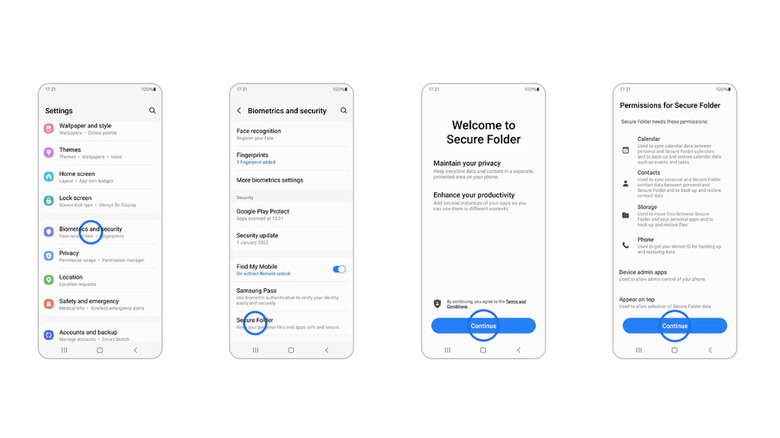
- Access Settings: Navigate to your phone’s "Settings" menu.
- Locate Security and Privacy: Scroll down and tap on "Security and privacy."
- Find Secure Folder: Within the security options, locate and tap on "Secure Folder."
- Agree to Terms: You will be prompted to agree to the Secure Folder’s terms and conditions. Read them carefully and tap "Continue."
- Choose Lock Type: Select your preferred authentication method for Secure Folder. Options typically include Pattern, PIN, Password, or Fingerprint. It is highly recommended to use a strong, unique method that differs from your main device lock.
- Complete Setup: Follow the on-screen prompts to set up your chosen lock type. Once completed, the Secure Folder will be created, appearing as an app icon (often with a distinctive folder symbol) in your app drawer.
- Add Apps to Secure Folder:
- Open the Secure Folder app.
- Tap the "+" icon (or "Add apps") to view a list of apps currently on your device or to access the Play Store to download new apps directly into the folder.
- Select the apps you wish to protect and tap "Add."
- Alternatively, you can long-press an app icon from your main app drawer, tap "Move to Secure Folder," and authenticate to move it.
- Manage Settings and Notifications: Within the Secure Folder settings, you can customize its appearance, hide the folder icon from the app drawer for extra discretion (by toggling off "Show Secure Folder" in the Quick Panel or Secure Folder settings), and manage notifications from apps within the folder. Remember, when the folder is hidden, its apps remain dormant, so unhide it to receive notifications or use the apps.
App Pinning: The Quick Fix for Temporary Restrictions
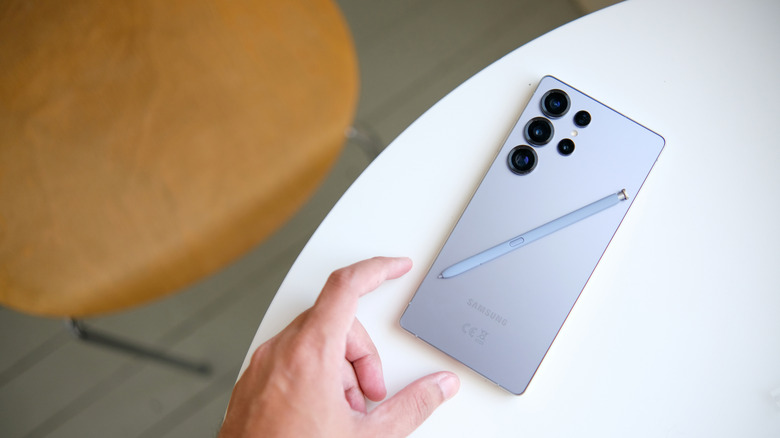
For scenarios where the full encryption and isolation of Secure Folder are unnecessary, such as temporarily entrusting your phone to a child to play a single game, App Pinning offers a faster, simpler solution. This feature locks the device to a specific application, preventing the user from navigating to other apps, accessing system settings, or making unauthorized actions.
Understanding App Pinning’s Functionality and Limitations:
App Pinning essentially creates a temporary "kiosk mode" for a single application. While active, the user is confined to that app, and standard navigation gestures (like swiping home or using the back button) are disabled. To exit the pinned app, a specific combination of button presses (usually holding the recent apps button and the back button simultaneously, followed by authentication) is required.
It’s crucial to understand that App Pinning is not a security feature in the same vein as Secure Folder. It does not encrypt data, isolate apps, or provide protection against sophisticated access attempts. Its primary purpose is to prevent casual wandering within the phone’s interface. As such, it is entirely unsuitable for protecting financial applications, private communications, or other sensitive data. Moreover, its effectiveness is somewhat dependent on the user’s technical savviness; the on-screen instructions for unpinning can be easily followed by anyone who can read. Therefore, it works best for very young children or for situations where the "unauthorized user" is not actively trying to bypass the restriction.
How to Use App Pinning for Quick Restrictions:
- Enable App Pinning: This feature is often disabled by default and needs to be activated once.
- Go to "Settings."
- Tap on "Security and privacy" (or "Biometrics and security" on older versions).
- Scroll down and tap on "Other security settings."
- Find and tap on "Pin app" (or "App pinning" / "Screen pinning").
- Toggle the feature "On."
- Optionally, enable "Ask for PIN before unpinning" for an added layer of security when exiting a pinned app.
- Open the Desired App: Launch the application you wish to pin (e.g., a specific game for your child).
- Access Recent Apps: Tap the "Recent apps" button (usually a square icon or three vertical lines at the bottom of the screen).
- Pin the App: In the recent apps view, tap the icon of the app you want to pin (at the top of its preview card). A small menu will appear.
- Select "Pin this app": Tap on the "Pin this app" option.
- Confirm: A pop-up will appear explaining how to unpin the app. Tap "OK" or "Got it" to confirm.
Once pinned, the user will be unable to exit the application without performing the specific unpinning gesture and, if enabled, providing authentication.
A Comparative Analysis: Samsung’s Approach vs. the Competition
Samsung’s dual-solution strategy for app access control stands in contrast to approaches taken by other major mobile platforms.
Apple’s iOS: Offers several mechanisms. "Guided Access" (part of Accessibility features) can lock a user into a single app, similar to App Pinning but with more granular control over screen areas and hardware buttons. "Screen Time" allows parents to set app limits, requiring a passcode to extend usage or open restricted apps. And for sensitive functions like purchases or unlocking specific apps (e.g., banking apps), Face ID or Touch ID provides a quick, integrated biometric lock. Apple’s focus leans towards user-friendly, integrated locks and comprehensive parental controls.
Other Android OEMs: Many other Android device manufacturers, such as OnePlus, Xiaomi, and Oppo, offer a dedicated "App Lock" feature directly within their system settings. This allows users to apply a PIN, pattern, or fingerprint to individual apps, providing a simpler, more direct method for securing specific applications without the overhead of an encrypted container. This satisfies the "lighter-weight lock" demand that some Samsung users express.
Samsung’s decision to prioritize Secure Folder, built on Knox, over a simple app lock, highlights its commitment to a more fundamental and robust security architecture. It’s a strategy that caters to both enterprise needs and individual users who require truly private and secure data segregation, even if it means a slightly more involved setup. The trade-off is between ultimate security and immediate convenience. While users might initially find the absence of a one-tap app lock frustrating, the underlying benefits of Knox-backed encryption offer a superior level of protection for critical information.
Broader Implications and Future Outlook
The evolving landscape of mobile security, coupled with the increasing digital footprint of individuals, underscores the importance of features like Secure Folder and App Pinning. For digital parenting, these tools are indispensable in navigating the complexities of children’s access to technology. They empower parents to create safer digital environments, mitigating risks of accidental purchases, exposure to inappropriate content, or unauthorized data access.
Beyond individual and family use, the enterprise implications of Samsung’s approach are significant. With the proliferation of BYOD policies, businesses need assurance that sensitive corporate data remains secure on personal devices. Secure Folder provides this assurance by creating a distinct, encrypted container for work applications and data, preventing mingling with personal apps and minimizing the risk of data leaks or compliance breaches.
Looking ahead, it remains to be seen if Samsung will ever reintroduce a simpler, individual app lock feature in response to persistent user demand. However, their steadfast commitment to the Knox platform suggests a continued emphasis on deep, hardware-backed security. Future developments might focus on streamlining the Secure Folder experience, making it even more intuitive to manage, or integrating its robust capabilities more seamlessly into the broader user interface. As cyber threats become more sophisticated, the value of multi-layered, enterprise-grade security solutions like Secure Folder will only continue to grow, solidifying Samsung’s position as a leader in mobile device security.