George Chandra Eka
In an era defined by digital content and expansive software, the challenge of managing storage space on personal computers has become a pervasive concern for users worldwide. From high-resolution photographs and 4K video projects to increasingly complex applications and colossal video games, the demands on a PC’s internal storage frequently push even large capacity drives to their limits. This often leads to frustrating slowdowns, failed system updates, and a general degradation of user experience. A methodical and informed approach to identifying and clearing redundant data is not merely a convenience but a critical aspect of maintaining optimal system performance and longevity.
The Evolving Landscape of Digital Storage Demands
The journey of PC storage has seen a dramatic shift over the decades. Early personal computers operated with kilobytes and megabytes, where a few floppy disks could hold an entire operating system and several applications. The advent of hard disk drives (HDDs) brought gigabytes into play, seemingly offering boundless space. However, this expansion was swiftly matched by the exponential growth in file sizes. High-definition media, complex operating systems like Windows 10 and 11, and modern software suites now routinely consume tens or even hundreds of gigabytes. For instance, a typical Windows 11 installation can occupy upwards of 20-30 GB, while a single AAA video game can demand over 100 GB. This relentless growth means that even users equipped with modern solid-state drives (SSDs) of 512 GB or 1 TB often find themselves grappling with dwindling free space.
The issue is compounded by system-generated files, such as temporary files, update caches, system restore points, and hibernation files, which silently accumulate in the background. While essential for system operation and recovery, these files can collectively consume significant portions of a drive, often unbeknownst to the user. The average user’s digital life is also increasingly intertwined with cloud services, but local synchronization of documents, photos, and videos can quickly mirror vast amounts of data onto the PC, creating redundancy and further exacerbating storage woes. Understanding where this digital footprint lies is the crucial first step in reclaiming valuable drive real estate.
Initiating the Cleanup: Leveraging Windows’ Built-in Storage Settings
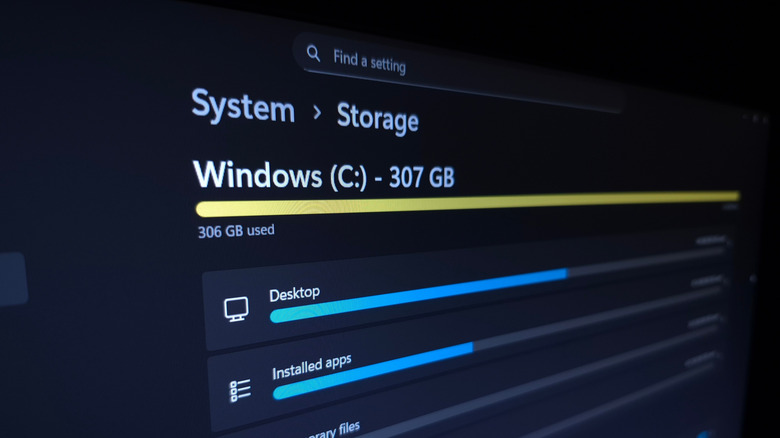
Microsoft Windows provides a robust, albeit often overlooked, set of tools designed to help users identify and manage their storage consumption. The primary interface for this is the Storage settings panel, offering a categorized breakdown of drive usage. To access this, users should press the Win + I key combination to open the Settings application, then navigate to System > Storage.
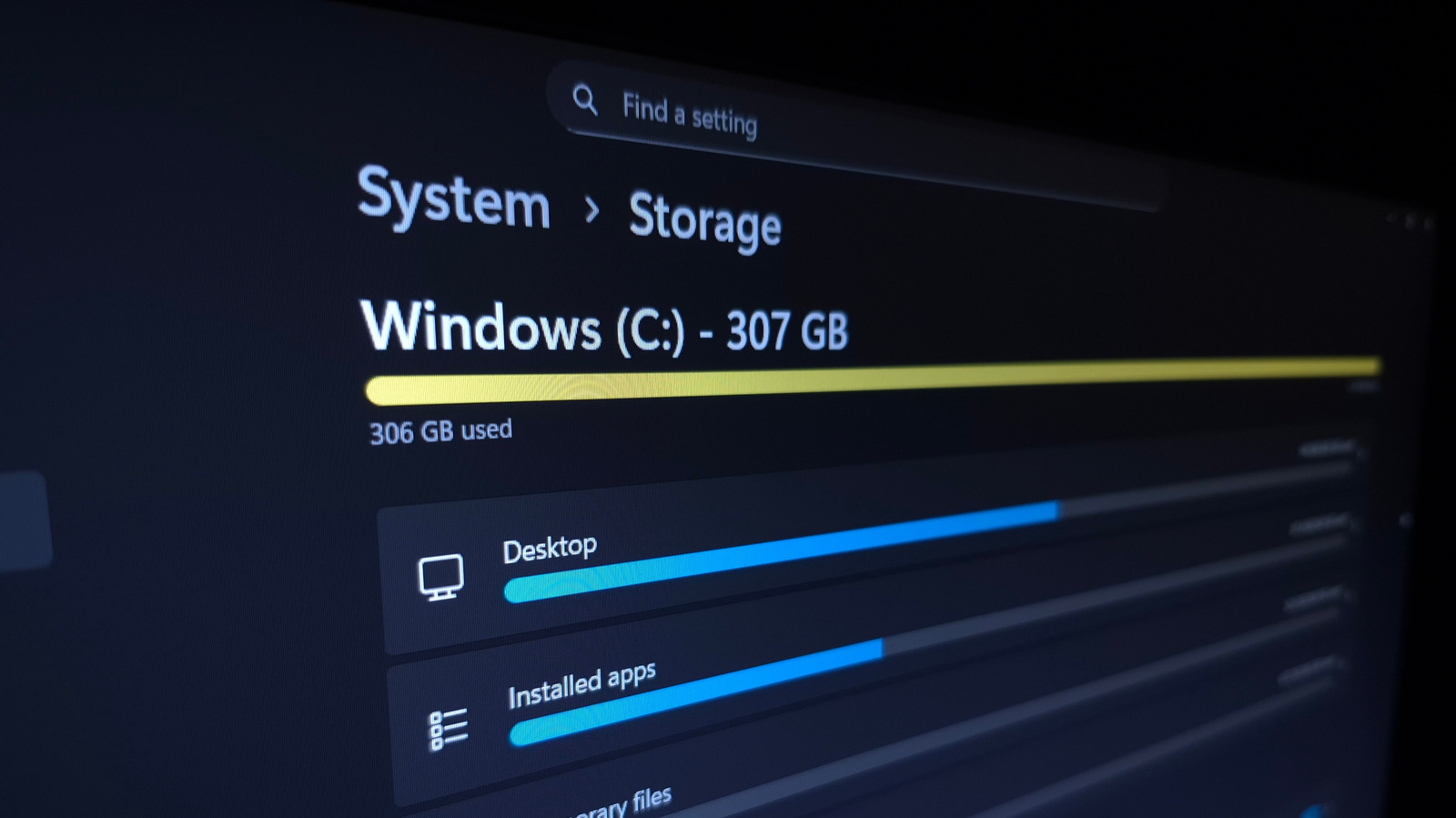
Upon opening the Storage settings, users are presented with a visual summary of their main disk, typically the C: drive, illustrating total space, used space, and a color-coded breakdown of categories such as "Installed apps," "Temporary files," "Documents," "Pictures," "Videos," and "Other." This initial overview is invaluable for quickly pinpointing the largest consumers of space. Each category is clickable, leading the user to more detailed management options.
One of the most frequently identified culprits for excessive storage use is Installed apps. Clicking this category directs users to the Settings > Apps > Installed apps page, a comprehensive list of all software installed on the system. To effectively identify and target the most impactful applications for removal, it is highly recommended to change the Sort by option to Size (Large to Small). This immediately brings the most resource-intensive applications to the top of the list. From here, users can review applications they no longer use or need. Under the three-dot (…) menu next to each application, the Uninstall option allows for the clean removal of unwanted software. For users with multiple storage drives, certain applications, particularly games downloaded from the Microsoft Store, may also offer a Move option, enabling relocation to another drive without a full reinstallation, a particularly useful feature for managing large game libraries.
Another significant area for quick space recovery is Temporary Files. This category, when selected, displays a list of various transient data types that Windows and applications generate. These can include browser caches, old update files, log files, thumbnails, and DirectX Shader Cache. Users can selectively check boxes next to items they wish to remove. It is crucial to exercise caution with some options, such as Downloads and the Recycle Bin. While these can accumulate substantial data, users might still have important files within them. Best practice dictates manually reviewing the Recycle Bin from the desktop before proceeding with a system-wide purge, and similarly, checking the contents of the Downloads folder for any files that need to be preserved or moved. For a more thorough cleanup of system-level temporary files, the Cleanup System Files option within this section should be utilized, as it reveals additional categories like previous Windows installations or upgrade logs that can consume many gigabytes.
For systems equipped with multiple physical storage drives, the Storage settings also provide functionality to inspect these additional volumes. By expanding the Advanced storage settings section and selecting Storage used on other drives, users can access the same detailed breakdown for each of their secondary disks, ensuring a holistic approach to storage management across their entire system.
Delving Deeper: Reducing Storage Utilized by System Features
Beyond applications and temporary files, core Windows system features themselves can claim a substantial portion of a drive. These are often categorized under System & reserved (which may require clicking "Show more categories" to reveal) and, while integral to the operating system’s functionality, some can be adjusted or disabled to free up space, particularly on systems with limited capacity. It is generally advisable to treat these as a last resort, as disabling certain features can impact system stability or recovery options.
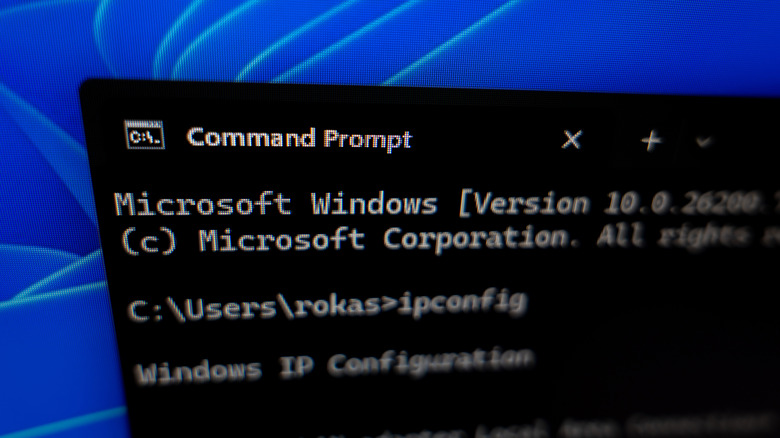
One such feature is hibernation. While useful for quickly resuming work, the hibernation file (hiberfil.sys) can be quite large, often matching the size of the system’s installed RAM. For users who rarely utilize hibernation, disabling it can reclaim significant space. This process requires administrative privileges and is performed via the Command Prompt. To do so, type "cmd" into the Start menu search bar, right-click on "Command Prompt," and select "Run as administrator." In the command window, type powercfg /hibernate off and press Enter. The system will remove the hiberfil.sys file. Should the need for hibernation arise again, the command powercfg /hibernate on will re-enable it.
Another system feature that can consume considerable space is System Restore. This functionality creates "restore points" that allow the system to revert to a previous state in case of problematic updates or software installations. While a vital safety net, a long history of restore points can accumulate. To manage this, navigate back to the Storage settings, locate "System & reserved," and click Manage system restore. This opens the System Protection tab within the System Properties dialog. Users can select their system drive (usually C:) and click Configure. Here, the Max Usage slider controls the percentage of disk space allocated for restore points. Reducing this percentage will limit the number of restore points kept. For immediate and significant space reclamation, the Delete button can be used to erase all existing restore points. However, this action should be taken with caution, as it removes the ability to revert the system to an earlier state should a critical issue arise. Expert advice suggests maintaining at least a small allocation for restore points for basic recovery capabilities.
Advanced Analysis: Third-Party Tools for Granular Insight
While Windows’ built-in tools offer a good starting point, they can sometimes lack the granular detail required for truly deep storage analysis. Categories like "Other" or generic file explorer links for "Documents" and "Videos" don’t provide an immediate visual breakdown of specific large files or folders. This is where specialized third-party applications become indispensable, offering a more intuitive and comprehensive visualization of disk usage.
Among the most highly recommended tools is TreeSize Free by JAM Software. This utility scans selected drives or directories and presents a hierarchical view of folder sizes, making it exceptionally easy to identify which directories and subdirectories are consuming the most space. For optimal results, it is crucial to run TreeSize Free as an administrator (via a button on its top toolbar) to ensure it can access all system files and folders. Users then select their entire C: drive for a comprehensive scan. The software displays folders sorted by size, with the largest at the top. Users can expand these folders using arrows to drill down into subdirectories, quickly pinpointing specific large files or nested folders. Common large directories include Program Files and Program Files (x86), where installed applications reside. It is important to reiterate that applications found here should be uninstalled via the Windows Settings panel, not deleted directly through TreeSize, to ensure proper removal and prevent residual files.
TreeSize Free also proves invaluable for examining personal files. By navigating to the user’s account under the Users directory, individuals can see detailed breakdowns of their personal documents, pictures, videos, and downloads. A particularly revealing area can be the AppData folder, which often houses application caches, temporary data, and downloads from browsers, streaming services, and email clients. Clearing these caches can sometimes free up multiple gigabytes. TreeSize also provides a convenient right-click context menu option to Open any folder directly in File Explorer, facilitating quick navigation to the identified large files.
Complementing TreeSize Free is dupeGuru, an open-source tool developed by Hardcoded Software. While TreeSize focuses on folder sizes, dupeGuru excels at finding duplicate files across the system. Duplicate files, often created unintentionally through multiple downloads, copy-pasting, or backup processes, can be insidious storage wasters that TreeSize might not explicitly highlight as "large files" but rather as redundant copies. dupeGuru scans for identical files and allows users to select and delete duplicates, retaining only one copy. This can be particularly effective for media libraries where multiple copies of photos or videos might exist across different folders.
Strategic Cleanup and Long-Term Prevention
Having identified the largest space consumers, the next step is strategic action. For gamers, a common source of significant storage consumption is inactive game installations. Opening game clients like Steam, Epic Games Launcher, or Xbox App and uninstalling titles that are no longer played can free up tens or even hundreds of gigabytes instantly. Large, unneeded files identified through TreeSize, such as old project files, unused virtual machine images, or outdated backups, should be systematically deleted. Crucially, after deleting files, the Recycle Bin must be emptied to permanently reclaim the space.
For files that are still valuable but too large to keep locally, offloading is an effective strategy. Cloud storage services like Google Photos, OneDrive, Dropbox, or YouTube offer solutions for media. High-resolution videos can be uploaded to YouTube and then deleted locally, with the option to stream them later. Similarly, vast photo collections can be synced with Google Photos, allowing for local deletion once cloud backup is confirmed. Microsoft’s OneDrive, integrated deeply with Windows, offers "Files On-Demand," which allows users to keep cloud copies of files while only downloading them to the local drive when needed, effectively turning local files into placeholders that consume minimal space. However, it is paramount to maintain multiple copies of truly important data for robust backup purposes, adhering to the "3-2-1 backup rule" (three copies, two different media types, one offsite).
For users who constantly battle storage constraints, investing in additional physical storage is often the most pragmatic long-term solution. External solid-state drives (SSDs) offer fast access speeds and capacities of a terabyte or more, providing ample room for media libraries, game installations, or project files. While generally more expensive per gigabyte than traditional hard disk drives (HDDs), their speed and durability make them an excellent choice for frequently accessed data. External HDDs, though slower, offer significantly larger capacities at a lower cost, making them suitable for archival storage or infrequently accessed data. Even a few high-capacity USB flash drives can serve as convenient portable storage for specific datasets.
To proactively manage storage and prevent future accumulation, Windows offers Storage Sense, an automated feature designed to clean up junk files regularly. Accessible through Settings > System > Storage, enabling Storage Sense allows the system to automatically delete temporary files, clear the Recycle Bin, and manage the Downloads folder based on user-defined policies. Users can configure Storage Sense to run only when storage is critically low or at regular intervals (daily, weekly, monthly). It is essential to carefully configure the settings for the Recycle Bin and Downloads folder to avoid accidental deletion of important files. For example, users can set items in the Recycle Bin to be deleted after 30 days, giving ample time for recovery. A proactive organizational habit, such as consciously placing only transient files in the Downloads folder, can further enhance the effectiveness of Storage Sense, transforming it into a powerful tool for maintaining a clean and efficient PC environment.
In conclusion, effective storage management on a Windows PC is a multi-faceted process that combines the intelligent use of built-in system tools with the power of specialized third-party applications and disciplined user habits. By systematically identifying large files, uninstalling unused applications, leveraging system optimizations, and considering external or cloud storage solutions, users can reclaim significant disk space. This not only resolves immediate storage crises but also contributes to a faster, more reliable, and ultimately more enjoyable computing experience, safeguarding against performance degradation and potential data loss in the long run.