George Chandra Eka
Apple’s Screen Time feature, integrated into iOS and iPadOS, stands as a pivotal tool for individuals seeking to manage their digital consumption and for parents aiming to establish healthy technology boundaries for their children. Introduced in 2018 with iOS 12, Screen Time emerged as a direct response to growing global concerns over smartphone overuse, digital addiction, and the broader impact of technology on mental health and productivity. Its robust suite of features empowers users with detailed insights into their device habits and provides actionable controls to foster a more balanced relationship with their iPhones and iPads. This article delves into the functionalities of Screen Time, its strategic applications, and its broader implications for digital well-being.
The advent of smartphones revolutionized communication, information access, and entertainment, but this unprecedented connectivity also brought unforeseen challenges. Studies by organizations like Common Sense Media and Pew Research Center have consistently highlighted a significant increase in daily screen time across all age groups, particularly among adolescents. Reports often indicate that adults spend several hours a day on their mobile devices, with a substantial portion dedicated to social media, gaming, and entertainment applications. This pervasive usage has led to widespread discussions about "tech neck," eye strain, disrupted sleep patterns, decreased attention spans, and even symptoms of digital dependency. Recognizing this societal shift, major technology companies, including Apple, began to invest in digital well-being initiatives, with Screen Time being Apple’s comprehensive answer. Its introduction marked a significant moment, providing native, system-level tools to help users regain control, moving beyond third-party solutions that often lacked deep integration.
Understanding Your Digital Footprint: The Diagnostic Power of Screen Time
The foundational element of Screen Time lies in its ability to meticulously track and present a user’s device activity, offering a diagnostic overview that is crucial for informed decision-making. To access this, users navigate to Settings > Screen Time on their iPhone or iPad. The initial display provides a quick summary, illustrating daily device usage through a graphical chart for the current week.
For a more granular analysis, tapping See All App & Website Activity reveals a comprehensive breakdown. This section is a treasure trove of data, showcasing:
- Daily Average Screen Times: An aggregated view of how much time is spent on the device each day, often broken down by app categories (e.g., Social, Games, Productivity).
- Top Apps: A ranked list of applications where the most time is spent, helping users identify potential time sinks.
- Device Unlocks: The total number of times the device has been unlocked, offering insight into habitual checking.
- First App After Unlock: Which applications are accessed immediately after unlocking the device, revealing unconscious behavioral patterns.
- Notifications: A list of apps that send the most notifications, highlighting potential triggers for engagement and distraction.
This historical data is invaluable. It transforms abstract feelings of "spending too much time on my phone" into concrete, quantifiable facts. For users with multiple Apple devices (iPhone, iPad, Mac), the Devices filter at the top-right allows for activity review specific to each device. The ability to toggle between Week and Day breakdowns, and to navigate backward or forward in time, provides a flexible framework for observing trends and evaluating the effectiveness of any implemented restrictions. This analytical phase is critical, as self-awareness often serves as the primary catalyst for behavioral change.
Strategic Self-Management: Reclaiming Personal Time and Focus
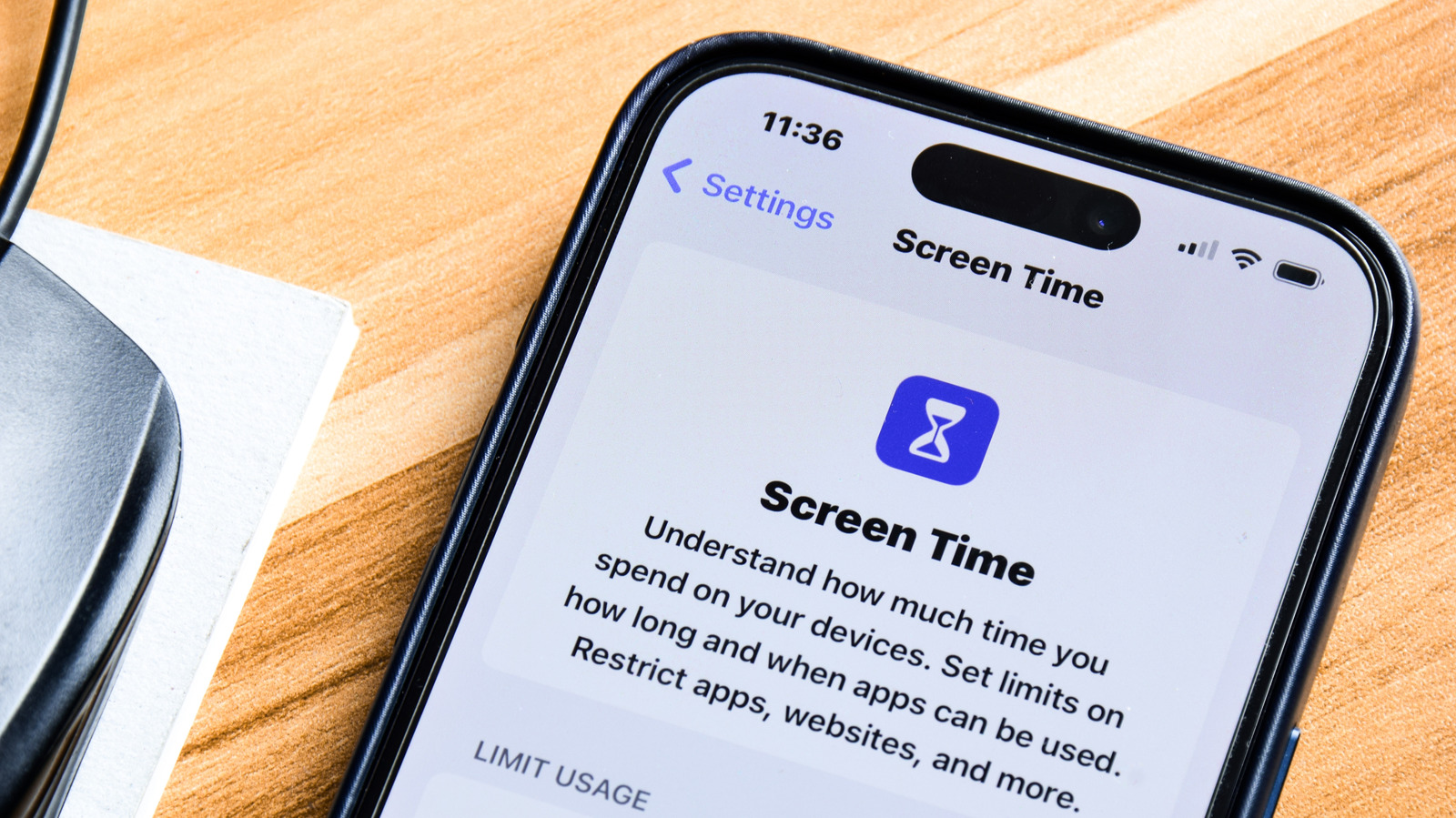
Beyond mere data reporting, Screen Time offers a robust set of features designed to actively limit and manage device usage, catering to individual preferences for digital discipline.
-
Always Allowed: Before imposing any restrictions, users can designate essential applications that should remain accessible at all times. This "whitelist" typically includes communication apps, health utilities, or work-related tools that cannot be compromised during periods of reduced screen time. Within this setting, users can also refine Contacts access, choosing to allow calls from all numbers or only from a pre-selected list, ensuring vital communication remains open.
-
Downtime: This feature functions as a digital curfew, restricting access to all apps except those explicitly marked as "Always Allowed" and designated contacts. Downtime can be toggled on manually for immediate effect or, more commonly, scheduled on a per-day basis. For instance, a user might schedule Downtime from 10 PM to 7 AM on weekdays to promote better sleep hygiene, with a five-minute warning preceding its activation. This creates a powerful deterrent against late-night scrolling and encourages disengagement from digital distractions during critical rest periods.
-
App Limits: This is perhaps the most direct method for curbing overuse of specific applications or categories. Users can select Add Limit to browse apps categorized by type (e.g., Social, Games, Entertainment, Productivity). Limits can be applied broadly to an entire category or individually to specific apps. A "Websites" option further extends this control to web-based content accessed through Safari. After selecting the desired apps or categories, users set a maximum daily time allowance. The Customize Days option allows for varying limits on weekends versus weekdays, acknowledging differing schedules. When a user approaches their daily limit, a notification serves as a reminder. Once the limit is reached, the app icon is dimmed, and attempting to open it displays a screen indicating the limit has been met. While there’s an option to "Ignore Limit" for an additional minute, 15 minutes, or for the rest of the day, the psychological friction created by this prompt often proves sufficient for many users. For highly addictive apps, considering additional measures like hiding the app from the home screen can add another layer of separation, as detailed in other iOS productivity guides.
-
Share Across Devices: For users with multiple Apple devices linked to the same Apple ID, enabling "Share Across Devices" ensures that all Screen Time settings and limits are synchronized across all platforms. This prevents a user from simply switching from their iPhone to their iPad to bypass restrictions, creating a unified digital boundary. If disabled, each device must be configured independently.
Empowering Parents: Robust Controls for Child Devices
Screen Time is an indispensable tool for parents managing their children’s iPhones or iPads, offering granular control over device usage, content access, and communication. Integrated seamlessly with Apple’s Family Sharing, parents can easily view and manage the Screen Time settings for each child within their family group by tapping their name at the bottom of the Screen Time page on their own device. This centralized control addresses a significant concern for parents navigating the digital landscape with younger users.
Several Screen Time options are particularly pertinent for children’s devices:
-
Screen Distance: A health-focused feature, Screen Distance leverages the TrueDepth camera to detect if a child is holding their device too close to their face for an extended period. It prompts the child to move the device further away, aiming to mitigate eye strain and reduce the risk of myopia, a growing concern among young digital natives.
-
Communication Limits: This feature allows parents to control who their child can communicate with, both during and outside of Downtime. Options include limiting communication to "Contacts Only" or even a "Specific Contacts" list. This applies to Apple’s first-party communication apps like Phone, Messages, and FaceTime. It’s crucial for parents to understand, however, that these restrictions typically do not extend to third-party messaging applications such as WhatsApp, Snapchat, or Instagram, requiring separate management within those app settings if available.
-
Communication Safety: A powerful tool for child protection, Communication Safety can detect explicit images sent or received in Messages. When such content is identified, the feature blurs the image and provides guidance to the child, encouraging them to speak with a trusted adult or access resources for help. This proactive approach aims to safeguard children from potentially harmful content and empower them with knowledge.
-
Content & Privacy Restrictions: This comprehensive section offers a wide array of controls over various aspects of a child’s device experience:
- iTunes & App Store Purchases: Parents can prevent app installations, deletions, or in-app purchases.
- Allowed Apps: Specific built-in apps (e.g., Camera, Safari, Wallet) can be disabled.
- Content Restrictions: This includes setting age ratings for movies, TV shows, apps, and books, and filtering web content to limit access to adult websites or allow only specific approved sites.
- Privacy Restrictions: Parents can prevent changes to location services, contacts, calendars, photos, microphone access, and other sensitive privacy settings.
- Allow Changes: This section allows parents to restrict changes to passcode, account settings, cellular data usage, volume limit, and other system-level configurations, preventing children from circumventing parental controls.
A child can, in some cases, request approval from a parent to bypass certain restrictions, such as requesting more time on an app or permission to download an age-gated app. Parents receive these requests and can approve or deny them remotely. Crucially, once all settings are configured, parents must use the Lock Screen Time Settings option to create a dedicated Screen Time PIN. This PIN is distinct from the device’s unlock passcode and is essential for preventing children from altering the established controls, thereby securing the parental boundaries. Even if a parent does not have their own Apple device, they can set up these controls directly on the child’s device and then secure them with a PIN.
Maximizing Effectiveness: Beyond the Basic Settings
While Screen Time offers a robust framework, its ultimate effectiveness often hinges on the user’s commitment and strategic implementation. The "Ignore Limit" option, while offering flexibility, can be a loophole for those lacking self-discipline.
For individuals truly committed to significantly reducing their screen time, more stringent measures can be adopted:

- Self-Imposed Passcode: Setting a Screen Time passcode for oneself, even if tempting to bypass, adds a layer of friction that can be enough to interrupt impulsive app usage. The extra step of entering a code can provide a moment of reflection.
- External Accountability: A more effective strategy for some involves having a trusted friend or family member set the Screen Time PIN. This individual would then only provide the passcode in genuine emergencies, creating external accountability.
- Inconvenient Passcode Storage: As suggested by some digital wellness advocates, a user might have a friend set a complex Screen Time PIN, which is then recorded and stored in a highly inconvenient or inaccessible location (e.g., a digital vault with a very long, complex password, or a physical note stored in a safe deposit box). This ensures that while the option to override exists, the effort required makes it a last resort rather than an easy bypass.
Furthermore, integrating Screen Time with other iOS features, such as Focus Modes, can amplify its impact. Focus Modes allow users to suppress notifications from specific apps or contacts during designated periods (e.g., Work, Sleep, Personal), preventing the constant stream of alerts that often trigger device engagement. By combining app limits with a quieted notification environment, users can create a truly distraction-free experience.
Broader Implications and the Future of Digital Well-being
The introduction and continued evolution of Screen Time reflect a broader societal shift towards conscious digital consumption. Technology companies are increasingly expected to not only innovate but also to provide tools that empower users to maintain a healthy relationship with their products. Screen Time represents Apple’s significant contribution to this ongoing dialogue, acknowledging the double-edged sword of ubiquitous technology.
However, challenges remain. The design of many popular apps, with their infinite scroll features, notification strategies, and reward systems, is often optimized for maximum engagement, sometimes inadvertently working against digital well-being goals. This creates an ongoing tension between user intent and platform design.
Looking ahead, the digital well-being landscape is likely to evolve further. We may see more sophisticated AI-driven tools that learn user habits and proactively suggest interventions, more granular controls over specific app features rather than just overall time, and deeper integration with health and wellness platforms. The debate will continue to balance individual responsibility for managing screen time with the ethical obligations of tech companies to design platforms that are not inherently addictive.
In conclusion, Apple’s Screen Time is more than just a parental control feature; it is a comprehensive ecosystem designed to provide transparency, control, and ultimately, greater digital well-being for all iOS and iPadOS users. By leveraging its diagnostic capabilities and restrictive settings, individuals and families can navigate the complexities of the digital age with greater intention and balance.