George Chandra Eka
The modern computer keyboard, an omnipresent tool in digital interaction, features a standardized layout that has largely remained unchanged for decades. While the alphanumeric and core modifier keys are indispensable, a closer examination reveals a surprising number of keys that often go unused or are rarely intentionally pressed by the average user. Keys such as F7, Scroll Lock, Pause Break, and Insert frequently occupy prime keyboard real estate without contributing meaningfully to daily workflows. This underutilization not only represents a missed opportunity for efficiency but can also, in some instances, lead to accidental interruptions when keys like Caps Lock or Insert are inadvertently activated. The ability to remap these keys offers a profound opportunity to customize the computing experience, transforming a generic input device into a highly personalized tool tailored to individual needs and maximizing productivity.
Microsoft PowerToys: Revolutionizing Keyboard Customization
For Windows users seeking to reclaim and repurpose their keyboard’s latent potential, Microsoft’s free PowerToys suite has emerged as a leading solution. PowerToys, an open-source collection of utilities designed to enhance the Windows experience, includes a powerful feature called Keyboard Manager. This tool allows users to remap individual keys and even entire keyboard shortcuts, providing a flexible and user-friendly interface for advanced customization. The initiative to revive PowerToys, originally a set of utilities for Windows 95 and Windows XP, underscores Microsoft’s renewed commitment to empowering power users with tools that extend the operating system’s native capabilities. Since its reintroduction in 2019, PowerToys has garnered significant community support and undergone continuous development, reflecting a broader trend towards personalized computing environments.
Before the widespread adoption of PowerToys, key remapping on Windows often involved more complex or less user-friendly methods, such as direct modifications to the Windows Registry or reliance on third-party utilities that could sometimes be less stable or more challenging to configure. The integration of Keyboard Manager within the official Microsoft PowerToys suite provides a streamlined, reliable, and easily reversible method for customizing keyboard functions, making advanced personalization accessible to a wider audience. This shift represents a significant step forward in user control over hardware interaction, moving beyond fixed input assignments to a dynamic, adaptable system.
Diving Deeper into PowerToys Keyboard Manager
The process of remapping keys with PowerToys Keyboard Manager is designed for intuitiveness. The first step involves acquiring PowerToys, which is readily available through official channels. Users can download it directly from the Microsoft Store, offering a convenient, automatically updated installation experience, or from the project’s GitHub repository, which provides access to the latest releases and source code for more technically inclined users. Once installed, PowerToys runs in the background, typically residing in the system tray, allowing easy access to its various utilities.
-
Installation and Activation: Upon launching PowerToys, users navigate to the Keyboard Manager section within the left sidebar. A toggle switch labeled "Enable Keyboard Manager" must be activated to enable the remapping functionality. This ensures that any changes made are applied and active. The design philosophy behind PowerToys prioritizes user control, allowing features to be enabled or disabled as needed, providing flexibility without permanent system alterations.
-
Remapping Individual Keys: To remap a single key, users click the "Remap a key" option, which opens a dedicated panel. Within this panel, the "Add key remapping" button initiates the process. The interface presents two critical fields: "Select" and "To send:". Under "Select," the user designates the physical key on the keyboard they wish to modify. This can be done either by clicking a "Select" button and pressing the desired key or by choosing it from an extensive dropdown list that includes virtually every key on a standard keyboard, including many function and special keys. Subsequently, under "To send:," the user specifies the new function or output for that key. For example, if "Caps Lock" is chosen in the "Select" field and "Delete" is chosen in the "To send:" field, every press of the Caps Lock key will henceforth register as a Delete command, effectively transforming its utility and freeing up its prominent position for a more frequently used action. This granular control allows for highly specific adaptations to individual typing habits and software requirements.
Beyond reassigning a key to another existing key, Keyboard Manager offers more versatile options. The "To send:" dropdown menu includes a "Disable" option at the top of the list. Selecting this effectively deactivates the chosen key, preventing any input when pressed. This is particularly useful for keys that are frequently hit by mistake, such as Insert or Caps Lock, removing them as potential workflow disruptors.
-
Advanced Remapping: Shortcuts and Text Snippets: The utility of Keyboard Manager extends beyond single key remapping. Users can also assign key combinations as the output for a remapped key. This feature enables the creation of custom shortcuts. For instance, a rarely used key could be remapped to trigger a complex shortcut like "Ctrl + Shift + Esc" to instantly launch the Task Manager, streamlining system management. The "To send:" section also reveals a wealth of pre-defined controls, such as "Help," "Play/Pause Media," and "Start Mail," which can be assigned to single keys, providing quick access to common system functions without requiring dedicated media keys on the keyboard itself.
Another powerful feature is the ability to remap a key to output a custom text string. By changing the "Send Key/Shortcut" box to "Send Text," users can enter any sequence of characters. Pressing the remapped key will then automatically type this predefined text. While useful for short, common phrases like an email address or a phone number, for more extensive text expansion, specialized utilities like Beeftext or comprehensive clipboard managers such as ClipClip offer more robust features, including dynamic snippets and advanced formatting options. These tools, often part of a broader productivity suite, complement PowerToys by handling more complex text automation scenarios.
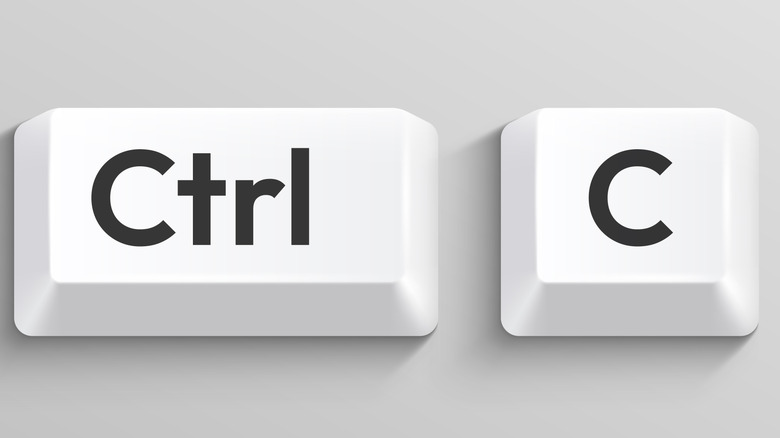
Furthermore, PowerToys Keyboard Manager includes a "Remap a shortcut" panel. This advanced feature allows users to change existing keyboard shortcuts, either system-wide or for specific applications. For example, a user who frequently utilizes "Ctrl + P" for printing but finds its position ergonomically challenging could remap it to "Ctrl + Q," making it more comfortable and efficient. This level of shortcut customization is invaluable for professionals who spend significant time in specific software applications, allowing them to optimize their interaction for speed and comfort.
Prime Candidates for Keyboard Transformation
A quick survey of most standard keyboards reveals several keys that are prime candidates for remapping due to their infrequent use or disruptive nature. Identifying these underutilized keys is the first step in unlocking a more efficient and personalized typing experience.
-
The Function Keys (F1-F12): Originally designed for application-specific functions, many F-keys (e.g., F7, F9, F11, F12) have fallen out of common use for the average user, or their functions are easily replicated through other means. While F5 is often used for refresh and F2 for renaming, many others remain largely untouched. These keys are excellent candidates for remapping to frequently used commands or application launches. For example, F7 could launch a web browser, F9 could mute/unmute audio, or F12 could open a specific productivity application.
-
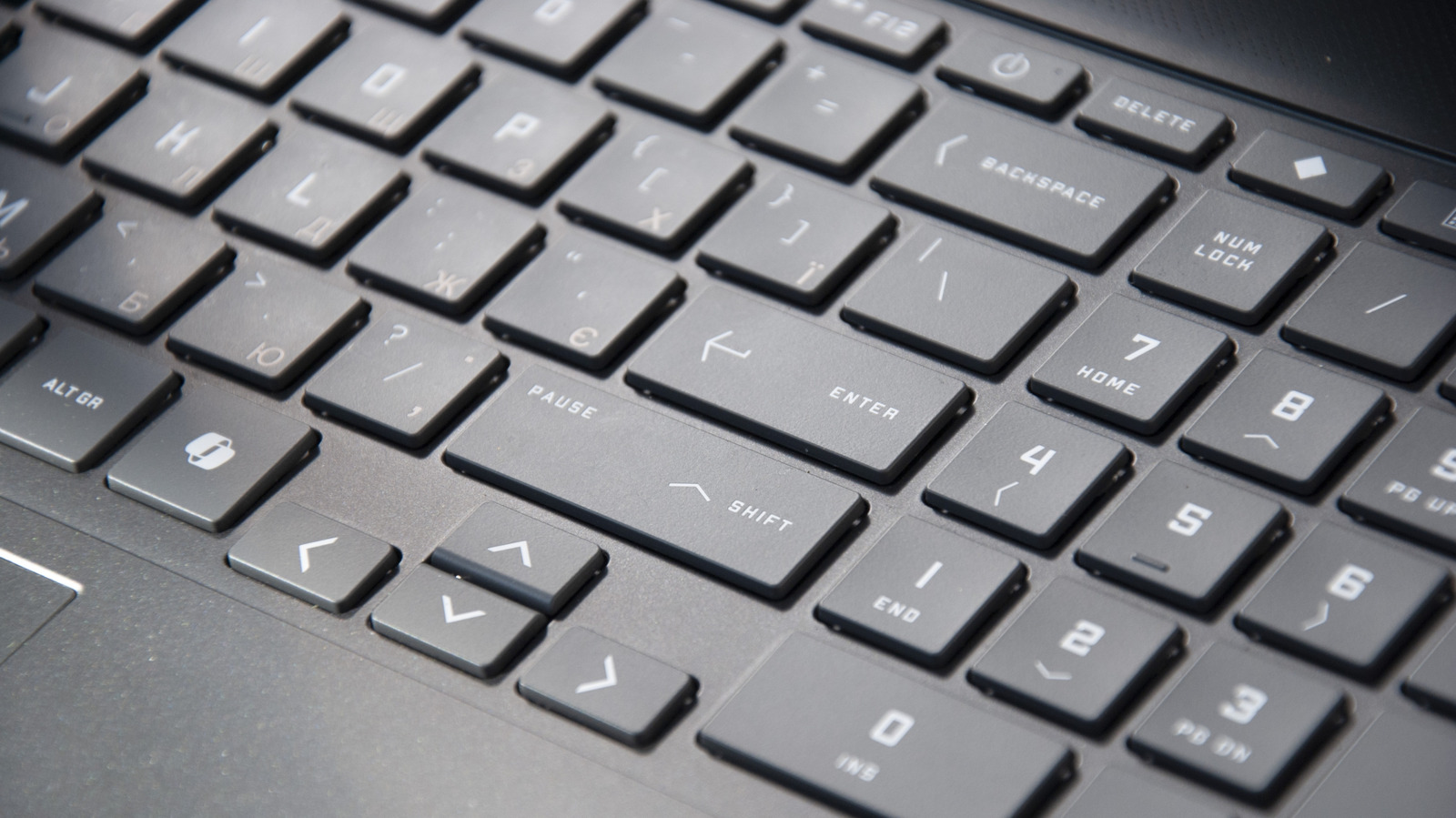
The Obscure Trio: Scroll Lock, Pause Break, Insert: These keys represent relics of older computing paradigms. Scroll Lock, once used to change the behavior of arrow keys within spreadsheet applications, is virtually obsolete in modern software. Pause Break, which briefly halted system processes in DOS environments, serves little practical purpose in contemporary operating systems. The Insert key, designed to toggle between insert and overwrite modes, is often a source of frustration, accidentally disrupting text entry. These keys are ideal for either disabling entirely or remapping to highly useful functions, such as launching an email client, opening a screenshot tool, or triggering a custom macro.
-
The Controversial Caps Lock: Positioned prominently on the left side of the keyboard, Caps Lock is one of the most frequently remapped keys. While essential for specific tasks involving all-caps text, many users find its primary function to be rarely needed and prone to accidental activation. Its prime location makes it an excellent candidate for remapping to a more frequently used modifier key like Control or Shift, a critical function like Backspace (especially for touch typists), or a custom shortcut. The debate over Caps Lock’s utility is long-standing, and remapping provides a definitive solution for those who find its default behavior suboptimal.
-
Other Underutilized Keys: Depending on the keyboard layout, other keys might also be suitable for remapping. The Num Lock key, while vital for keyboards with a dedicated numeric keypad, can be repurposed on compact keyboards or by users who rarely engage the numpad. Keys such as the Application key (often found between the right Alt and Ctrl keys), which typically mimics a right-click, can also be remapped to launch a specific application or perform a common action. The Print Screen key, while useful for screenshots, might be better assigned to a more sophisticated screenshot utility or a different function if a user already employs a dedicated screenshot tool.
The specific actions to remap these keys to depend heavily on an individual’s workflow and the features of their keyboard. For users whose keyboards lack dedicated media control keys, remapping an unused key to "Play/Pause Media," "Volume Up," or "Volume Down" can significantly enhance the convenience of managing audio playback without needing to invest in new hardware.
Beyond Basic Remapping: Enhancing Workflow and Accessibility
The implications of keyboard remapping extend far beyond simple convenience, touching upon core aspects of productivity, accessibility, and user experience.
-
Boosting Productivity: The primary benefit of remapping is the potential for significant productivity gains. By assigning frequently performed actions, application launches, or complex shortcuts to easily accessible keys, users can reduce mouse reliance, minimize repetitive strain, and accelerate their interaction with software. This is particularly valuable for professionals in fields such as programming, graphic design, data entry, and content creation, where efficiency in command execution directly translates to saved time and increased output. Custom shortcuts can shave seconds off routine tasks, accumulating into substantial time savings over a workday or week.
-
Tailoring for Specific Needs: Keyboard remapping is a powerful tool for accessibility. Users with motor impairments or specific ergonomic requirements can customize their keyboard layout to minimize uncomfortable hand movements or to place frequently used functions within easier reach. For instance, remapping keys to larger, more accessible targets or consolidating common actions onto a single key can significantly improve the usability of a computer for individuals with physical limitations. This personalization capability transforms the keyboard from a one-size-fits-all device into an adaptive interface.
-
Gaming and Application-Specific Customization: While PowerToys is a general-purpose utility, its remapping capabilities can also benefit gamers and users of specialized applications. For gamers, remapping can optimize control schemes for specific titles, placing critical in-game actions on more intuitive keys. Similarly, professionals using complex software suites (e.g., CAD programs, video editors, music production software) can remap keys to trigger frequently used tools or commands, streamlining their creative or technical workflows. While dedicated gaming keyboard software often offers more robust macro capabilities, PowerToys provides a solid foundation for system-wide or application-specific adjustments.
Alternative Approaches to Key Remapping
While Microsoft PowerToys offers an excellent, officially supported solution, other tools exist for keyboard remapping, each with its own advantages and considerations.
-
SharpKeys: Registry-Level Control: SharpKeys is another popular utility that achieves key remapping by directly modifying the Windows Registry. This approach has a fundamental difference from PowerToys: changes made by SharpKeys are system-wide and persist even before Windows loads the user’s profile, including on the login screen. They affect all user accounts on the machine. While this provides a deeper, more permanent remapping, it also makes changes less easily reversible than PowerToys, which can be toggled off or simply closed to revert to default key behaviors. SharpKeys is often preferred for users who desire permanent, system-level changes and do not need the broader suite of PowerToys utilities.
-
Proprietary Manufacturer Software: Leading gaming keyboard manufacturers like Logitech (Logitech Options, G HUB), Razer (Razer Synapse), and Corsair (iCUE) provide their own proprietary software suites. These applications offer extensive customization options, often including per-key RGB lighting, macro recording, and key remapping. Their primary advantage lies in their deep integration with the manufacturer’s hardware, allowing for sophisticated, game-specific profiles and complex multi-key macros. However, these tools are typically limited to the specific brand of hardware and may not offer system-wide remapping as broadly as PowerToys or SharpKeys. They are best suited for users invested in a particular brand ecosystem, especially gamers seeking competitive advantages through custom controls.
-
AutoHotkey: The Power User’s Scripting Tool: For users requiring the ultimate in customization and automation, AutoHotkey stands as a powerful, open-source scripting language. AutoHotkey allows users to create highly complex scripts to remap keys, define custom hotstrings (text expansion), and automate virtually any task on Windows. Its capabilities far exceed simple key remapping, enabling the creation of intricate macros, custom user interfaces, and sophisticated system automation. The learning curve for AutoHotkey is steeper than for PowerToys or SharpKeys, as it requires writing scripts, but its flexibility is unparalleled for power users and developers who need to fine-tune every aspect of their keyboard interaction and system behavior.
The Broader Implications of Keyboard Personalization
The movement towards greater keyboard personalization, spearheaded by tools like PowerToys, signifies a broader trend in human-computer interaction. It acknowledges that a standardized interface, while necessary for mass production, often falls short of optimizing individual user experience.
-
Ergonomics and User Comfort: Customized keyboard layouts can significantly improve ergonomics. By placing frequently used commands within comfortable reach and eliminating the need for awkward hand positions or repetitive mouse movements, users can reduce the risk of repetitive strain injuries (RSIs) and enhance overall comfort during long computing sessions. This focus on user well-being is a critical aspect of modern interface design.
-
The Future of Human-Computer Interaction: The ability to dynamically remap and redefine input signals points towards a future where computing devices are more adaptive and responsive to individual user preferences. This shift from static hardware functions to dynamic, software-defined inputs opens possibilities for highly specialized interfaces tailored to unique professional demands, accessibility needs, or personal preferences, blurring the lines between hardware and software customization.
-
Microsoft’s Commitment to User Empowerment: The continued development and enhancement of PowerToys, particularly its Keyboard Manager, underscore Microsoft’s commitment to empowering its user base. By providing official, robust tools for system customization, Microsoft fosters a more engaged and productive community, recognizing that greater control over the operating system’s interaction points leads to a more satisfying and efficient user experience. This strategy not only enhances the value proposition of Windows but also encourages innovation within the developer community.
Conclusion: A Paradigm Shift in Digital Interaction
The humble keyboard, often taken for granted, holds immense untapped potential for enhancing productivity and personalization. Through accessible tools like Microsoft PowerToys Keyboard Manager, users can transform their typing experience, repurposing dormant keys and optimizing shortcuts to align perfectly with their individual workflows. This capability moves beyond merely fixing minor inconveniences; it represents a paradigm shift in how users interact with their digital environments, promoting efficiency, improving ergonomics, and fostering a deeper connection between the user and their machine. As computing continues to evolve, the ability to customize fundamental input devices will remain a cornerstone of user empowerment, ensuring that technology adapts to human needs rather than the other way around. The era of the truly personalized keyboard is not just arriving; it is already here, waiting to be unlocked.