George Chandra Eka
The persistent challenge of limited battery life remains a significant concern for Windows laptop users, particularly when operating away from a power source. While advancements in hardware and software have led to incremental improvements, many devices continue to experience rapid power depletion, often leaving users seeking an outlet sooner than anticipated. This issue is particularly pronounced in systems relying on the more power-intensive x86 architecture, a common foundation for many mainstream laptops, contrasting with the more energy-efficient ARM-based systems that Microsoft has increasingly championed. Understanding and implementing strategic adjustments to system settings and usage patterns can yield substantial gains in runtime, transforming a device from a tethered workstation into a truly portable computing tool.
The modern computing landscape demands greater mobility, yet the reality for many Windows laptop users is a continuous battle against the ticking clock of battery depletion. This scenario often culminates in the frustration of a device shutting down prematurely, an experience exacerbated by the increasing reliance on portable electronics for work, education, and personal use. While premium models often boast extended battery capabilities, the average Windows laptop, especially those with settings optimized for peak performance, may struggle to maintain power through a standard workday. Windows 11, despite recent optimization efforts from Microsoft, has faced criticism regarding its overhead and power consumption, making user-level adjustments even more critical for preserving battery longevity.
The Evolving Landscape of Laptop Power Management
The quest for longer laptop battery life is not new; it has been an ongoing endeavor since the inception of portable computing. Early laptops offered mere hours of operation, gradually extending as battery technology improved and operating systems became more sophisticated in their power management. Microsoft’s Windows operating system has seen several iterations of power-saving features. From the basic "Power Schemes" in older versions to the more granular "Power Options" in Windows 7 and 10, and now the streamlined "Power & battery" settings in Windows 11, the underlying goal has always been to balance performance with endurance.
The shift towards ARM-based systems, exemplified by devices like Microsoft’s Surface Pro X, represents a significant turning point in this evolution. These processors are inherently designed for lower power consumption, drawing inspiration from mobile phone chipsets. While x86 architecture, predominantly from Intel and AMD, offers robust performance for demanding tasks, it typically comes at the cost of higher power draw. This architectural dichotomy means that optimizing software settings becomes paramount for the vast majority of Windows laptops that continue to utilize x86 processors.
Microsoft has acknowledged the importance of power efficiency. Updates to Windows 11, such as those released in mid-2023, have aimed to address initial performance and battery drain concerns, indicating an ongoing commitment to refining the operating system’s power footprint. However, the sheer complexity of modern operating systems, coupled with a diverse ecosystem of hardware components and third-party applications, means that no single update can fully negate the need for user intervention in power management.
Foundational Steps to Extend Battery Life
Before delving into advanced configurations, several fundamental adjustments can immediately impact a laptop’s battery performance. The most direct and often most effective method is reducing screen brightness. The display backlight is consistently one of the most power-hungry components of a laptop, often accounting for 30-50% of total power consumption. Accessing the Quick Settings panel by pressing Win + A and dragging the brightness slider down can yield significant battery savings. For instance, reducing screen brightness from 100% to 50% can add substantial runtime, often an hour or more, depending on the display technology and size.
Beyond screen brightness, other low-hanging fruit include managing peripheral connections. Disconnecting external USB devices, especially those that draw power (like external hard drives or charging phones), and disabling Bluetooth or Wi-Fi when not in use can conserve precious energy. Even minor power draws from idle peripherals can collectively contribute to accelerated battery depletion over time.
Implementing Energy-Efficient Power Plans
Windows offers several power modes and plans designed to cater to different usage scenarios, balancing performance with power consumption. These plans often automatically switch between configurations when a laptop is plugged in versus running on battery. While manufacturers typically pre-tune these plans, users can customize them to better suit their individual needs.
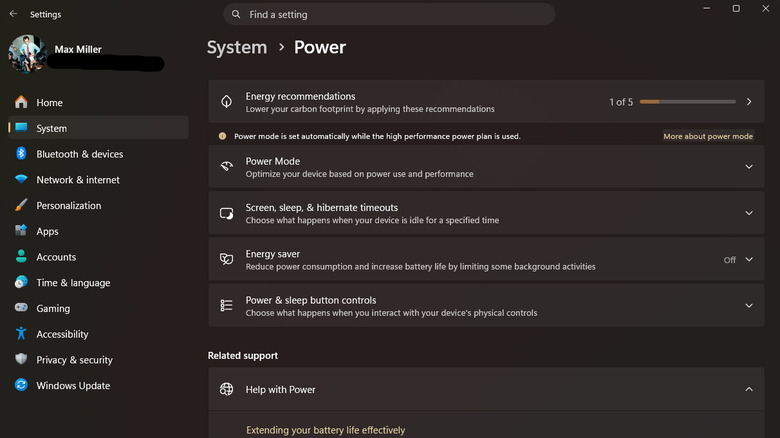
To access these settings in Windows 11, users should navigate to Settings > System > Power & battery. Within this section, the "Power Mode" setting allows for quick selection between options like "Best power efficiency," "Balanced," and "Best performance." Choosing "Best power efficiency" will automatically throttle the CPU, reduce display refresh rates (on some panels), and limit background processes. Below this, users can also adjust "Screen, sleep, & hibernation timeouts," crucial for preventing the system from staying awake unnecessarily when idle. Setting these timeouts to shorter durations, such as 5-10 minutes for screen off and 15-30 minutes for sleep, can prevent significant energy waste.
The "Energy Saver" feature, similar to power-saving modes on smartphones, provides a more aggressive approach. When enabled, it actively restricts background activities, lowers screen brightness, and disables some of Windows’ more visually elaborate effects. This mode is particularly useful when maximum runtime is the priority. Users can configure Energy Saver to activate automatically when the battery level drops below a specified threshold, typically between 20% and 30%.
For users seeking more granular control, the legacy Control Panel still offers extensive power options. Searching for "Control Panel" in the Start menu and then navigating to Power Options reveals a more comprehensive interface. Here, users can select the "Power saver" plan or modify existing plans. Clicking "Change plan settings" and then "Change advanced power settings" opens a detailed menu. Within this menu, settings like "Minimum processor state" and "Maximum processor state" under "Processor power management" can be adjusted. Artificially limiting the maximum processor state, for instance, to 70-80% when on battery, can significantly reduce CPU power consumption, though it will naturally impact peak performance. For light tasks like web browsing or document editing, this trade-off is often imperceptible but provides considerable battery gains.
Visual Effects and Performance Trade-offs
Modern operating systems, including Windows 11, incorporate various visual flourishes like transparency, animations, and shadows to enhance the user experience. While aesthetically pleasing, these effects consume system resources, particularly the GPU, which in turn draws power. Disabling these visual elements can offer a noticeable improvement in battery life, especially on budget or older laptops where the integrated graphics might be less efficient.
Users can toggle off "Transparency effects" and "Animation effects" by navigating to Settings > Accessibility > Visual Effects. For a more drastic reduction in visual overhead, searching for "performance" in the Start menu and selecting "Adjust the appearance and performance of Windows" opens a dedicated dialog. Here, choosing "Adjust for best performance" will disable a wide array of visual effects, resulting in a more utilitarian but significantly more power-efficient interface. This particular adjustment has a disproportionately positive impact on laptops with less powerful processors and integrated graphics, as it reduces the computational load required to render the desktop environment.
Managing Background Applications and Processes
Even with optimized power settings, unmanaged background applications and processes can silently drain a laptop’s battery. Many applications are configured to launch at startup or run continuously in the background, consuming CPU cycles, memory, and network resources without direct user interaction.
The first line of defense is the taskbar. After closing visibly open applications, users should check the system tray, located in the bottom-right corner, often concealed behind a small upward-facing arrow. Right-clicking and closing any unnecessary applications running here, such as cloud sync clients, communication apps, or utility software, can immediately reduce power consumption.
Browser tabs are another significant source of battery drain. Modern web browsers are resource-intensive, and having numerous tabs open, especially those with dynamic content, videos, or scripts, can heavily tax the CPU and RAM. Closing unneeded tabs is a simple yet effective strategy. For tabs that may be needed later, utilizing browser features like "tab groups" (available in Chrome and Edge) to organize and then close entire groups, or bookmarking pages, can help maintain productivity without the continuous resource drain. Furthermore, most modern browsers offer "memory saver" or "sleeping tabs" features (e.g., Chrome’s Memory Saver, Edge’s Sleeping Tabs). Enabling these features allows the browser to automatically suspend inactive tabs, freeing up system resources and reducing power draw.
For a deeper dive into system resource consumption, the Task Manager (accessible via Ctrl + Shift + Esc) is an invaluable tool. Under the "Processes" tab, users can sort by "CPU," "Memory," or "Disk" usage to identify resource-intensive applications or background processes. While caution is advised against ending unfamiliar processes, identifying and closing known applications that are consuming excessive resources can be highly beneficial. The "Startup apps" tab within Task Manager also allows users to disable programs from launching automatically with Windows, preventing unnecessary background activity from the outset. For advanced users, tools like Chris Titus Tech’s WinUtil offer more automated ways to cull preselected batches of non-essential processes and services.
Broader Implications and Future Outlook
Optimizing laptop battery life extends beyond mere convenience; it carries significant implications for productivity, environmental impact, and hardware longevity. For mobile professionals and students, extended battery life translates directly into uninterrupted work sessions and increased flexibility. Reduced reliance on power outlets enhances productivity in diverse environments, from commutes to cafes.
From an environmental perspective, extending battery life can contribute to sustainability efforts. By reducing the frequency of charging cycles, the overall energy consumption of the device is lowered. Furthermore, prolonging the effective lifespan of a laptop’s battery through optimized usage can defer the need for battery replacements or new device purchases, thereby reducing electronic waste.
The technological trajectory for laptop power management points towards continued advancements in several areas. Hardware manufacturers are consistently developing more power-efficient components, from CPUs and GPUs to displays and storage. The maturation of ARM-based Windows laptops promises a future where performance and endurance are less of a trade-off. Concurrently, Microsoft is expected to further refine Windows’ power management algorithms, leveraging artificial intelligence and machine learning to predict usage patterns and dynamically adjust settings for optimal efficiency without user intervention.
However, despite these advancements, the onus will likely remain on users to understand and apply best practices for battery conservation. The diverse range of user needs, software applications, and hardware configurations means that a "one-size-fits-all" solution to battery life is improbable. Instead, a combination of intelligent system design, operating system optimization, and informed user choices will collectively define the future of portable computing endurance. By actively managing settings and understanding the factors that contribute to power drain, Windows laptop users can significantly enhance their device’s portability and ensure that their technology serves them effectively, even when far from a charger.