George Chandra Eka
The performance degradation of an Apple MacBook, characterized by sluggishness, unresponsive applications, or prolonged boot times, is a common frustration for users. While the immediate instinct might be to resort to drastic measures such as a factory reset, invest in third-party optimization software, or even consider a costly hardware upgrade or a new machine, Apple’s macOS operating system provides a suite of powerful, built-in diagnostic tools that enable users to identify and often resolve the root causes of these slowdowns without external intervention. This systematic approach not only saves time and potential expense but also fosters a deeper understanding of how a Mac manages its resources. The core principle revolves around identifying the specific component or software process under strain—be it insufficient storage, excessive memory utilization, or misbehaving background applications—before implementing targeted solutions. This diagnostic methodology, endorsed by Apple’s official support channels, empowers users to proactively manage their device’s health, potentially extending its useful lifespan and ensuring a smoother computing experience.
The Foundational First Step: A Simple Restart
Before delving into more intricate diagnostics, a fundamental initial action is to restart the MacBook. This seemingly simple step can resolve a myriad of temporary performance issues that accumulate during extended periods of operation. When a Mac runs continuously, various processes, applications, and system services consume memory and CPU cycles. Over time, some of these might not release resources efficiently, leading to a build-up of inactive processes or memory leaks that collectively degrade performance. A restart effectively clears the system’s active memory (RAM), terminates all running processes, and reinitializes the operating system, often resolving transient software glitches or resource conflicts.
To perform a restart, users navigate to the Apple menu in the top-left corner of the screen and select Restart. Following the restart, it is advisable to use the MacBook normally for a period to observe if the performance issues persist. If the slowdown re-emerges and can be consistently linked to the activation of a particular application, this immediately provides a crucial clue, narrowing the focus for subsequent, more detailed investigations using macOS’s diagnostic utilities. This preliminary step acts as a powerful initial filter, distinguishing between temporary system hiccups and more entrenched performance bottlenecks.
Unpacking Performance Bottlenecks: Storage, CPU, and Memory
Once a simple restart proves insufficient, a more granular investigation into the MacBook’s resource allocation is warranted. macOS offers sophisticated tools designed to provide transparency into how the system’s core components—storage, central processing unit (CPU), and random access memory (RAM)—are being utilized. Understanding these metrics is paramount to effective troubleshooting.
- Storage Management: The Foundation of Responsiveness
Insufficient free space on the startup disk is a frequently overlooked yet critical factor contributing to sluggish Mac performance. Apple itself, through its official support documentation, explicitly lists inadequate disk space as a primary reason for a Mac running slowly. Modern operating systems, including macOS, rely on a certain amount of free disk space for various operations, including temporary file storage, caching, and, crucially, virtual memory. When physical RAM is exhausted, macOS uses a portion of the startup disk as "swap space" or virtual memory. If this disk space is severely limited, the system’s ability to manage memory efficiently is hampered, leading to noticeable slowdowns as the Mac struggles to perform essential background tasks.

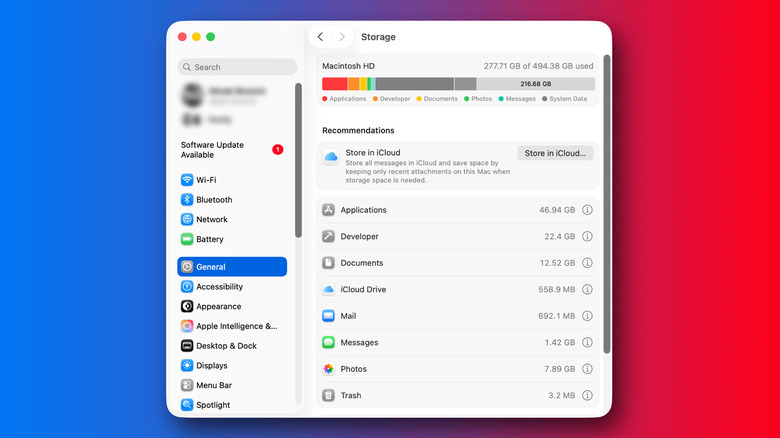
To assess storage utilization, users should navigate to System Settings > General > Storage. This section provides a visual breakdown of how disk space is being consumed, categorized by types such as Applications, Documents, macOS, System Data, and other categories. More importantly, it often presents built-in recommendations for optimizing storage, such as storing files in iCloud, emptying the Trash automatically, or identifying large files for review.
A general guideline suggests maintaining at least 15-20% of the startup disk as free space to ensure optimal performance. If the storage analysis reveals tight margins, users should systematically identify and remove unnecessary files, applications, or duplicate data. Large media files (videos, high-resolution photos), old application installers, and forgotten downloads are common culprits. For users with extensive media libraries or large document archives, considering external storage solutions, such as a portable Solid State Drive (SSD), can offload significant data from the internal drive, immediately freeing up crucial space and improving system responsiveness. The cost-effectiveness of a portable SSD (ranging from $50-$200 for common capacities) is often a far more economical solution than prematurely replacing an otherwise functional MacBook.
- CPU Utilization: Identifying Resource Hogs
The Central Processing Unit (CPU) is the "brain" of the computer, responsible for executing instructions and processing data. When the CPU is constantly running at or near its maximum capacity, the system will inevitably slow down, leading to delays in opening applications, switching between tasks, and general system unresponsiveness. The Activity Monitor application is the primary tool for real-time CPU performance analysis.
To access Activity Monitor, the fastest method is via Spotlight Search (press Command + Space and type "Activity Monitor"). Once open, navigate to the CPU tab. This tab displays a list of all active processes, including user applications, system daemons, and background tasks, along with the percentage of CPU they are currently consuming. By default, processes are often sorted by CPU usage, with the most demanding tasks appearing at the top.
Observing Activity Monitor while the Mac is experiencing a slowdown can provide invaluable insights. If a particular application consistently jumps to the top of the CPU list, consuming a disproportionately large percentage of processor capacity (e.g., 80-100% for an extended period), it is a strong indicator of a resource-intensive or misbehaving application. Common culprits include web browsers with numerous tabs open, video editing software, complex graphic design tools, or even poorly optimized third-party utilities.
Once identified, the user can attempt to resolve the issue by quitting and relaunching the problematic application. If the application is a web browser, closing excessive tabs or extensions might alleviate the strain. For other applications, reducing the complexity of the task (e.g., fewer layers in a design program, smaller video export settings) or simply closing it when not actively in use can significantly improve overall system performance. It’s important to note that some applications, during specific operations like rendering or compiling, are expected to use a high percentage of the CPU. The key is to look for sustained high CPU usage during periods when the Mac should be relatively idle or performing light tasks.
- Memory Pressure: Understanding RAM’s Role
While CPU usage indicates processing power, the Memory tab within Activity Monitor addresses a different, equally critical aspect: Random Access Memory (RAM). RAM is where the operating system and currently running applications store data they need to access quickly. Unlike disk storage, RAM is volatile, meaning its contents are lost when the computer is turned off. When a system has insufficient RAM for the demands placed upon it, it experiences "memory pressure."
The Activity Monitor’s Memory tab features a crucial Memory Pressure graph. Apple’s documentation clarifies the significance of this graph:

- Green: Indicates efficient memory usage, with sufficient free memory and minimal swapping to disk.
- Yellow: Suggests moderate memory pressure. The system is starting to use swap space on the startup disk more frequently, which is slower than accessing physical RAM. This is often the point where users begin to notice a performance dip.
- Red: Signifies severe memory pressure. The system is heavily relying on swap space, constantly moving data between RAM and the much slower disk. This state severely degrades performance, leading to very noticeable slowdowns and unresponsiveness.
Users should not be overly concerned by the amount of "unused" RAM reported. macOS is designed to use available RAM efficiently for caching and pre-loading, making "free" RAM a less relevant metric than "Memory Pressure." If the graph frequently turns yellow or red, it’s essential to identify which applications are consuming the largest amounts of memory. Similar to CPU usage, applications with numerous open documents, complex web pages, or large datasets can be significant memory hogs.
The solution involves closing memory-intensive applications that are not actively in use or reducing their workload. For example, closing unnecessary tabs in a web browser, particularly those with complex scripts or embedded media, can free up substantial RAM. Avoiding the simultaneous operation of multiple memory-intensive applications is also crucial. While adding more physical RAM (if the MacBook model allows for user upgrades) is the ultimate solution for persistent memory pressure, software management through Activity Monitor provides an immediate and effective workaround for most users.
Optimizing Background Operations: Login Items and App Activity
Beyond actively running applications, many software components operate in the background, either upon startup or continuously, consuming resources without direct user interaction. Managing these background processes is another critical aspect of optimizing MacBook performance.
- Controlling Startup Processes
Some applications are configured to launch automatically every time a user logs into their MacBook. While convenient for frequently used tools, a proliferation of "login items" can significantly prolong startup times and immediately begin consuming CPU and RAM, even before the user starts interacting with the desktop.
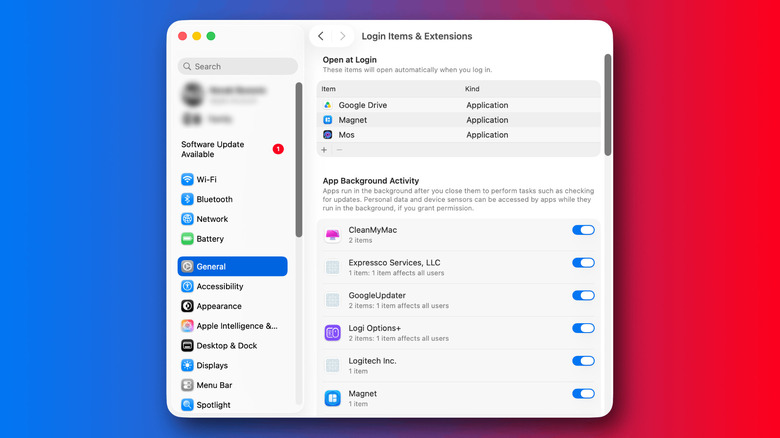
To review and manage these, navigate to System Settings > General > Login Items & Extensions. Under the Open at Login section, users will find a list of applications configured to launch automatically. It is advisable to scrutinize this list and remove any applications that do not absolutely need to be active from the moment the Mac boots up. This can include chat clients, cloud syncing services, or utility apps that are only used occasionally. To remove an item, simply select it and click the minus (-) button. This adjustment can dramatically reduce the initial load on the system and free up resources for more critical tasks.
- Managing Background Applications
The same Login Items & Extensions settings page also includes a section for App Background Activity. This refers to applications that have permission to perform tasks even when they are not actively open or in the foreground. Such activities can include checking for software updates, syncing data with cloud services, indexing files, or receiving notifications.
While background activity is often legitimate and necessary for the functionality of many modern applications (e.g., email clients syncing new messages, cloud storage services uploading changes), an excessive number of active background processes, particularly from rarely used or poorly optimized applications, can contribute to sustained resource consumption. This can lead to subtle but persistent slowdowns, as the CPU and memory are continuously engaged in tasks the user might not even be aware of.
Users should review the list of applications granted background activity permissions. For software that is rarely used, or for which background syncing/updating is not critical, disabling this permission can help conserve resources. However, caution is advised: disabling background activity for essential services like cloud backups or security software could compromise data integrity or system protection. If Activity Monitor has already identified a particular application as a resource hog, its background activity permissions are definitely worth investigating as a potential source of ongoing strain. Furthermore, it is a good practice to periodically uninstall any Mac apps that are no longer needed, ensuring they don’t consume storage, generate background activity, or create potential security vulnerabilities.
System Configuration and Software Integrity: Power Modes and Updates
Beyond managing applications and resources, the overall system configuration and the currency of the macOS operating system itself play a crucial role in performance. Two key areas to check are Power Modes and Software Updates.
- Harnessing Power Modes for Optimal Performance
Modern MacBooks, particularly those equipped with Apple Silicon, offer various Power Modes designed to balance performance with energy efficiency. These modes dynamically adjust CPU and GPU clock speeds, fan curves, and other system parameters. To access these settings, navigate to System Settings > Battery.
The default Automatic power mode aims to strike a balance between performance and battery life, dynamically adjusting based on the workload. However, if a MacBook is experiencing slowdowns and is currently set to Low Power mode, this could be a direct cause. Low Power mode explicitly reduces energy consumption to extend battery life, which inherently involves throttling CPU and GPU performance. Switching back to Automatic mode when performance is a priority, especially when connected to power, can yield immediate improvements in responsiveness.
Certain high-end MacBook Pro models, designed for professional workloads, also feature a High Power mode. This mode is not a general "make my Mac faster" switch for everyday use. Apple positions High Power mode for sustained, demanding tasks such as intensive video editing, 3D rendering, or complex software compilation. In this mode, the system prioritizes maximum performance, often increasing fan speeds to maintain lower internal temperatures, allowing the CPU and GPU to sustain higher clock frequencies for longer periods. For typical daily computing tasks, the Automatic mode remains the most appropriate and efficient default, as High Power mode offers negligible benefits for light workloads and will consume more battery and generate more fan noise.
- The Critical Role of Software Updates
Maintaining an up-to-date operating system is fundamental to optimal performance, security, and compatibility. Apple consistently recommends using the latest version of macOS compatible with your Mac. Software updates often include critical bug fixes, security patches, and, importantly, performance optimizations. Incompatible applications are explicitly cited by Apple as a potential cause for a slow Mac. Running an outdated version of macOS or outdated applications can lead to stability issues, resource conflicts, and general system sluggishness.
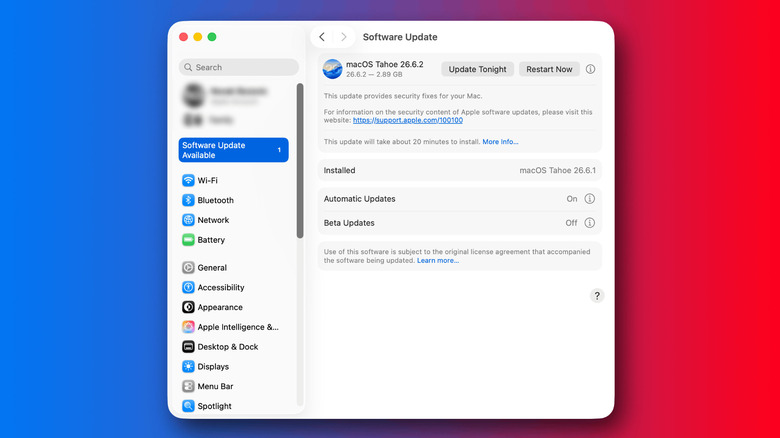
To check for updates, go to System Settings > General > Software Update. If an update is available, it is generally advisable to install it after ensuring a backup of important data. While a software update isn’t a guaranteed performance boost for every specific slowdown, it ensures the system is running with the latest optimizations and fixes, thereby addressing potential underlying causes of performance degradation. Furthermore, developers often optimize their applications for the latest macOS versions, meaning that an outdated OS might be running less efficient versions of your software.
Advanced Diagnostic Techniques: Safe Mode and Disk Utility
If the above measures fail to pinpoint or resolve the performance issues, macOS provides more advanced diagnostic tools that target specific types of problems. These tools are typically used for targeted troubleshooting rather than routine maintenance.
- Safe Mode: Isolating Startup Software Issues
Safe mode is a diagnostic startup option that can help determine whether software loading during startup is interfering with normal operation. When a Mac starts in Safe Mode, it performs several checks, loads only essential kernel extensions, prevents certain startup items and login items from opening automatically, and disables user-installed fonts and caches. If a Mac performs normally in Safe Mode but exhibits issues in standard mode, it strongly suggests that a third-party application, login item, or system extension is causing the problem.
The steps to enter Safe Mode differ between Apple Silicon (M1, M2, etc.) and Intel-based Macs. Users should consult Apple’s official safe mode instructions to ensure they follow the correct procedure for their specific hardware. For Apple Silicon Macs, this involves shutting down, pressing and holding the power button until "Loading startup options" appears, selecting the startup disk, holding the Shift key, and clicking "Continue in Safe Mode." For Intel Macs, it involves restarting and immediately holding the Shift key until the login window appears. Safe Mode is a powerful diagnostic tool for isolating software conflicts but should not be considered a permanent operating mode.
- Disk Utility’s First Aid: Addressing Disk Integrity
While rare with modern SSDs, underlying disk problems can manifest as performance slowdowns. Corrupted file systems, directory errors, or other disk inconsistencies can lead to read/write errors, data corruption, and system instability. The Disk Utility application, found under Applications > Utilities, includes a feature called First Aid.
First Aid is designed to check for and repair certain formatting and directory errors on the startup disk and other connected volumes. It analyzes the disk’s structure for inconsistencies that could impede performance or data integrity. To use First Aid, open Disk Utility, select your startup volume (typically "Macintosh HD"), and click the "First Aid" button. Running First Aid is not a routine "speed boost" but rather a diagnostic and repair tool for suspected disk-related issues. If First Aid reports errors that it cannot repair, or if the Mac continues to exhibit severe disk-related performance problems, it might indicate a more serious hardware failure requiring professional service.
Broader Implications: Extending Device Lifespan and Mitigating E-Waste
The ability to effectively diagnose and resolve MacBook performance issues using built-in macOS tools carries significant broader implications beyond immediate user satisfaction. In an era of increasing technological consumption and growing environmental concerns, proactive maintenance plays a crucial role.
By understanding and addressing the software-related causes of slowdowns, users can significantly extend the useful lifespan of their MacBooks. Instead of prematurely considering a new device—a costly endeavor, often ranging from $1,000 to over $3,000 for a new MacBook—users can maintain the efficiency of their existing hardware for several more years. This not only represents substantial personal cost savings but also contributes to a reduction in electronic waste (e-waste).
According to the United Nations, global e-waste generation reached 53.6 million metric tons in 2019, with only 17.4% formally collected and recycled. Personal computing devices, including laptops, contribute a significant portion to this growing problem. By delaying the need for new hardware through diligent software maintenance, users indirectly participate in environmental stewardship, reducing the demand for new resource extraction and the energy consumed in manufacturing, as well as mitigating the environmental burden of disposing of old electronics.
Furthermore, a well-maintained and responsive MacBook enhances productivity and reduces user frustration. A slow computer can lead to lost work time, increased stress, and a diminished overall digital experience. The diagnostic skills learned through this process empower users to take greater control over their technology, fostering a more sustainable and efficient relationship with their devices. This systematic approach transforms a potentially overwhelming problem into a manageable series of steps, ensuring that a MacBook continues to be a reliable and high-performing tool throughout its intended lifecycle.