George Chandra Eka
While wireless connectivity often dominates discussions around portable internet access, a robust, wired alternative known as USB tethering offers a distinct set of advantages for users seeking reliable and secure internet on the go. This method allows a smartphone to share its cellular data connection with a computer directly via a USB cable, transforming the handset into a dedicated modem. Far from being a relic of an earlier digital age, USB tethering maintains a crucial role in specific scenarios where stability, security, and power efficiency are paramount, differentiating itself significantly from its more commonly understood wireless hotspot counterpart.
The Enduring Relevance of USB Tethering in Modern Connectivity
In an era defined by ubiquitous wireless technologies, the concept of physically connecting devices for internet access might seem counterintuitive. However, the appeal of USB tethering stems from its inherent characteristics that address common frustrations associated with purely wireless solutions. When a user activates their smartphone as a mobile hotspot over Wi-Fi, the phone broadcasts a wireless network signal. This is convenient for multiple devices and offers flexibility in device placement, but it introduces variables such as signal interference, potential security vulnerabilities of broadcasting a network in public, and often, significant battery drain on the host phone.
USB tethering circumvents these issues by creating a direct, point-to-point connection. The physical cable ensures a more stable data stream, less susceptible to external interference that can plague Wi-Fi in crowded environments like convention centers, airports, or busy coffee shops. This stability translates into a more consistent internet experience, crucial for bandwidth-intensive tasks such as video conferencing, large file transfers, or online gaming where latency and dropped packets can be detrimental. Furthermore, the wired connection eliminates the need to broadcast a Wi-Fi network, inherently reducing the visibility of your connection to potential eavesdroppers or malicious actors in public spaces, thus bolstering privacy and security. An added, often overlooked, benefit is the concurrent charging of the smartphone while it’s tethered, mitigating concerns about battery depletion during extended use. This feature alone can be a game-changer for digital nomads, remote workers, or anyone relying heavily on their phone for sustained internet access without immediate access to a power outlet for both devices.
A Brief Chronology of Mobile Connectivity and Tethering
The journey to modern mobile internet access is a fascinating one, marked by rapid technological advancements that have continually reshaped how we connect. In the early 2000s, mobile internet was a nascent concept, often limited to WAP browsers on feature phones or requiring cumbersome PC cards for laptops. The advent of 3G networks around 2003-2004 began to make mobile broadband a tangible reality, enabling faster data speeds and paving the way for the first true smartphones.
The original iPhone, launched in 2007, revolutionized mobile computing but initially lacked hotspot capabilities. It wasn’t until iOS 3.0 in 2009 that Apple introduced "Internet Tethering," allowing the iPhone to share its connection via USB and Bluetooth. Android, which gained significant traction shortly thereafter, also quickly incorporated tethering features, often offering both USB and Wi-Fi options from its earlier versions. These early implementations were often clunky, sometimes requiring specific carrier support or third-party apps, reflecting a cautious approach from mobile operators concerned about network strain and potential revenue loss from dedicated data plans.
As 4G LTE networks rolled out in the early 2010s, delivering speeds comparable to home broadband, mobile hotspots – both wireless and USB tethered – became increasingly viable and popular. Carriers gradually relaxed their restrictions, often including tethering data in standard plans, recognizing its value as a premium feature. The current generation of 5G networks, with their unprecedented speeds and lower latency, further elevates the utility of mobile tethering, making it a powerful alternative to fixed-line internet in areas with strong cellular coverage. This evolution underscores a continuous trend towards greater flexibility and capability in mobile data sharing.
Technical Underpinnings: How USB Tethering Works
At its core, USB tethering transforms your smartphone into an external network adapter or modem for your computer. When connected via USB and enabled, the phone’s operating system (Android or iOS) establishes a network interface over the USB connection. This interface allows the computer to communicate with the phone as if it were directly connected to a router or another network device.
For the computer, the tethered phone typically appears as a new Ethernet connection or a dedicated network interface. The phone then uses Network Address Translation (NAT) to route internet traffic between its cellular modem and the USB-connected computer. Essentially, the phone receives data from the cellular network and forwards it to the computer, and vice-versa, managing the IP addresses and data packets in a transparent manner. This process is highly efficient because it leverages the robust data transfer capabilities of the USB standard. Modern USB versions (e.g., USB 3.0, USB-C) can support theoretical speeds far exceeding typical cellular data rates, ensuring that the cable itself rarely acts as a bottleneck.
Driver installation is sometimes a prerequisite, particularly for Windows machines connecting to iPhones. Apple provides necessary drivers as part of iTunes or the newer Apple Devices app for Windows, which enable the operating system to recognize the iPhone as a network interface. Android phones generally have more universal driver support built into Windows, though specific device drivers might occasionally be required for optimal performance, often automatically installed upon initial connection. For macOS, both Android and iPhone devices generally integrate seamlessly, with the system recognizing the new network interface without additional driver intervention, though an initial prompt for "Trust This Computer" on iOS is standard.
Detailed Setup Procedures for Android and iPhone
Setting up USB tethering is a straightforward process, though it varies slightly between Android and iOS platforms.
On Android Devices:
- Connect Your Devices: Use a compatible USB cable to connect your Android smartphone to your computer. Ensure the cable is capable of data transfer, not just charging.
- Enable USB Debugging (Optional, but sometimes helpful): For some older Android versions or specific troubleshooting, you might need to enable USB Debugging in Developer Options. To access Developer Options, go to
Settings > About phoneand tap "Build number" seven times. Then, navigate toSettings > System > Developer optionsand toggle "USB debugging" on. This step is less common for modern tethering but can resolve connectivity issues. - Access Hotspot & Tethering Settings: On your Android phone, open the
Settingsapp. Search for "Hotspot & tethering" or navigate toNetwork & internet > Hotspot & tethering. - Activate USB Tethering: Within the Hotspot & tethering menu, you will find an option labeled "USB tethering." Toggle this option ON.
- Computer Recognition: Your computer should now detect a new network connection. On Windows, it will typically appear as an Ethernet connection. On macOS, you might see a new network interface in
System Settings > Network. Confirm the connection and you should be online.
On iPhone Devices:
- Connect Your Devices: Connect your iPhone to your Mac or Windows PC using a Lightning-to-USB or USB-C cable.
- Trust This Computer: If it’s your first time connecting, your iPhone will prompt you to "Trust This Computer?" Tap "Trust" and enter your passcode if required.
- Install Apple Drivers (Windows Only): If you’re on a Windows PC and haven’t already, ensure you have either the Apple Devices app or iTunes for Windows installed from the Microsoft Store. These applications provide the necessary drivers for your computer to recognize your iPhone as a network device.
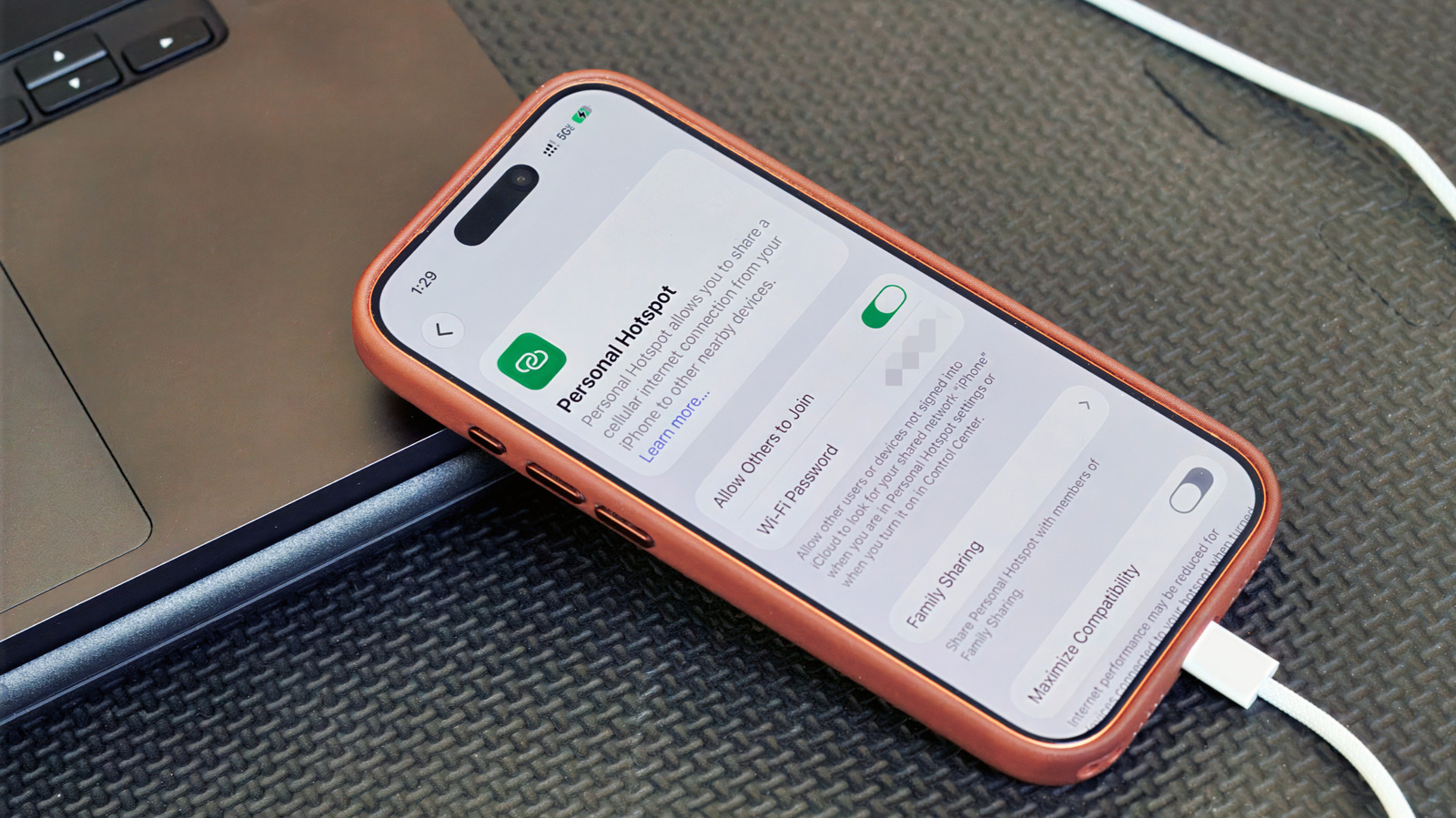
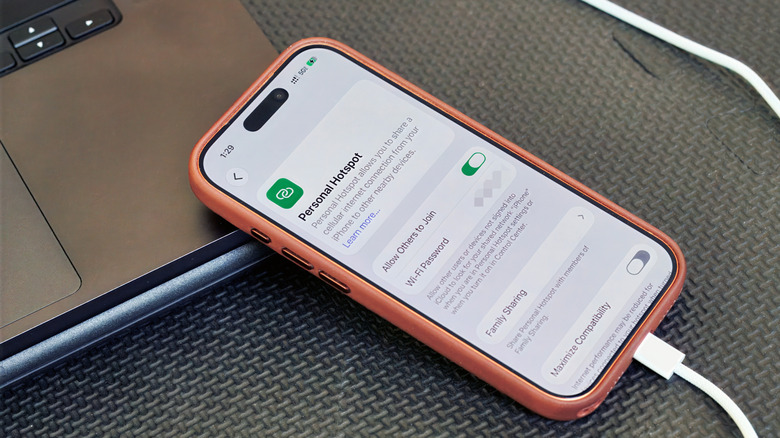
- Enable Personal Hotspot: On your iPhone, navigate to
Settings > Personal Hotspot. Ensure "Allow Others to Join" is toggled ON. While this setting primarily pertains to Wi-Fi and Bluetooth hotspots, it’s often the gateway to enabling USB tethering functionality. - Computer Recognition: Your computer should automatically detect the new internet connection. On a Mac, it will typically show up in
System Settings > Network. On Windows, it will appear as an Ethernet connection. Select it as your primary network, and you should have internet access.
Important Caveat: Android to Mac Incompatibility
It is crucial to note a significant limitation: Android phones generally cannot tether via USB directly to a macOS computer without third-party software or workarounds. This is due to driver compatibility issues between Android’s USB networking stack and Apple’s macOS. Users needing to connect an Android phone to a Mac will typically need to rely on the Wi-Fi hotspot feature instead.
Data Management, Carrier Policies, and Usage Implications
While USB tethering offers compelling benefits, users must be acutely aware of their mobile data plans and carrier policies. Mobile data is not infinite for most consumers, and tethering can consume data at a much faster rate than typical smartphone usage. Laptops, in particular, often run numerous background processes such as operating system updates, cloud synchronization services, email clients, and application updates, all of which can quickly deplete a limited data allowance. A single hour of video conferencing can consume several gigabytes, while downloading a large software update could easily exceed 10-20 GB.
Many mobile carriers impose specific restrictions or additional charges for hotspot usage, including both Wi-Fi and USB tethering. Some plans may include a generous allowance for on-device data but limit hotspot data to a smaller, separate cap (e.g., 50GB of phone data but only 15GB of hotspot data). Exceeding these limits can result in throttling (reduced speeds), additional charges, or even temporary suspension of tethering capabilities. It is imperative for users to check their specific mobile plan details with their carrier before relying on tethering for critical tasks. Information on data allowances, overage fees, and fair usage policies is typically available on the carrier’s website or by contacting customer support. Utilizing data monitoring tools built into both smartphones and computer operating systems can help manage consumption and avoid unexpected charges.
Security Advantages and Considerations
One of the most compelling arguments for USB tethering is its enhanced security profile compared to public Wi-Fi hotspots. When you connect to a public Wi-Fi network, your data travels wirelessly through an unencrypted or weakly encrypted channel, making it vulnerable to interception by malicious actors. Even password-protected public Wi-Fi networks can be compromised or set up by cybercriminals to steal personal information.
USB tethering, by contrast, creates a private, direct connection between your phone and your computer. Data travels over the physical USB cable, making it significantly harder for external parties to intercept. Since no Wi-Fi network is being broadcast, there’s no visible SSID for attackers to target or impersonate. This direct link essentially bypasses the vulnerabilities inherent in shared wireless environments. However, it’s not a foolproof solution. The security of the connection ultimately relies on the security of your smartphone’s cellular connection and the robust encryption protocols (e.g., WPA3 equivalent on 4G/5G networks) used by your mobile carrier. Users should still practice general cybersecurity hygiene, such as using a Virtual Private Network (VPN) for sensitive activities, ensuring their computer’s firewall is active, and keeping operating systems and software updated. While USB tethering minimizes the risk of local network snooping, it doesn’t protect against broader internet threats or malware on the connected computer.
Limitations and Broader Implications
Despite its advantages, USB tethering is not a universal panacea for all mobile internet needs. Its primary limitation is its single-device nature. Unlike a Wi-Fi hotspot, which can typically support multiple simultaneous connections (e.g., a laptop, a tablet, and another smartphone), USB tethering is designed for one-to-one communication. If you need to get several devices online, a wireless hotspot remains the more practical choice.
Furthermore, the quality of the internet connection is fundamentally dependent on the cellular signal strength and speed available to your smartphone. Even with the most stable wired connection, a weak 4G or 5G signal will inevitably result in slow or unreliable internet access. Users in areas with poor cellular coverage will find little improvement from USB tethering compared to a Wi-Fi hotspot. Environmental factors like building materials, distance from cell towers, and network congestion can all impact performance.
Looking ahead, as 5G networks become more pervasive and offer multi-gigabit speeds with extremely low latency, the utility of both wireless and USB tethering will likely grow. The ability to achieve near-fiber optic speeds on a mobile connection opens up new possibilities for remote work, cloud computing, and real-time collaboration from virtually anywhere. The increasing demand for flexible work arrangements and reliable connectivity away from traditional office spaces ensures that tethering, particularly its robust USB variant, will continue to play a vital, albeit niche, role in the evolving landscape of digital connectivity.
In conclusion, while wireless hotspots offer convenience and multi-device support, USB tethering provides a powerful alternative for users prioritizing stability, security, and power management for a single device. Understanding its mechanics, setup procedures, and inherent advantages allows users to make informed decisions about their mobile internet strategy, ensuring a reliable connection when a physical link truly works better.