George Chandra Eka
The advent of digital personalization has permeated nearly every aspect of daily life, extending now to the automotive experience, where Apple’s Shortcuts app empowers users to integrate custom audio greetings into their CarPlay system. This functionality allows for a bespoke interaction the moment an iPhone connects to a vehicle’s infotainment system, moving beyond mere utility to inject personality into the daily commute. While not a groundbreaking technological leap in itself, this capacity for personalized audio — be it a cheerful "Good morning, driver," an iconic movie theme, or a practical reminder from Siri — signifies a broader trend towards deeper user control and customization within the connected car ecosystem. The ability to program a brief, distinct sound clip to play upon CarPlay activation transforms a routine vehicle entry into a uniquely tailored experience, enriching user engagement with their vehicle’s digital interface.
The Rise of In-Car Personalization
The automotive industry has witnessed a significant shift over the past decade, moving from purely mechanical engineering to a blend of mechanics and sophisticated software integration. Central to this evolution is the concept of personalization, driven by consumer demand for experiences that mirror the customization available on their smartphones and other personal devices. Early forms of in-car personalization included adjustable seat memory, climate control preferences, and custom radio presets. However, with the proliferation of smartphone integration technologies like Apple CarPlay and Android Auto, the scope of personalization has expanded dramatically. These platforms essentially mirror a user’s smartphone interface onto the car’s display, bringing familiar apps, navigation, and communication tools into the vehicle. This seamless integration has paved the way for deeper customization, allowing users to tailor not just the appearance of their in-car interface but also its behavior and interactions. Industry reports consistently highlight personalization as a key differentiator for automakers, with studies showing increased customer satisfaction and loyalty when users feel a stronger connection to their vehicle’s digital environment. The simple act of adding a custom audio intro, while seemingly minor, represents a tangible manifestation of this larger trend, offering a unique touchpoint that makes the car feel more like an extension of the individual.
Understanding Apple CarPlay: A Foundation for Customization
Apple CarPlay, first introduced in 2014, was designed to provide a safer and smarter way to use an iPhone in the car. It projects essential iOS features, such as Maps, Phone, Messages, Music, and compatible third-party applications, onto the car’s built-in display. This allows drivers to access critical functions through the car’s native controls, Siri voice commands, or the touchscreen, minimizing distractions. Over the years, CarPlay has undergone continuous refinement, expanding its compatibility to hundreds of vehicle models from virtually every major automaker. Its evolution has been marked by enhanced interface designs, support for a broader array of app categories (including navigation, audio streaming, and EV charging apps), and greater integration with vehicle-specific functions. For instance, newer CarPlay versions can leverage car data to display information like fuel levels or climate controls directly within the CarPlay interface.
The fundamental principle behind CarPlay is to leverage the robust and familiar ecosystem of iOS within the automotive environment. This approach bypasses the need for automakers to develop entirely new infotainment operating systems from scratch, instead relying on Apple’s expertise in software and user experience. The platform’s widespread adoption underscores its success in meeting consumer demand for integrated, familiar, and intuitive in-car technology. The ability to customize aspects of CarPlay, such as icon arrangement and now, through Shortcuts, audio triggers, further solidifies its position as a highly adaptable and user-centric in-car solution. The platform’s architecture, which essentially treats the car display as an external monitor for the iPhone, is what enables the Shortcuts app to interact with CarPlay events, triggering actions like playing an audio file as soon as a connection is established.
The Power of Shortcuts: From Automation to Personalization
The Shortcuts app, a powerful automation tool for iOS, iPadOS, and macOS, traces its origins back to Workflow, an app acquired by Apple in 2017. Relaunched as Shortcuts in iOS 12, it allows users to create multi-step automated tasks, or "shortcuts," that can be triggered by various events, including voice commands (via Siri), app interactions, time of day, location, and crucially, device connections like CarPlay. Shortcuts provides a visual, drag-and-drop interface where users can combine actions from different apps and system functions to build complex workflows without needing programming knowledge. This democratized approach to automation has empowered millions of users to streamline repetitive tasks, enhance productivity, and personalize their device interactions in unprecedented ways.
The app’s integration with CarPlay is a testament to its versatility. While many users initially associate Shortcuts with simple tasks like creating quick access to contacts or setting reminders, its true power lies in its ability to connect disparate system functions and external triggers. For CarPlay, this means that the moment an iPhone detects a connection to a CarPlay-enabled vehicle, a predefined sequence of actions can be initiated. This automation capability is what makes personalized audio intros possible. Users can instruct their iPhone to play a specific audio file stored locally, speak a custom text phrase using Siri’s voice, or even launch a specific app upon CarPlay connection. This level of programmatic control over system events showcases Apple’s commitment to providing advanced customization options, moving beyond fixed settings to dynamic, context-aware automations that significantly enhance the user experience.
Implementing Your CarPlay Audio Intro: A Step-by-Step Guide
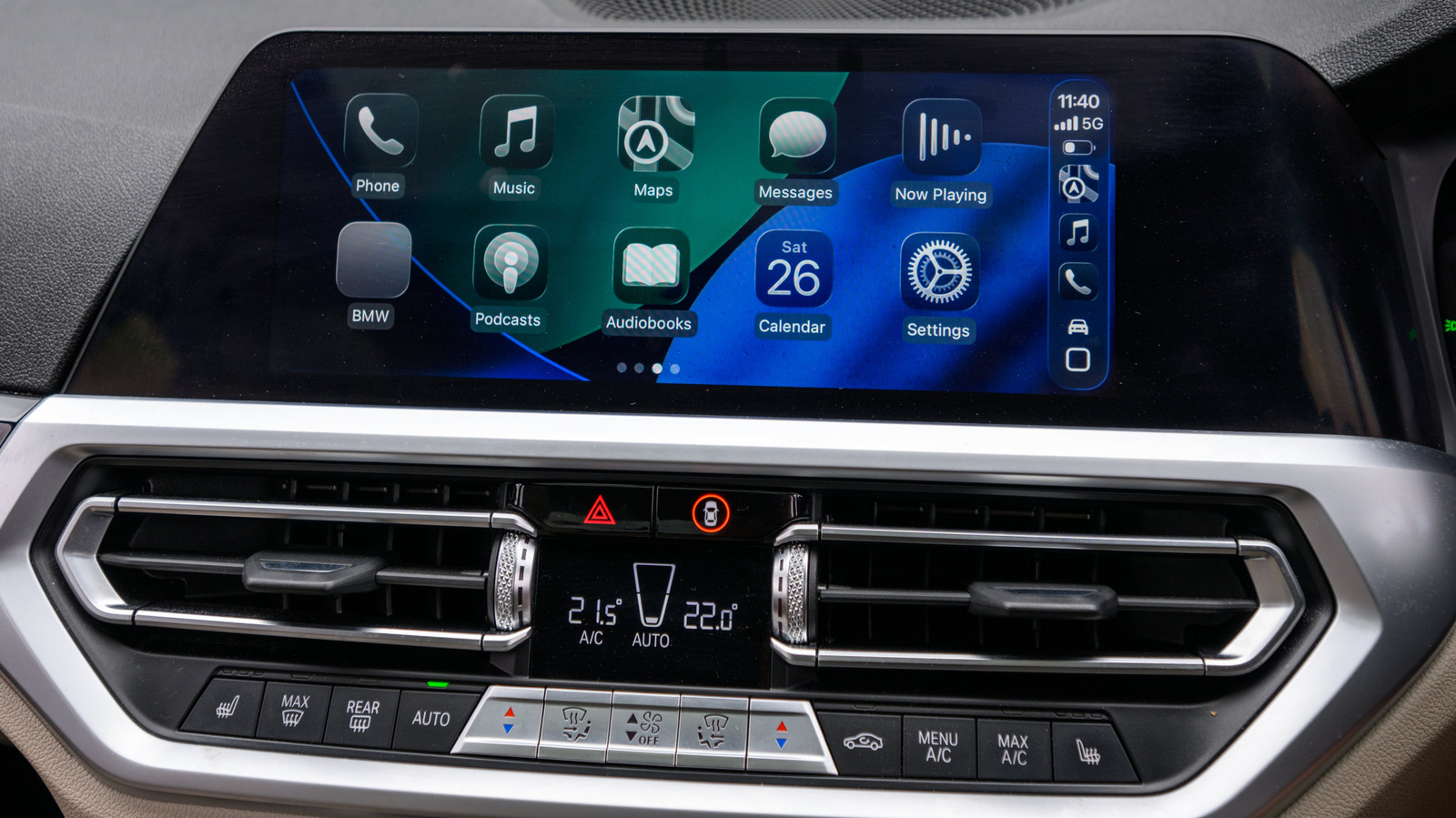
Creating a personalized audio intro for Apple CarPlay is a straightforward process, primarily leveraging the Shortcuts app. The core requirement is an iPhone, the Shortcuts app (pre-installed on modern iOS versions), and an audio file containing the desired sound clip.
The initial and most critical step involves acquiring and preparing the audio file. Users must download the sound or clip they wish to use, ensuring it is saved in a format compatible with iOS (e.g., MP3, AAC, WAV). For optimal performance and ease of access within Shortcuts, it is highly recommended to create a dedicated folder within the Files app on the iPhone (specifically, "On My iPhone" rather than iCloud Drive). Naming this folder something intuitive, such as "CarPlay Intros," will simplify retrieval later. The audio clip itself should ideally be concise, ranging from two to five seconds. This brevity ensures that the intro conveys its message or adds its unique flair without delaying important navigation prompts, media playback, or other critical CarPlay functions, thus maintaining a balance between personalization and practicality. Longer clips risk becoming an annoyance or interfering with the primary functions of the infotainment system.
Once the audio file is secured, the next steps are performed within the Shortcuts app:
- Open the Shortcuts app: Navigate to the app on your iPhone.
- Go to the "Automation" tab: At the bottom of the screen, tap on "Automation."
- Create a New Automation: Tap the "+" icon in the top right corner (or "Create Personal Automation" if it’s your first).
- Select a Trigger: Scroll down and choose "CarPlay" from the list of triggers.
- Configure the CarPlay Trigger: Ensure "When it connects" is selected. This defines the event that will activate your intro. Tap "Next."
- Add Actions: This is where you define what happens when CarPlay connects.
- "Get File" Action: Tap "Add Action," search for "Get File," and select it. This action will retrieve your custom audio file.
- Specify File Path: In the "Get File" action, tap on the "File" placeholder. Navigate to the folder you created in the Files app (e.g., "On My iPhone" > "CarPlay Intros") and select your desired audio file.
- "Play Sound" Action: Tap the "+" icon below the "Get File" action, search for "Play Sound," and select it. This action will play the audio file retrieved by the previous step.
- (Optional) "Set Playback Destination" Action: To ensure the sound plays through your car’s speakers, you might add a "Set Playback Destination" action before "Play Sound" and choose "CarPlay" or "Bluetooth speaker" if prompted, although typically "Play Sound" will default to the connected audio output.
- Review and Test: Tap "Next." On the summary screen, review your automation.
- "Run Immediately" vs. "Ask Before Running": For a seamless intro, toggle "Ask Before Running" OFF and select "Run Immediately." This ensures the intro plays automatically without requiring a confirmation tap on your iPhone.
- "Notify When Run": You may also want to toggle "Notify When Run" OFF to prevent a banner notification every time the automation triggers, which can be distracting.
- Finalize: Tap "Done."
Upon completion, the automation is active. The next time the iPhone connects to CarPlay, the custom audio intro should play through the vehicle’s speakers. It’s important to note that the behavior can vary slightly between wired and wireless CarPlay connections, with wireless connections sometimes exhibiting a brief delay due to the initial Bluetooth/Wi-Fi handshake process. Similarly, the specific iPhone model and iOS version can influence the exact appearance and ordering of options within the Shortcuts app, though the core functionality remains consistent across compatible devices dating back to the iPhone 5s.
Optimizing Your Custom Intro: Volume, Length, and File Management
After the initial setup, testing is crucial to ensure the intro performs as expected. Users should connect their iPhone to CarPlay and observe the playback. One common adjustment involves volume. The iPhone may utilize the original recording’s volume level, which might be too loud or too soft for the car’s audio system. Adjustments can be made directly on the iPhone’s volume controls during testing or by editing the audio file itself to a more appropriate gain level before saving it. Furthermore, if the clip proves to be too long or distracting, returning to the audio file preparation stage to trim it down is advisable.
Managing multiple intros or changing the current one is also straightforward. Users can revisit the "Automation" tab in Shortcuts, select the CarPlay automation they created, and then modify the "Get File" action to point to a different audio file. This flexibility allows for seasonal greetings, mood-specific intros, or rotating through a collection of favorite clips. If a user wishes to temporarily disable an intro without deleting the automation, they can simply toggle the "Run Immediately" option back to "Don’t Run" within the automation settings. This allows for quick activation or deactivation, providing full control over the personalization feature. Effective file management within the Files app, such as organizing clips into distinct folders or naming them clearly, will greatly enhance the long-term usability of this customization feature.
Beyond the Greeting: Advanced CarPlay Automations
While personalized audio intros are a popular application, the capabilities of Shortcuts with CarPlay extend far beyond a simple greeting. The same automation principles can be applied to trigger a variety of useful actions upon connection or disconnection. For instance, an automation could be configured to:
- Launch a specific navigation app: Automatically open Apple Maps, Google Maps, or Waze to a pre-set commute route.
- Start a commute playlist: Begin playing a favorite music playlist or podcast from Apple Music, Spotify, or other audio apps.
- Display morning routine reminders: Use the "Speak Text" action to have Siri vocalize a list of tasks or items to remember before leaving the car.
- Adjust vehicle settings (if supported): While direct control over car systems is limited, some integrations might allow for actions like setting a specific focus mode on the iPhone that impacts notifications while driving.
Conversely, "When it disconnects" automations can also be incredibly useful:
- Pause media playback: Automatically stop music or podcasts when leaving the car.
- Launch walking directions: If the car is parked some distance from the final destination, an automation could trigger Apple Maps or Google Maps to provide walking directions to a specific point.
- Log mileage: For business users, an automation could prompt a logging app to record trip details.
These examples highlight how Shortcuts transforms CarPlay from a mere mirroring service into a dynamic, intelligent co-pilot, adapting to the user’s habits and needs. The potential for enhancing convenience and efficiency through these automations is substantial, demonstrating Apple’s commitment to creating an integrated ecosystem where devices and services work in concert to simplify daily life.
The Evolving Landscape of Connected Car Technology
The integration of features like personalized CarPlay intros underscores a broader trend in the automotive industry: the increasing convergence of vehicle technology with personal electronics. As vehicles become more connected and software-defined, the lines between a car’s native infotainment system and a user’s personal devices continue to blur. This evolution is driven by several factors, including consumer demand for seamless digital experiences, advancements in mobile technology, and the competitive landscape among tech giants vying for a presence in the lucrative automotive market.
Future developments in connected car technology are expected to push personalization even further. We may see more direct integration between vehicle sensors and smartphone automations, allowing for highly contextual and adaptive experiences. For example, a car might automatically adjust climate control based on the driver’s calendar or suggest specific routes based on real-time traffic combined with personal preferences learned over time. The role of AI and machine learning will also become more prominent, enabling predictive personalization that anticipates user needs before they are explicitly requested. The ability to customize a CarPlay intro, while a small step, is indicative of a larger trajectory where the car becomes an increasingly intelligent and personalized extension of the driver’s digital life.
User Experience and Safety Considerations
While the appeal of personalization is undeniable, the implementation of such features in a driving context necessitates careful consideration of user experience and, critically, safety. The recommendation for short audio clips (two to five seconds) is paramount. Longer intros, or those with excessively loud or startling sounds, could potentially distract a driver at a critical moment, particularly during the initial moments of a journey when attention should be focused on the road, vehicle startup checks, and immediate surroundings. Apple’s design philosophy for CarPlay emphasizes minimizing distraction, and users leveraging Shortcuts should adhere to this principle.
The "Run Immediately" feature, while convenient, also places responsibility on the user to ensure the automation does not create an unexpected or disruptive experience. Notifications for automations running in the background can also be toggled off to maintain focus. The beauty of the Shortcuts app lies in its flexibility, but this flexibility also means users must exercise discretion. When properly implemented, personalized intros can enhance the driving experience by adding a touch of delight or a helpful reminder, potentially even reducing the mental load by automating routine actions. However, poorly conceived automations could inadvertently introduce new forms of distraction. Therefore, balancing personalization with practical safety considerations remains a critical aspect of integrating advanced smartphone features into the driving environment.
The Future of Automotive Personalization
The journey towards fully personalized automotive experiences is still in its early stages. Features like custom CarPlay intros, while simple, represent significant milestones in giving users greater control over their in-car digital environments. As vehicle hardware and software continue to advance, and as platforms like CarPlay and Android Auto evolve, the depth and breadth of personalization options are expected to grow exponentially. This could include highly adaptive user interfaces, predictive assistants that anticipate needs, and even biometric integration for tailored experiences based on individual drivers. The trend suggests a future where cars are not just modes of transport but highly intelligent, customizable digital cocoons, each uniquely configured to its owner’s preferences and habits. The ability to program a simple audio greeting through an app like Shortcuts is merely a precursor to a much more integrated and personalized automotive future, where every journey can be tailored to be as unique as the driver behind the wheel.