George Chandra Eka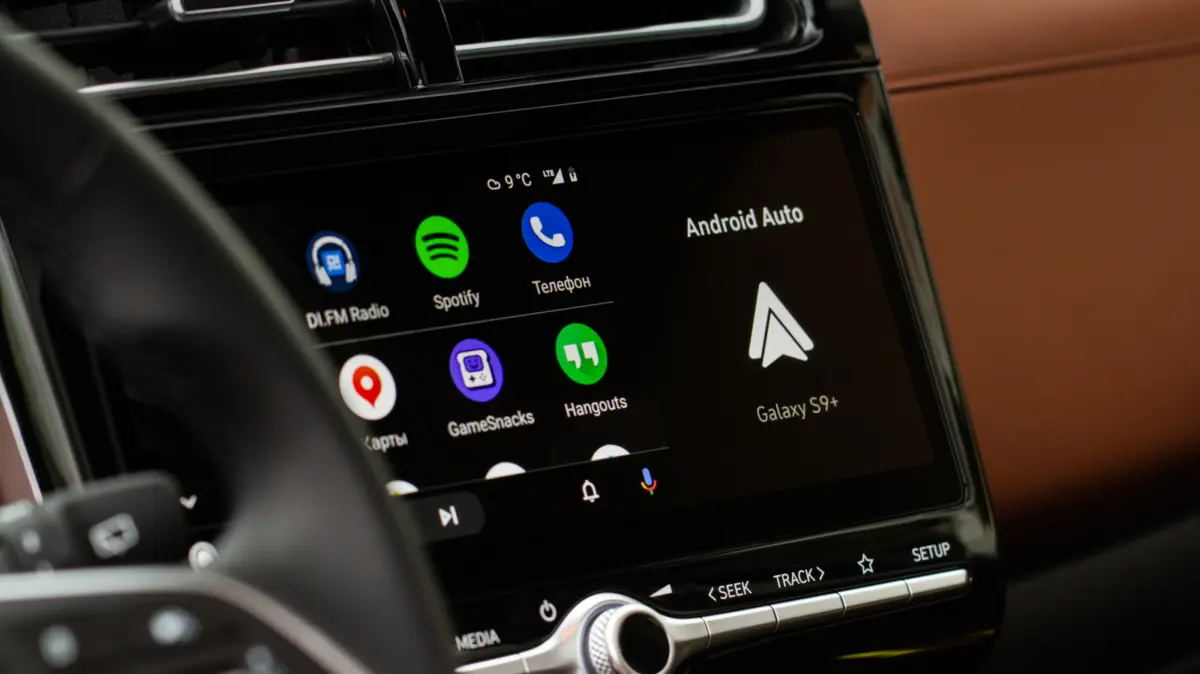
The sudden blast of music, a podcast resuming mid-sentence, or an audiobook narrating loudly the moment a vehicle starts can be an unwelcome jolt for many drivers. This common scenario, often attributed to Android Auto’s default autoplay functionality, highlights a persistent user experience challenge in the increasingly connected automotive landscape. For millions of drivers globally who rely on Android Auto for navigation, communication, and entertainment, the automatic resumption of media playback upon connecting to their vehicle, whether via USB or wirelessly through an adapter, has become a frequent source of frustration. The system often defaults to picking up the last played audio at its previous volume setting, disrupting the driver’s focus, potentially startling passengers, or even exposing children to inappropriate content if the previous audio selection was not family-friendly.
This behavior, while intended to offer seamless convenience by instantly resuming a user’s media session, frequently clashes with individual preferences for a quiet start to their journey, a moment of silence before merging into traffic, or the need to prioritize navigation prompts. In its earlier iterations, addressing this autoplay quirk was a convoluted process, often necessitating complex workarounds, the installation of third-party applications, or deep dives into system settings that many users found inaccessible or intimidating. However, with successive updates and a growing recognition of user feedback, Google has streamlined the primary solution, often condensing it to a straightforward toggle within Android Auto’s settings. Yet, for a significant segment of users, particularly those integrating specific streaming services like Spotify, the issue can remain stubbornly persistent, pointing to deeper technical interplays between device, application, and vehicle infotainment system.
The Genesis of Autoplay: Convenience Versus Control
The design philosophy behind automatic media playback is rooted in the pursuit of user convenience. In an age where digital content consumption is ubiquitous, the expectation is often that devices and services should anticipate user needs and minimize manual input. For in-car infotainment systems, this translates into features like automatic Bluetooth connection, hands-free calling, and, crucially, the immediate resumption of media. From a developer’s perspective, ensuring that a user’s favorite playlist or essential news podcast seamlessly continues from where it left off without requiring interaction can be seen as a hallmark of a well-integrated system. This convenience-first approach caters to a large user base that values uninterrupted entertainment during commutes or long drives.
However, the reality of diverse user preferences and varying driving contexts often complicates this seemingly straightforward design. A parent dropping off children at school might prefer silence or local radio, while a professional heading to an early morning meeting might desire quiet reflection before a demanding day. The "one-size-fits-all" autoplay feature, therefore, inadvertently creates friction for those who prioritize control and a deliberate start to their audio experience. The rapid evolution of automotive technology, from simple car radios to sophisticated digital dashboards powered by platforms like Android Auto, has amplified these considerations. Early car audio systems relied on physical media or radio tuners, requiring explicit user action. The advent of Bluetooth in the early 2000s introduced a new layer of connectivity, allowing phones to stream audio, often with an inherent autoplay tendency. Android Auto, building upon these foundations, inherited and often exacerbated these behaviors due to its deeper integration with the smartphone’s media ecosystem.
Navigating the Settings: The Primary Android Auto Solution
For a considerable number of drivers experiencing unwanted audio playback, the most direct and effective remedy lies within Android Auto’s dedicated settings. Google, in response to widespread user feedback, has incorporated a specific control designed to manage this behavior. The process typically involves accessing your phone’s system settings and navigating to the Android Auto configuration.
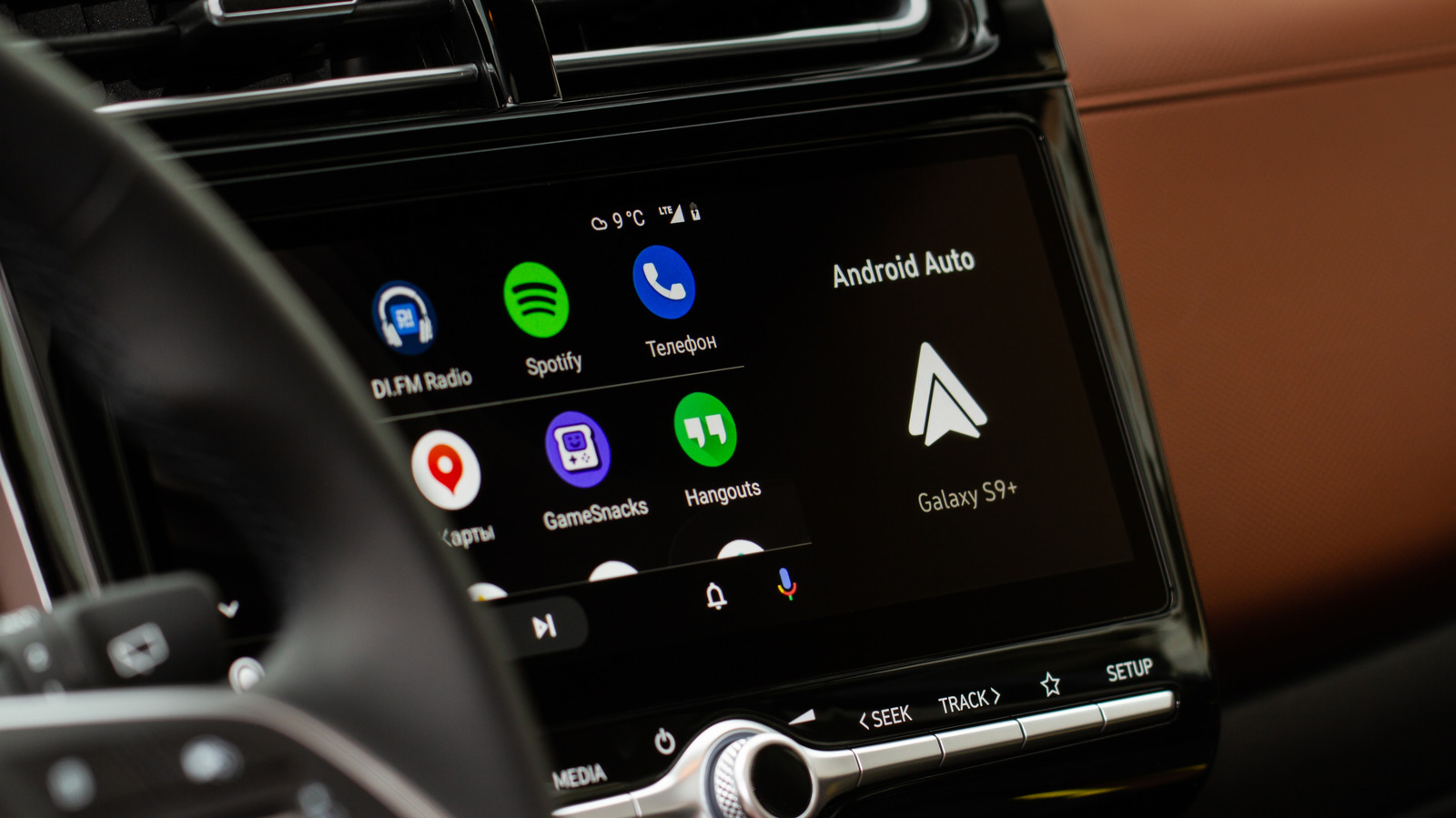
To locate this critical toggle:
- Open your smartphone’s Settings application.
- Search for or navigate to Connected devices or similar options like "Device connection preferences."
- Select Android Auto.
- Within the Android Auto settings interface, locate the Startup section.
- Here, you should find a toggle labeled Start music automatically (or a very similar phrasing).
Switching this feature to the "off" position instructs Android Auto not to initiate media playback automatically upon establishing a connection with your vehicle. For many users, this single action resolves the issue entirely, providing the desired quiet start to their drive. This is frequently cited as the first troubleshooting step on various support forums, including those for popular streaming services like Spotify. The introduction of this toggle represents a significant improvement in user control, moving away from the earlier necessity for complex workarounds. Its presence acknowledges the diverse needs of Android Auto users and offers a straightforward method to customize the system’s behavior.
Beyond the Toggle: The Intricacies of Bluetooth and Device Handshakes
While the "Start music automatically" toggle in Android Auto settings offers a robust solution for many, it doesn’t always guarantee a complete cessation of unwanted playback. In certain scenarios, particularly when the issue persists after disabling the Android Auto toggle, the underlying cause may reside at the Bluetooth level, rather than exclusively within the Android Auto application itself. Android Auto leverages Bluetooth for several critical functions, including routing phone calls and facilitating the initial "handshake" or pairing process between the smartphone and the car’s infotainment system. This initial connection is crucial for establishing the more data-intensive Wi-Fi Direct link used for wireless Android Auto, as well as for basic wired connections.
The challenge arises because Bluetooth, as a connectivity standard, often includes protocols that encourage devices to resume media playback upon reconnection. When a phone pairs with a Bluetooth device (be it a car, headphones, or a portable speaker), the receiving device can send a "play" command to the phone’s media player. This command can override the Android Auto setting, triggering playback even if the toggle is off. The variability in how different car manufacturers implement Bluetooth profiles and how phone operating systems interpret these commands further complicates the situation.
A common workaround in these persistent cases involves temporarily removing the phone from the car’s Bluetooth memory and, if feasible for the user’s setup, reconnecting solely via a USB cable. This action can sometimes prevent the car’s Bluetooth system from sending the unsolicited "play" command. However, the effectiveness of this method varies significantly across different vehicle models, smartphone brands, and the specific connection types utilized (wired vs. wireless Android Auto). Some cars may still initiate playback through the USB connection, while others might offer more granular control over Bluetooth media profiles. Furthermore, for users who rely heavily on wireless Android Auto, completely bypassing Bluetooth might not be a practical long-term solution. This highlights the inherent complexity in standardizing interactions between a multitude of hardware and software components from various manufacturers.
The Spotify Conundrum: A Persistent Challenge for Streaming Services
Among the various audio applications, Spotify users frequently report experiencing autoplay issues even after disabling the "Start music automatically" toggle in Android Auto. This phenomenon has been a recurring topic across community forums for years, with active discussions dating back to 2022 and beyond. The nuance here is critical: sometimes, the car’s infotainment system or even Android Auto itself is not the primary initiator of the playback. Instead, the command can originate from the connected Bluetooth device, or it can be a specific interaction between Spotify’s application programming interface (API) and the Bluetooth standard.
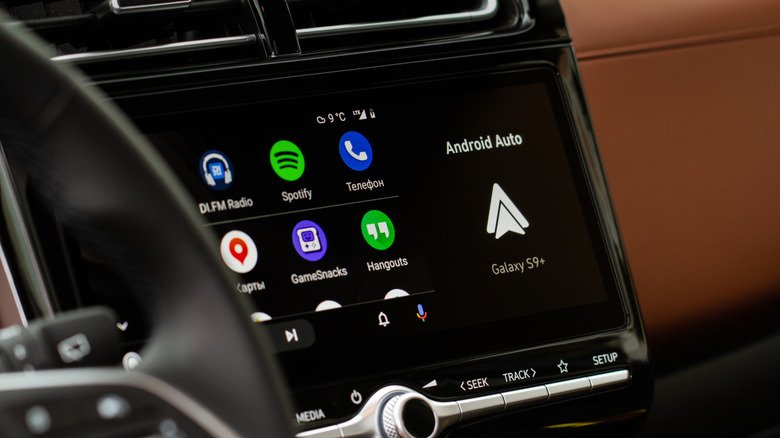
According to Spotify’s support teams, the behavior often hinges on how a particular Bluetooth device interacts with the Spotify API. Bluetooth devices, especially car head units, headphones, and smart speakers, can be programmed to send a "play" command when they power on, reconnect, or resume a media session. Spotify, designed for broad compatibility across thousands of hardware combinations, cannot always prevent these external commands from triggering playback. This distinction is vital because it means the issue isn’t always a "bug" in Spotify or Android Auto, but rather a consequence of how different hardware manufacturers implement Bluetooth standards and how media applications are designed to respond to external controls.
Troubleshooting in such cases becomes a process of elimination:
- Test with other Bluetooth devices: Does autoplay only occur with your car, or does it happen when connecting to other Bluetooth speakers or headsets? This can help determine if the issue is car-specific or more broadly tied to your phone’s interaction with Bluetooth.
- Check app permissions: While less common for autoplay, ensuring Spotify has appropriate media playback permissions on your device can sometimes resolve unexpected behaviors.
- Software Updates: Keeping Spotify, your phone’s operating system (Android), and your car’s infotainment firmware updated is always recommended. Updates often include bug fixes and improved compatibility, which might mitigate connection glitches.
Despite these efforts, a universal fix remains elusive due to the sheer diversity of hardware and software configurations. Spotify prioritizes easy, seamless connections across its vast ecosystem, which sometimes means that fine-grained control over external "play" commands is difficult to implement consistently. Some users find success through Android Auto’s settings, others through Spotify’s app-specific permissions or even by tweaking developer options on their Android device. However, a significant portion reports that neither option works reliably for their unique car-phone combination. As a last resort, some drivers choose to remove Spotify entirely from their Android Auto integration, which, while solving the autoplay problem, sacrifices the convenience of accessing Spotify directly from the car’s display. This highlights a fundamental tension between robust interoperability and granular user control in the connected car environment.
Industry Perspectives and Developer Challenges
The persistent nature of the autoplay issue underscores the complex challenges faced by technology developers and car manufacturers in the rapidly evolving landscape of automotive infotainment. From Google’s perspective, as the developer of Android Auto, the goal is to create a platform that is both powerful and user-friendly, catering to a diverse global audience. Balancing features like automatic media resumption (which many users appreciate for its convenience) with the need for granular user control (desired by others) is a delicate act. Google’s introduction of the "Start music automatically" toggle demonstrates a responsiveness to user feedback, indicating an awareness of the problem. However, the platform’s reliance on underlying Android OS functionalities and third-party app integrations means that Google cannot unilaterally control every aspect of media playback.
Spotify, as a leading music streaming service, faces its own set of challenges. Its business model thrives on ease of access and continuous listening. Its API is designed to integrate seamlessly with various devices, from smart speakers to car systems. The company’s stance often points to the variability in Bluetooth device implementations. A spokesperson for a hypothetical streaming service might explain, "Our platform is built for universal compatibility, and we aim to provide a consistent experience across thousands of devices. However, the precise behavior of media playback upon connection can often be dictated by the specific Bluetooth profiles and firmware deployed by hardware manufacturers, which are beyond our direct control." This highlights the "last mile" problem, where the ultimate user experience is shaped not just by the app, but by the device it connects to.
Car manufacturers, on the other hand, are tasked with integrating these complex digital ecosystems into their vehicles while ensuring safety, reliability, and brand consistency. Each manufacturer might implement Bluetooth and USB connectivity slightly differently, leading to variations in how "play" commands are handled. Furthermore, the lifecycle of automotive hardware is significantly longer than that of smartphones, meaning cars might run older firmware that isn’t always optimized for the latest software updates from Google or Spotify. An automotive industry analyst might comment, "The automotive sector is grappling with the rapid pace of technological change. Integrating platforms like Android Auto requires extensive validation and customization, and ensuring perfect harmony across all possible phone, app, and vehicle combinations is an ongoing, significant engineering challenge." This multi-stakeholder environment often means that a single, universal fix for issues like autoplay is exceptionally difficult to implement.
User Frustration and Safety Implications
Beyond mere inconvenience, the involuntary blasting of audio can have tangible implications for driver safety and overall well-being. A sudden, loud noise can be startling, causing a momentary lapse in concentration that could be critical during complex driving maneuvers or in heavy traffic. Driver distraction is a leading cause of accidents, and while autoplay might seem minor, any unexpected sensory input that diverts attention, even for a second, can increase risk. The desire for a controlled and predictable start to a drive is not merely a preference but, for some, a safety imperative.
Furthermore, the issue touches upon the broader theme of digital autonomy. In an increasingly connected world, users expect to have control over their devices and the content they consume. When a system repeatedly overrides user preferences, it erodes trust and creates a sense of helplessness. This frustration is evident in the numerous online forums where users seek solutions, often expressing exasperation at the lack of a straightforward, universal remedy. The need to manually pause audio every time one starts the car, or to constantly adjust volume, adds unnecessary micro-interactions that detract from the driving experience. For families, the risk of inappropriate content playing unexpectedly adds another layer of concern, emphasizing the need for robust parental controls and predictable media behavior.
Future Outlook and User Best Practices
The trajectory of in-car technology suggests a continued push towards greater integration and intelligence. Future iterations of Android Auto and similar platforms will likely incorporate more sophisticated AI-driven personalization, potentially learning user habits and anticipating preferences (e.g., automatically muting audio when a specific passenger is detected, or based on time of day). However, alongside such advancements, the demand for explicit user control will also grow. Developers will need to find innovative ways to balance proactive convenience features with clear, accessible controls that empower users to dictate their digital environment.
For current users, the journey to a silent start often involves a degree of trial and error:
- Prioritize the Android Auto Toggle: Always begin by checking and disabling the "Start music automatically" feature within Android Auto’s settings. This is the most common and effective solution.
- Investigate Bluetooth Settings: If the toggle doesn’t work, explore your phone’s general Bluetooth settings. Consider temporarily unpairing and re-pairing your phone with the car, or even experimenting with "forgetting" the car as a Bluetooth device and reconnecting via USB first (if your car supports wired Android Auto).
- App-Specific Troubleshooting: For persistent issues with specific apps like Spotify, check the app’s internal settings for any autoplay options, although these are rare for car connections. Ensure the app and your phone’s OS are fully updated.
- Test Different Scenarios: Observe when autoplay occurs. Is it only with a specific app? Only with wireless Android Auto? This diagnostic approach can help narrow down the source of the problem.
- Community Resources: Leverage online forums and support communities. Other users with similar car-phone combinations might have discovered specific workarounds.
Ultimately, while the Android Auto "Start music automatically" toggle offers a solution for many, the complex interplay of Bluetooth standards, device firmware, and application APIs means that a truly universal fix for unwanted audio autoplay remains a dynamic challenge. Users should expect some degree of experimentation to achieve their desired level of control, underscoring the ongoing evolution required for seamless and personalized in-car digital experiences.