George Chandra Eka
The persistent whirring, humming, or even roaring emanating from a laptop’s internal cooling system is a common experience for many users, from dedicated gamers pushing their machines to the limit to professionals engaged in intensive computing tasks. While often a normal and necessary function designed to protect vital components from overheating, the decibel levels produced by a laptop’s fans can range from a gentle whisper to a disruptive, jet-engine-like roar. Differentiating between benign operational noise and a signal of underlying issues is crucial for maintaining laptop health and ensuring a productive, comfortable user experience. This comprehensive guide delves into the mechanics behind laptop fan noise, offers insights into when it warrants concern, and provides actionable strategies to reduce excessive sound output.
The Fundamental Role of Laptop Cooling Systems
At the heart of every laptop’s thermal management system are its fans, tasked with dissipating the considerable heat generated by high-performance components, primarily the Central Processing Unit (CPU) and the Graphics Processing Unit (GPU). Modern processors and graphics cards are incredibly powerful, capable of performing billions of calculations per second, but this immense computational power comes at the cost of significant heat generation. Without effective cooling, these components would quickly reach critical temperatures, leading to a phenomenon known as "thermal throttling," where the CPU and GPU automatically reduce their clock speeds and performance to prevent permanent damage. In extreme cases, sustained overheating can cause system instability, crashes, and even shorten the lifespan of hardware.
Laptop fans work in conjunction with heatsinks and heat pipes. Heat pipes, typically made of copper, absorb heat from the CPU and GPU and transfer it to the heatsinks. The fans then draw cooler ambient air over these heatsinks, carrying the heat away from the internal components and expelling it through exhaust vents. The speed at which these fans spin is dynamically controlled by the laptop’s System Management Controller (SMC) or Embedded Controller (EC), which constantly monitors temperature sensors placed strategically throughout the system. As component temperatures rise under load, the fan speed increases to enhance airflow and accelerate heat dissipation, resulting in louder operation. Conversely, when the system is idle or performing light tasks, temperatures drop, and fan speeds decrease, leading to quieter operation.
Why Your Laptop Might Sound Like a Jet Engine: Common Scenarios

Several factors contribute to a laptop’s fans spinning at high speeds, often producing significant noise. Understanding these common scenarios helps users determine if the sound is a normal operational response or a potential indicator of a problem.
-
Intensive Workloads: This is by far the most frequent reason for elevated fan noise. Engaging in demanding activities such as playing graphically intensive AAA video games (especially titles supporting advanced features like ray tracing, exemplified by games like Cyberpunk 2077 or Crimson Desert), rendering 4K video, compiling large software projects, running complex scientific simulations, or performing cryptocurrency mining puts immense strain on both the CPU and GPU. These tasks push the components to their thermal limits, necessitating maximum fan speeds to maintain stable operating temperatures. For instance, high-end gaming laptops like the ASUS ROG Zephyrus G14, while lauded for their performance, can easily reach noise levels exceeding 50 decibels (dB) in "Turbo" or "Performance" modes. To put this in perspective, 50 dB is comparable to the sound of a refrigerator or a quiet office environment; anything significantly higher can be quite distracting.
-
Excessive Background Processes: Even if you’re not actively running a demanding application, a multitude of background processes can accumulate, consuming CPU and GPU resources. These can include operating system updates, antivirus scans, cloud synchronization services, browser tabs with resource-intensive content, or applications left running in the background. Each of these processes contributes to the overall system load, generating heat and prompting the fans to speed up. Regularly checking the Task Manager (Windows) or Activity Monitor (macOS) to identify and close unnecessary programs can significantly reduce this passive heat generation.
-
Environmental Factors and Poor Ventilation: The ambient temperature of the room where the laptop is being used plays a direct role in its cooling efficiency. In warmer environments, the fans must work harder to expel heat, as the incoming air is already warmer. Furthermore, blocking the laptop’s ventilation ports is a common culprit for increased fan noise. Placing a laptop on soft surfaces like beds, blankets, pillows, or even directly on one’s lap can obstruct the intake and exhaust vents, trapping hot air and forcing the fans to run at maximum capacity. This restriction of airflow severely hinders the system’s ability to dissipate heat, leading to higher internal temperatures and louder fan operation.
-
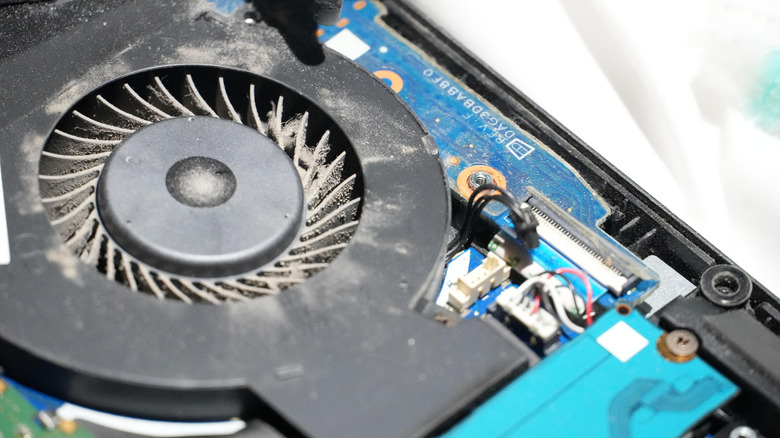
Accumulated Dust and Debris: Over time, dust, lint, pet hair, and other debris can accumulate inside the laptop chassis, particularly on the fan blades and heatsink fins. This layer of dust acts as an insulator, significantly reducing the efficiency of heat transfer and airflow. When the cooling system becomes clogged, the fans must spin faster and harder to compensate for the reduced heat dissipation, resulting in increased noise and potentially less effective cooling overall. This issue often develops gradually, leading to a steady increase in fan noise over months or years of use.
Distinguishing Normal Noise from Cause for Concern

While loud fans are often a sign of a healthy system responding to demand, there are specific indicators that suggest a deeper problem requiring attention.
-
Normal Operation: A laptop fan operating at high speed is generally considered normal if:
- It correlates directly with demanding tasks (e.g., gaming, video editing).
- The noise is a consistent whirring or rushing sound.
- The fan speed (and noise) decreases shortly after the demanding task ends.
- The laptop does not feel excessively hot to the touch or experience performance drops (thermal throttling) despite the noise.
-
When to Be Concerned:
- Constant Loudness at Idle: If your laptop fans are running at high speeds and producing significant noise even when the system is idle, or only performing light tasks like web browsing or word processing, it’s a red flag. This could indicate a persistent background process consuming resources, a software glitch misreading temperature sensors, or an early stage of dust accumulation severely impeding airflow.
- Irregular Noises (Rattling, Grinding, Buzzing): A fan that produces rattling, grinding, buzzing, or clicking sounds is a strong indicator of a mechanical failure. This often points to a worn-out fan bearing, a loose fan blade, or a foreign object interfering with the fan’s rotation. These noises are distinct from the smooth whir of normal operation and should be addressed promptly, as a failing fan cannot adequately cool the system, potentially leading to critical overheating and component damage.
- Loud Fans with Performance Drops: If your laptop’s fans are screaming, but you’re also experiencing noticeable performance slowdowns, stuttering, or unexpected shutdowns, it suggests that even maximum cooling efforts are insufficient. This indicates severe overheating, possibly due to a completely clogged cooling system, a failed heat pipe, or even an issue with the thermal paste application on the CPU/GPU, preventing efficient heat transfer to the heatsinks.
- Excessive Heat: While loud fans are designed to combat heat, if the laptop’s chassis feels unusually hot to the touch in specific areas (especially near vents) even with the fans running at full pelt, it means heat is not being effectively expelled. This could indicate a blocked exhaust path or a compromised cooling system.
Expert Recommendations and Manufacturer Stance
Manufacturers like Dell, HP, Lenovo, and ASUS design their laptops with sophisticated thermal management systems, including multiple temperature sensors and intelligent fan control algorithms. These systems are calibrated to operate within specific thermal envelopes, ensuring component longevity and performance. Industry experts consistently advise users that while some fan noise is inevitable under heavy load, abnormal or constant noise at idle warrants investigation.
Service technicians frequently report that dust accumulation is one of the most common issues leading to increased fan noise and reduced cooling efficiency. Many laptop user manuals explicitly recommend regular cleaning of vents and, for advanced users, internal cleaning every 1-2 years. For mechanical fan failures (e.g., rattling bearings), manufacturers and repair specialists uniformly recommend fan replacement, as these components are typically not repairable. Attempting DIY repairs involving internal components without proper knowledge and tools can void warranties and cause further damage. Therefore, for mechanical issues or severe dust build-up requiring chassis disassembly, contacting the manufacturer’s support or a certified repair center is the safest course of action.

Actionable Strategies for Noise Reduction
Fortunately, there are several effective strategies users can employ to reduce laptop fan noise, depending on the root cause.
-
Optimize Software and Workload Management:
- Close Unnecessary Applications: Regularly check your Task Manager (Windows) or Activity Monitor (macOS) to identify and close any resource-intensive applications or background processes that are not actively needed. This immediately reduces the load on your CPU and GPU, leading to lower temperatures and slower fan speeds.
- Adjust Power Modes: Operating systems offer various power profiles that impact performance and power consumption. On Windows, navigate to Settings > System > Power & battery > Power mode and select "Best power efficiency" or "Balanced" for quieter operation. For gaming laptops, dedicated manufacturer software (e.g., ASUS Armoury Crate, Dell Power Manager, Lenovo Vantage, HP Omen Gaming Hub) often provides specific "Quiet," "Silent," or "Eco" profiles that prioritize lower fan noise over maximum performance.
- Lower In-Game Settings and Cap Frame Rates: For gamers, reducing graphical settings (e.g., texture quality, shadow detail, anti-aliasing) and disabling demanding features like ray tracing can significantly reduce the strain on the GPU. Capping the frame rate (e.g., to 60 frames per second) instead of allowing it to run uncapped will also reduce the GPU’s workload, resulting in less heat and quieter fans. Many games include an in-game FPS limiter, or you can use GPU control panel settings (NVIDIA Control Panel, AMD Adrenalin).
- Keep Drivers and OS Updated: Outdated drivers (especially for chipset and graphics) or an old operating system can sometimes lead to inefficient resource management, causing components to work harder and generate more heat. Ensuring all drivers and the OS are up to date can improve thermal efficiency.
-
Improve Hardware and Environmental Conditions:
- Ensure Proper Ventilation: Always use your laptop on a hard, flat surface like a desk or a cooling stand. Avoid placing it on soft surfaces such as beds, couches, blankets, or even your lap, as these materials can block the intake and exhaust vents, trapping heat.
- Utilize a Laptop Cooling Pad: A dedicated laptop cooling pad, especially one with active fans, can significantly improve airflow around and into your laptop’s cooling system. These pads elevate the laptop and provide additional airflow, helping to reduce internal temperatures and allowing the laptop’s own fans to spin at lower speeds.
- Manage Ambient Temperature: Operating your laptop in a cooler room will naturally reduce its internal temperatures, as the fans have cooler air to work with. If possible, avoid using the laptop in direct sunlight or overly warm environments.
- Regular Cleaning: For dust accumulation, periodic cleaning is essential. For external vents, a soft brush or a vacuum cleaner on a low setting can remove surface dust. For internal dust, especially on fan blades and heatsinks, it’s generally recommended to take the laptop to a professional repair technician. They can safely open the chassis, use compressed air, and ensure no components are dislodged or damaged. While some technically inclined users might attempt this themselves, improper disassembly can lead to damage or void the warranty.
-
Address Mechanical Issues:
- Professional Diagnosis for Irregular Noises: If you hear rattling, grinding, or buzzing noises, these indicate a mechanical failure of the fan or an obstruction. In such cases, the fan needs to be replaced. Immediately contact the laptop manufacturer’s support or a certified repair technician for diagnosis and replacement. Continuing to use a laptop with a failing fan risks severe overheating and damage to other critical components.
Broader Implications and User Experience
Beyond the immediate annoyance, persistent loud laptop fan noise has several broader implications for user experience and device longevity. For one, it significantly detracts from immersion in games or multimedia content, often forcing users to rely on headphones. In professional settings, a noisy laptop can be distracting not only to the user but also to colleagues in shared workspaces.
While modern laptops are designed to withstand high operating temperatures, chronically running at peak thermal limits, even with effective cooling, can theoretically contribute to gradual component degradation over an extended lifespan, though this is less common with well-designed systems. More practically, excessive fan noise and heat can be indicative of underlying issues that, if left unaddressed, could lead to premature hardware failure, data loss, and costly repairs. A well-maintained laptop that operates quietly and efficiently also tends to hold its resale value better. Furthermore, high fan speeds consume more power, leading to a slightly reduced battery life, which can be a minor inconvenience for users on the go.
In conclusion, a noisy laptop fan is often a sign of a healthy system diligently performing its thermal management duties under load. However, understanding the context of the noise – whether it’s a predictable response to intensive tasks or an abnormal sound at idle – is key to determining if it’s a cause for concern. By implementing strategies ranging from software optimization and environmental management to professional cleaning and repair, users can effectively mitigate excessive fan noise, enhance their computing experience, and ensure the long-term health and performance of their portable devices.