Metty Iskandar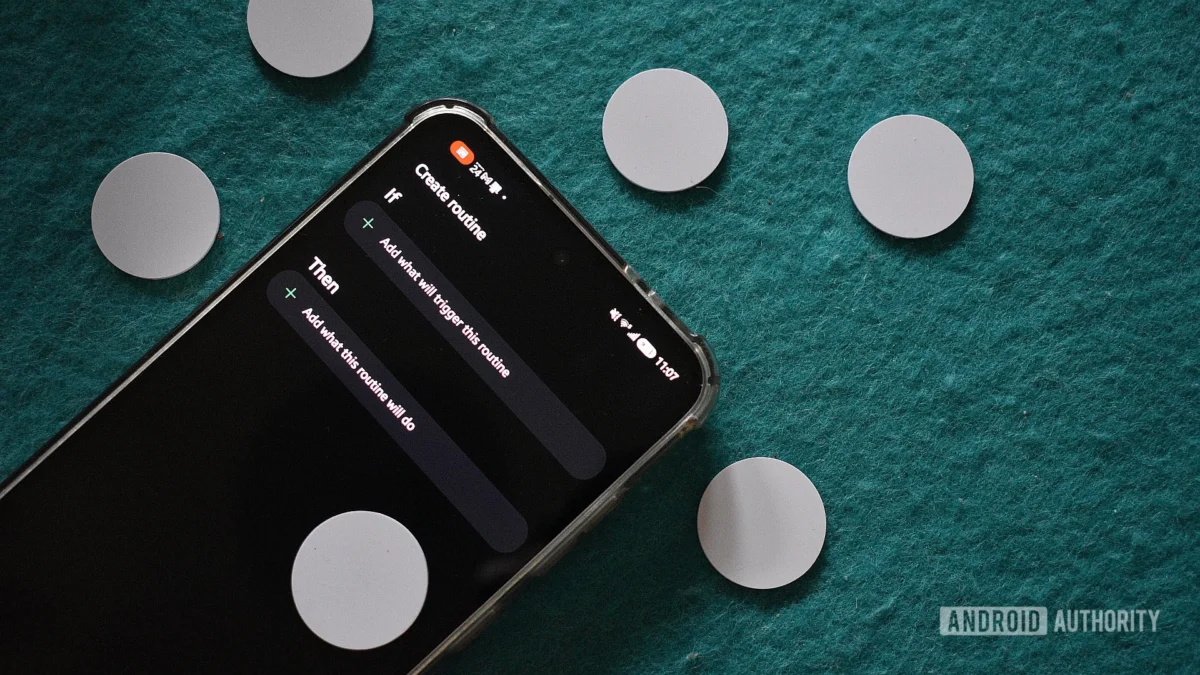
Near-Field Communication (NFC) technology, often overshadowed by flashier innovations like Ultra-Wideband (UWB) or the ubiquitous Wi-Fi, is a smartphone feature whose profound utility is frequently underestimated. While not a headline-grabbing feature, NFC quietly powers some of the most elegant and effective tools for streamlining the mundane tasks of daily life. For many, myself included, a small investment in NFC tags, combined with powerful automation software, can unlock significant efficiencies and reduce daily friction. This article explores how Samsung’s Modes and Routines app, particularly when enhanced by the Routines+ Good Lock module, transforms these inexpensive chips into potent triggers for personalized automation, simplifying everything from waking up to winding down.
The Case for NFC: Why This Technology Deserves More Recognition
The inherent value of NFC lies in its simplicity and affordability. A pack of ten NFC tags can often be purchased for less than $10, making them an accessible entry point into the world of smart automation. This low cost, coupled with their ability to act as passive triggers, allows for a broad range of applications without requiring complex setup or significant financial outlay. While alternative automation tools exist for various Android devices, Samsung’s integrated approach, particularly through the Modes and Routines app and the Good Lock suite, offers a user-friendly gateway to leveraging NFC’s full potential. The ability to create multi-step routines that activate with a simple tap transforms the smartphone from a reactive device into a proactive assistant, capable of anticipating and executing user-defined sequences of actions.
Prerequisites for an Automated Lifestyle
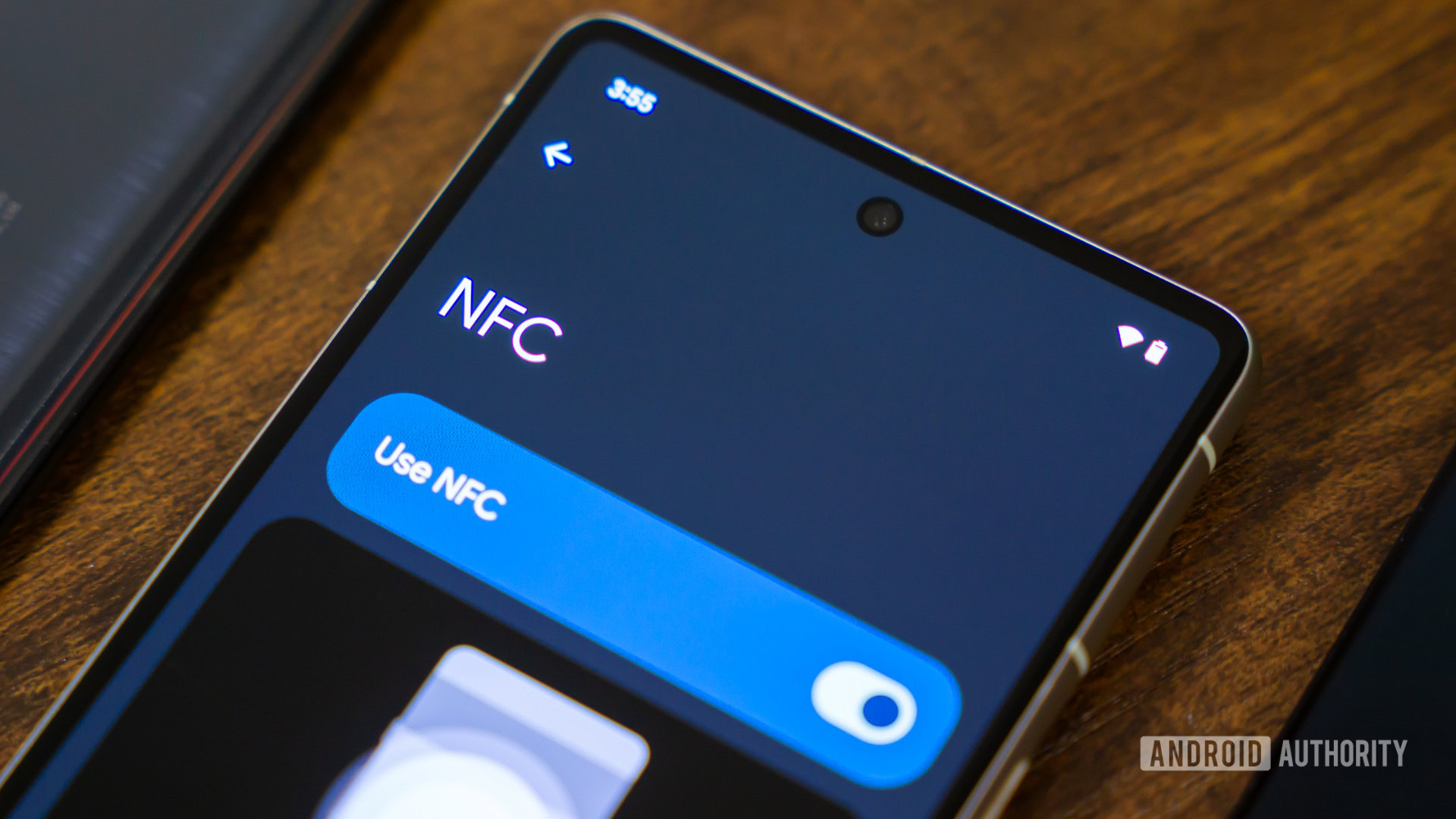
To embark on this journey of NFC-powered automation, a few key components are necessary. Primarily, a collection of NFC tags is essential. For the purposes of triggering routines, these tags do not need to store extensive data; their primary function is to serve as unique identifiers that initiate predefined actions on a compatible smartphone. A Samsung phone is ideal, as it provides seamless integration with the Modes and Routines application. While other Android devices can achieve similar automation through third-party apps like Tasker or MacroDroid, the native Samsung experience offers a more streamlined and intuitive setup for users within that ecosystem.
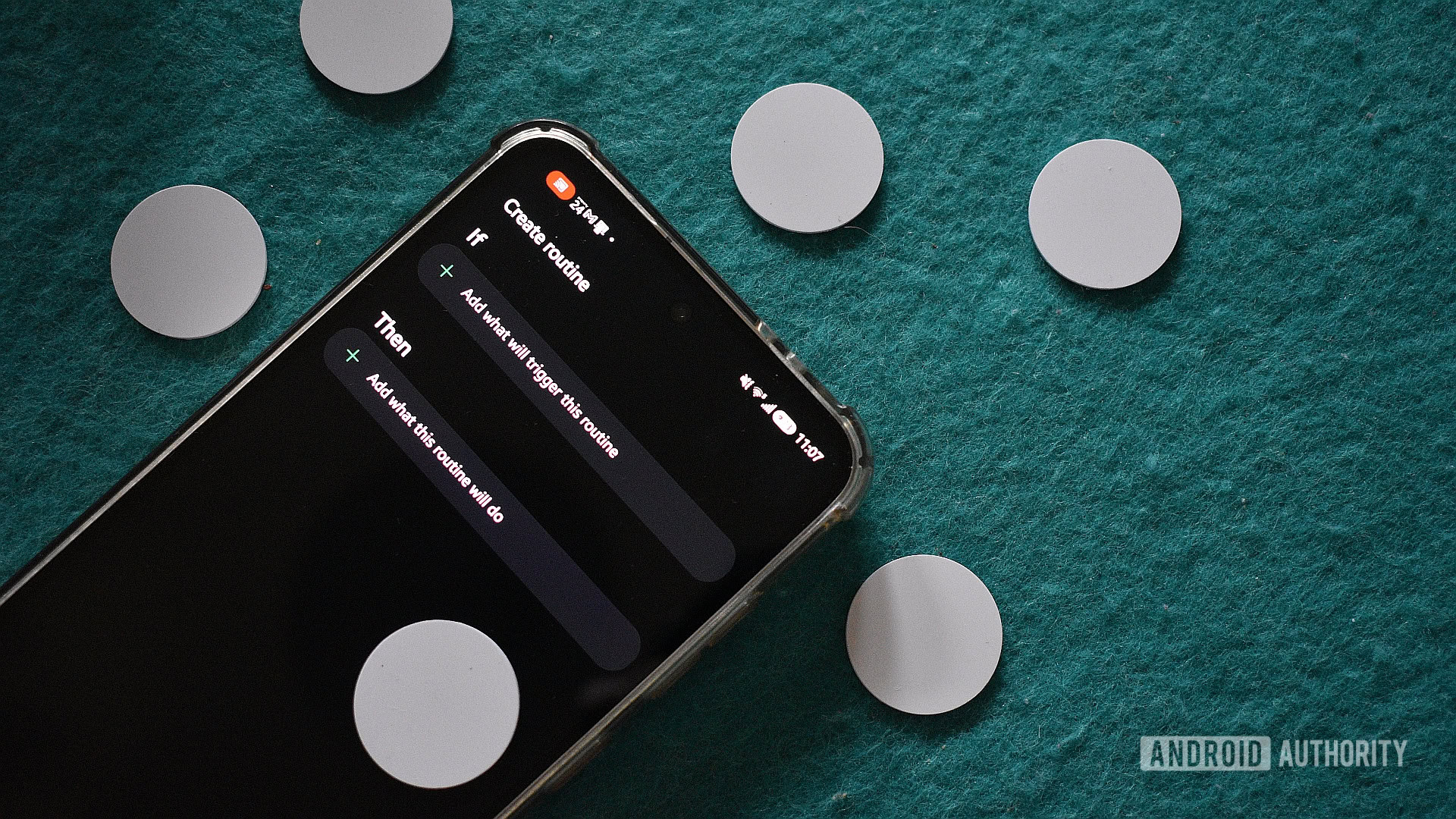
The true power of NFC tags is unlocked when paired with robust automation software. Samsung’s Modes and Routines app, a core component of the One UI experience, allows users to define "if this, then that" scenarios. When combined with the Routines+ module from the Good Lock app, the range of available actions and triggers expands considerably, offering granular control over device settings, app launches, and more. This synergy between inexpensive hardware and sophisticated software is the foundation for creating personalized automation that can significantly enhance daily productivity and convenience.
Crafting Your Automated Environment: A Step-by-Step Approach
Setting up a new routine on a Samsung phone is a straightforward process. Users can typically locate the Modes and Routines app within the device’s settings menu. Once accessed, the creation of a new routine involves defining a trigger and a set of actions. For NFC-based automation, the trigger is configured to be a specific NFC tag. Users will then select from a comprehensive list of available actions, which can include adjusting device settings (like screen brightness, Wi-Fi, or Bluetooth), launching applications, setting alarms, or even triggering more complex sequences of events.
To ensure clarity and ease of use, it is highly recommended to name each routine descriptively and to physically label or otherwise identify the corresponding NFC tag. This could involve using a permanent marker to write on the tag itself, applying custom stickers, or noting its purpose in a separate digital list. This practice prevents confusion and ensures that the correct automation is initiated when a particular tag is scanned.
My Automated Day: A Series of Personalized Routines
The following sections detail specific routines that have been implemented to streamline various aspects of the day, showcasing the practical application of NFC tags with Samsung’s Modes and Routines. These examples are intended to serve as inspiration, encouraging users to adapt and expand upon them based on their individual needs and preferences.
The Morning Awakening: A Gentle Start to the Day
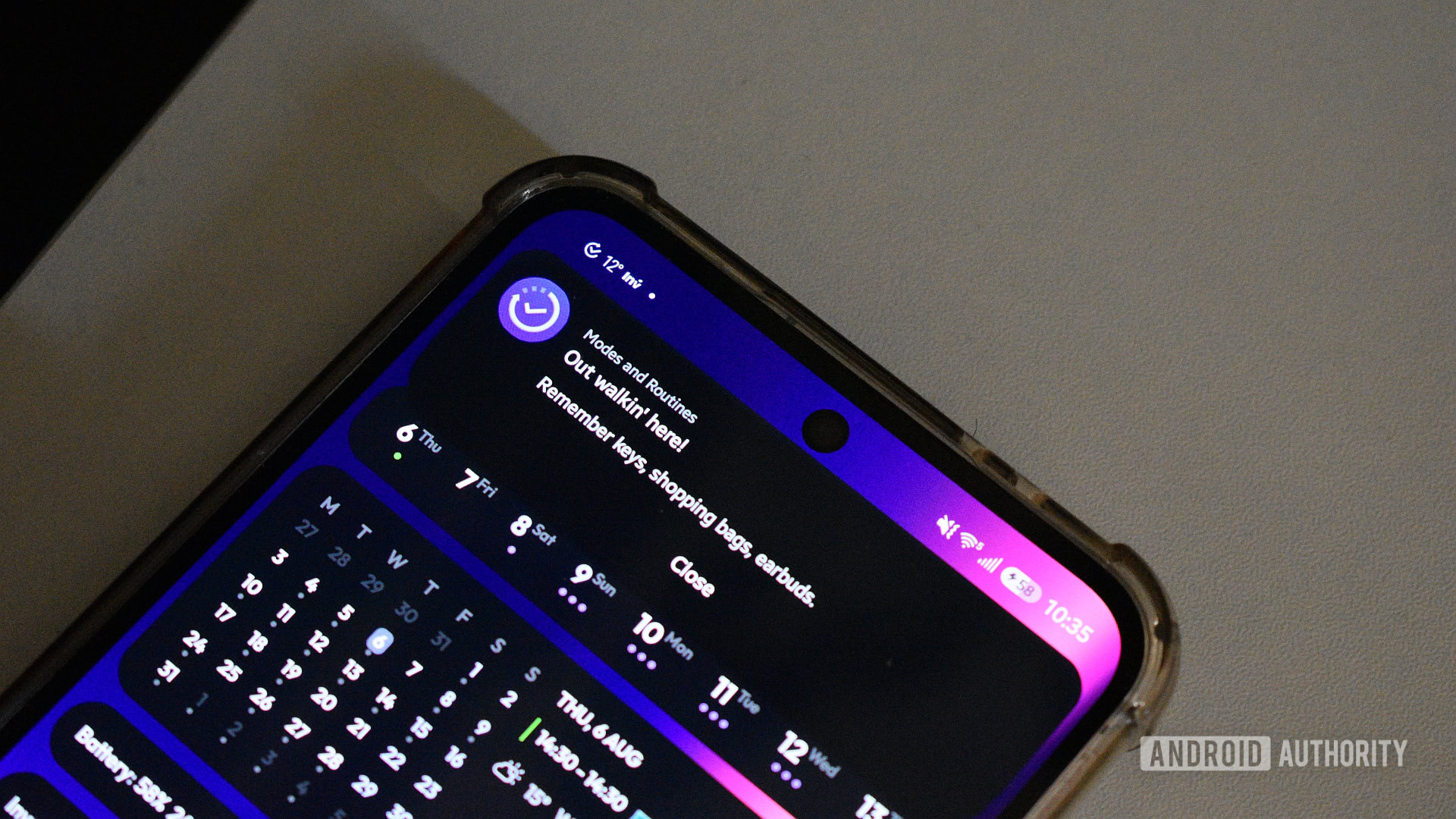
The struggle to rise from sleep is a common one, and traditional alarms often prove ineffective against persistent slumber. To combat this, a specialized alarm clock app, such as "NFC Alarm Clock," can be employed. This application requires users to physically scan a designated NFC tag to disarm the alarm, effectively forcing them out of bed to turn it off. The key to this method’s success lies in strategically placing the NFC tag away from the bedside. Locations such as the coffee machine, a bathroom mirror, or even a balcony can serve as effective disincentives to returning to sleep.
As the alarm is disarmed, a corresponding Samsung routine is automatically triggered. For those who find harsh morning light jarring, particularly during winter months, this routine can be configured to adjust display settings. This includes setting screen brightness to a moderate level and enabling "Eye Comfort Shield" in "Adaptive" mode. These adjustments help to gradually acclimate the eyes to light, preventing discomfort.
Furthermore, the routine can be programmed to launch essential applications. Google Calendar can be opened to provide an overview of the day’s schedule, while a specific Google Keep note can be accessed for general organization. Launching these applications in an app pair allows for a comprehensive review of upcoming appointments and to-do lists, facilitating effective daily planning. Following this, the routine can be set to open a preferred news application, such as Kagi News, enabling users to catch up on current events while enjoying their morning beverage.
The Routine:
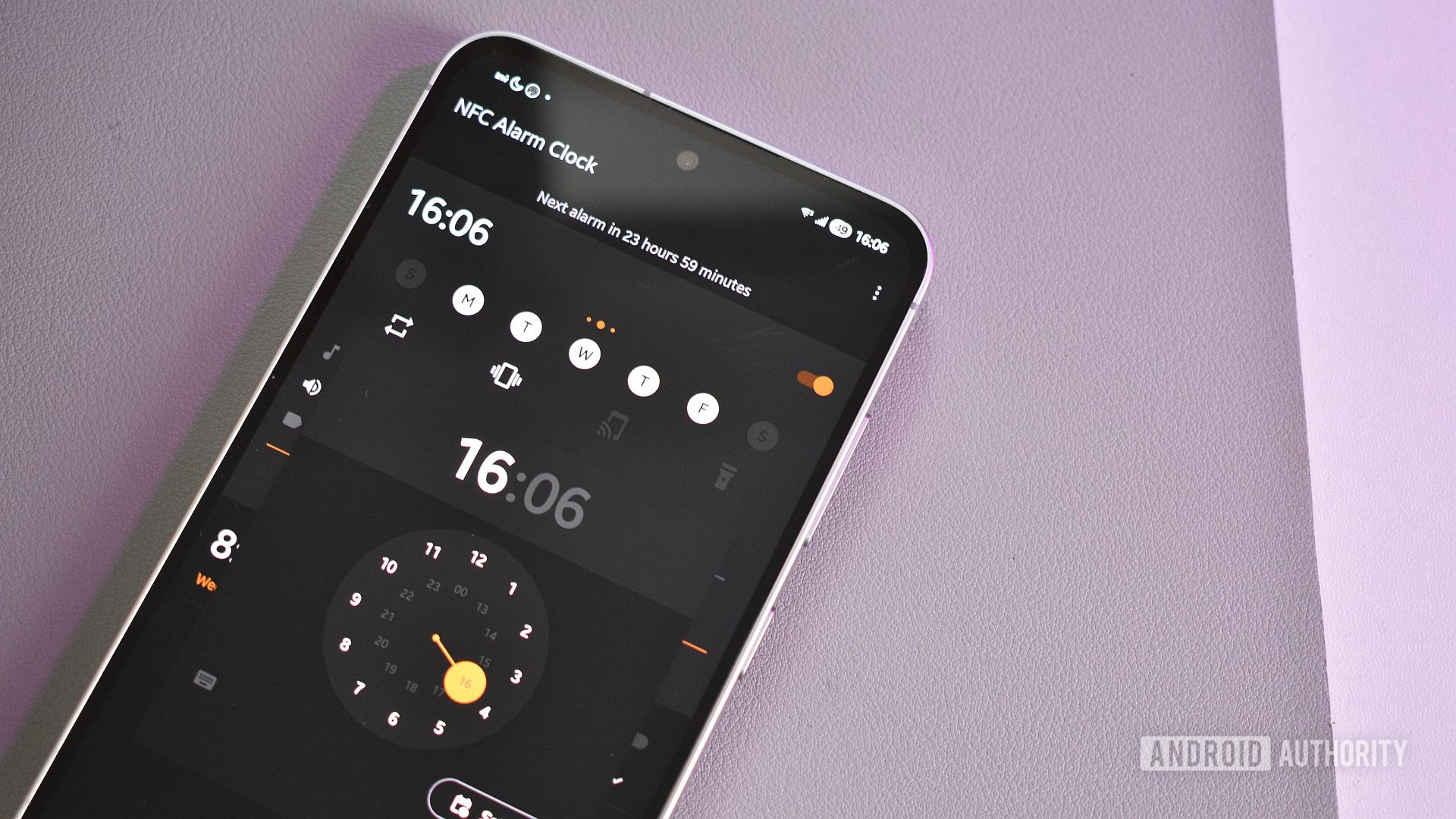
- Trigger: Scan NFC tag located away from the bedroom (e.g., coffee machine).
- Actions:
- Disarm alarm.
- Set display brightness to 50%.
- Enable Eye Comfort Shield (Adaptive).
- Launch Google Calendar.
- Launch Google Keep note.
- Launch Kagi News.
- Placement Suggestion: Coffee machine, refrigerator, bathroom shelf/door.
The Work-From-Home Command Center
For individuals who spend a significant portion of their day working remotely, optimizing the transition into the workday is crucial. A dedicated NFC tag, placed on the desk, can initiate a routine that prepares the smartphone for a productive session. This routine focuses on battery management, eye strain reduction, and seamless integration with the computer.
Key actions include keeping the phone unlocked, which eliminates the need for manual authentication throughout the day. Crucially, "Battery Protection" can be set to 85%, a feature designed to extend the lifespan of the battery when the device is frequently connected to a power source. Additionally, "Link to Windows" can be enabled, facilitating easy screen mirroring and file transfer between the phone and PC.
To support focused work, the routine can also launch a Pomodoro timer application, such as Tomato. Setting the work intervals to a 50-minute work, 15-minute break structure can enhance productivity and prevent burnout. This routine creates a digital environment conducive to concentration and efficiency, minimizing distractions and maximizing output.
The Routine:
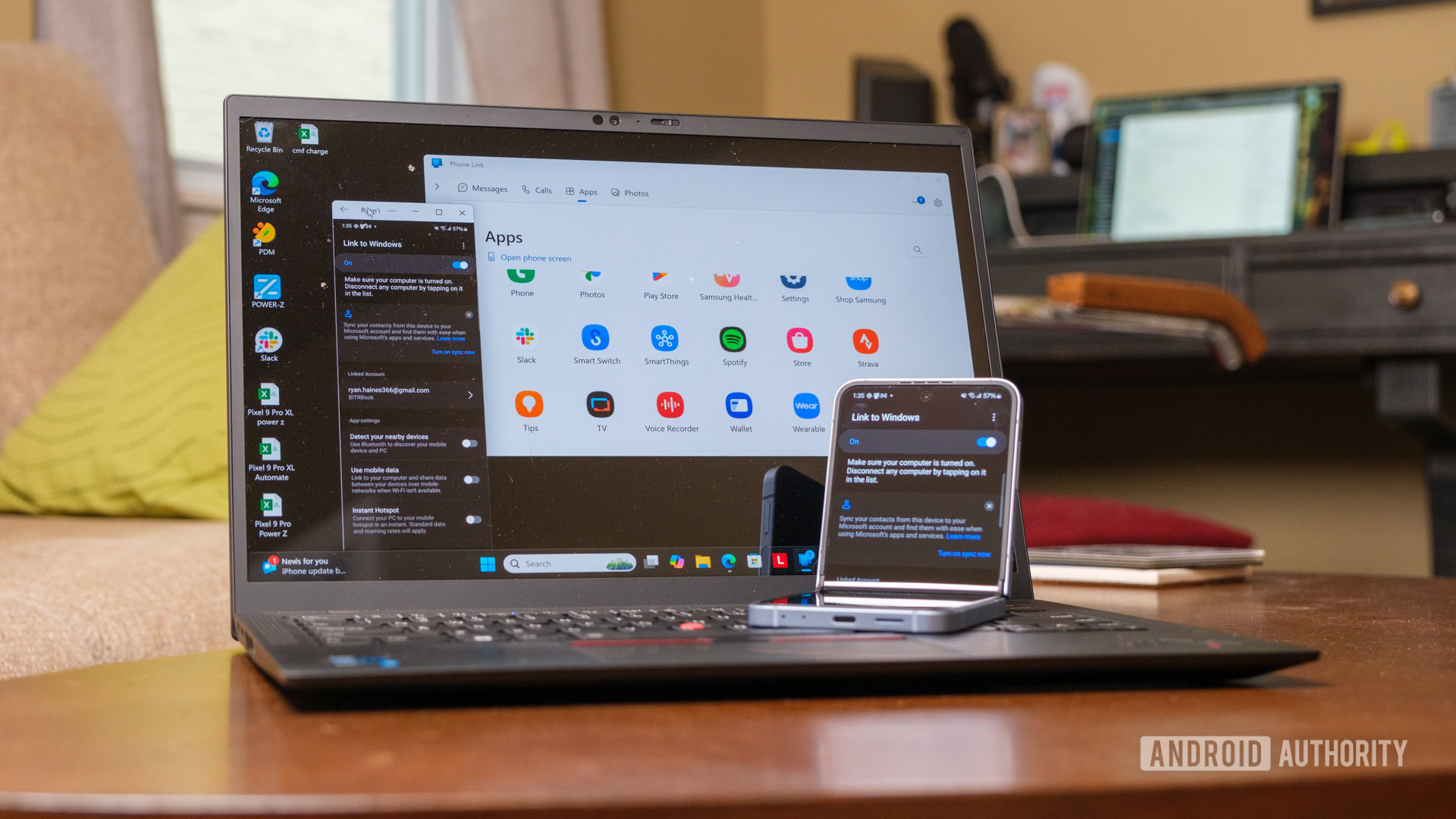
- Trigger: Scan NFC tag on the desk.
- Actions:
- Keep screen unlocked.
- Set Battery Protection to 85%.
- Enable Link to Windows.
- Launch Tomato (Pomodoro timer).
- Placement Suggestion: Right-hand side of the desk.
Pre-Outdoor Exertion: Ensuring Preparedness
Encouraging regular physical activity often involves establishing routines that simplify preparation. For those who enjoy outdoor exercise, an NFC tag placed near the exit can initiate a sequence of actions that ensures all necessary elements are in place.
This routine can adjust Bluetooth audio volume to a preferred level for listening to podcasts or music during the activity. The preferred podcasting application, such as Podcast Republic, can be automatically launched, allowing users to immediately resume listening. To prevent forgetting essential items, a pop-up reminder can be configured to appear after a brief delay, listing crucial belongings. Finally, the routine can open WhatsApp to a specific contact, enabling quick sharing of the current location before heading out. While Samsung’s current capabilities do not allow for automated message sending to contacts, this step still streamlines the process significantly.
The Routine:
- Trigger: Scan NFC tag near the front door or porch light switch.
- Actions:
- Set Bluetooth audio volume.
- Launch Podcast Republic.
- Display a custom reminder for essential items.
- Open WhatsApp to a specific contact chat.
- Placement Suggestion: Front door or below the porch light switch.
Seamless Android Auto Integration
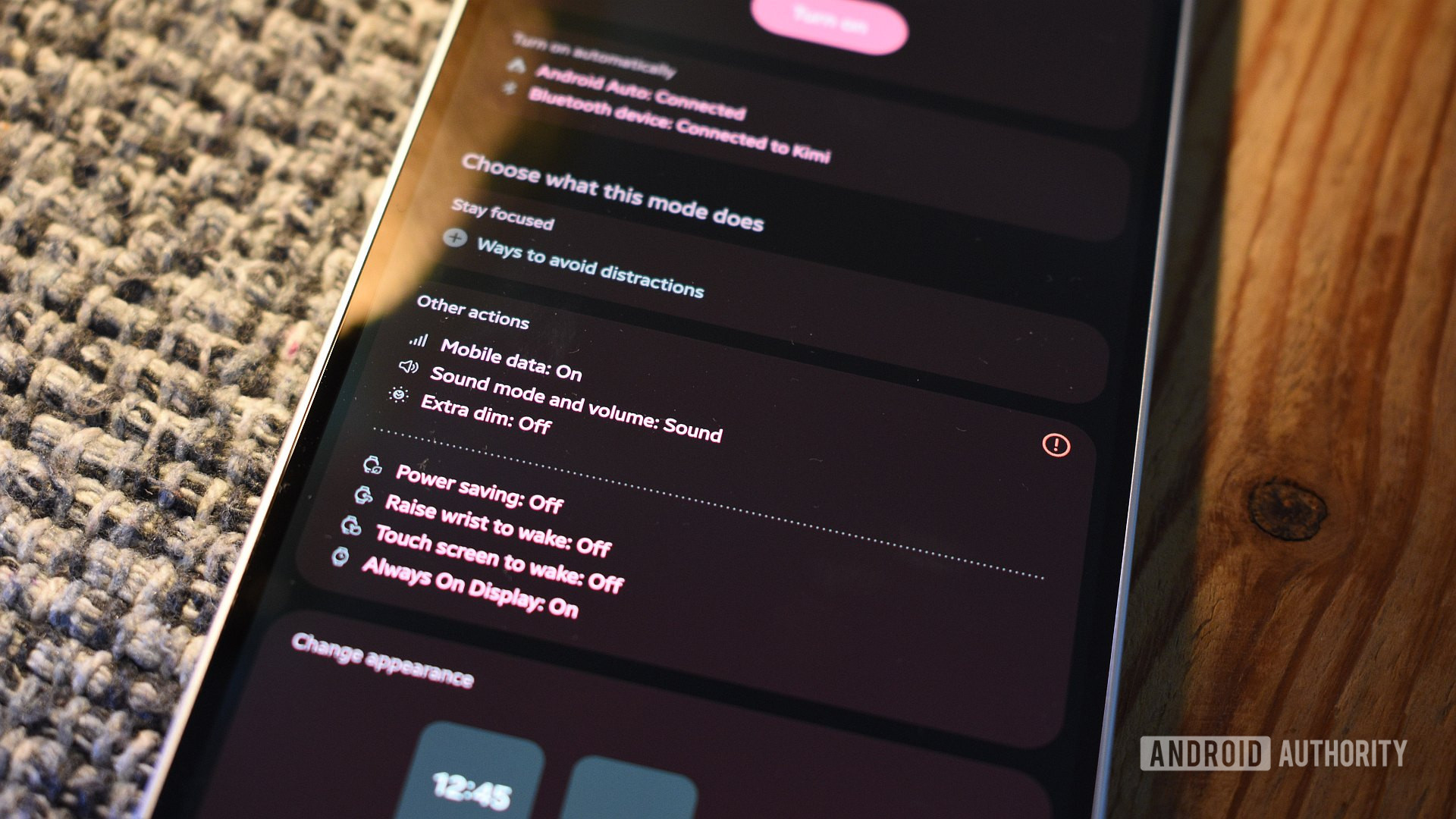
The initial impetus for exploring NFC automation was to simplify the process of connecting and disconnecting multiple phones to Android Auto. This requires two NFC tags and corresponding routines on each device. One tag initiates the Android Auto connection, while the other severs it. By tapping the appropriate tag, users can seamlessly switch their phone’s connection to the car’s infotainment system.
Subsequent refinements to this routine have addressed minor inconveniences. The "Extra dim" feature, which can sometimes apply an undesirable gray filter to the car’s display, has been disabled. Additionally, the phone’s screen brightness is set to its lowest level to conserve power. The routine for disconnecting Android Auto is more straightforward, temporarily disabling Wi-Fi and Bluetooth until the secondary phone is connected, ensuring a smooth transition.
The Routine (Connection):
- Trigger: Scan NFC tag for Android Auto connection.
- Actions:
- Enable Wi-Fi.
- Enable Bluetooth.
- Launch Android Auto.
- Set screen brightness to minimum.
- Placement Suggestion: Dashboard.
The Routine (Disconnection):
- Trigger: Scan NFC tag for Android Auto disconnection.
- Actions:
- Temporarily disable Wi-Fi.
- Temporarily disable Bluetooth.
- Placement Suggestion: Dashboard.
The Culinary Companion: Streamlining Kitchen Tasks
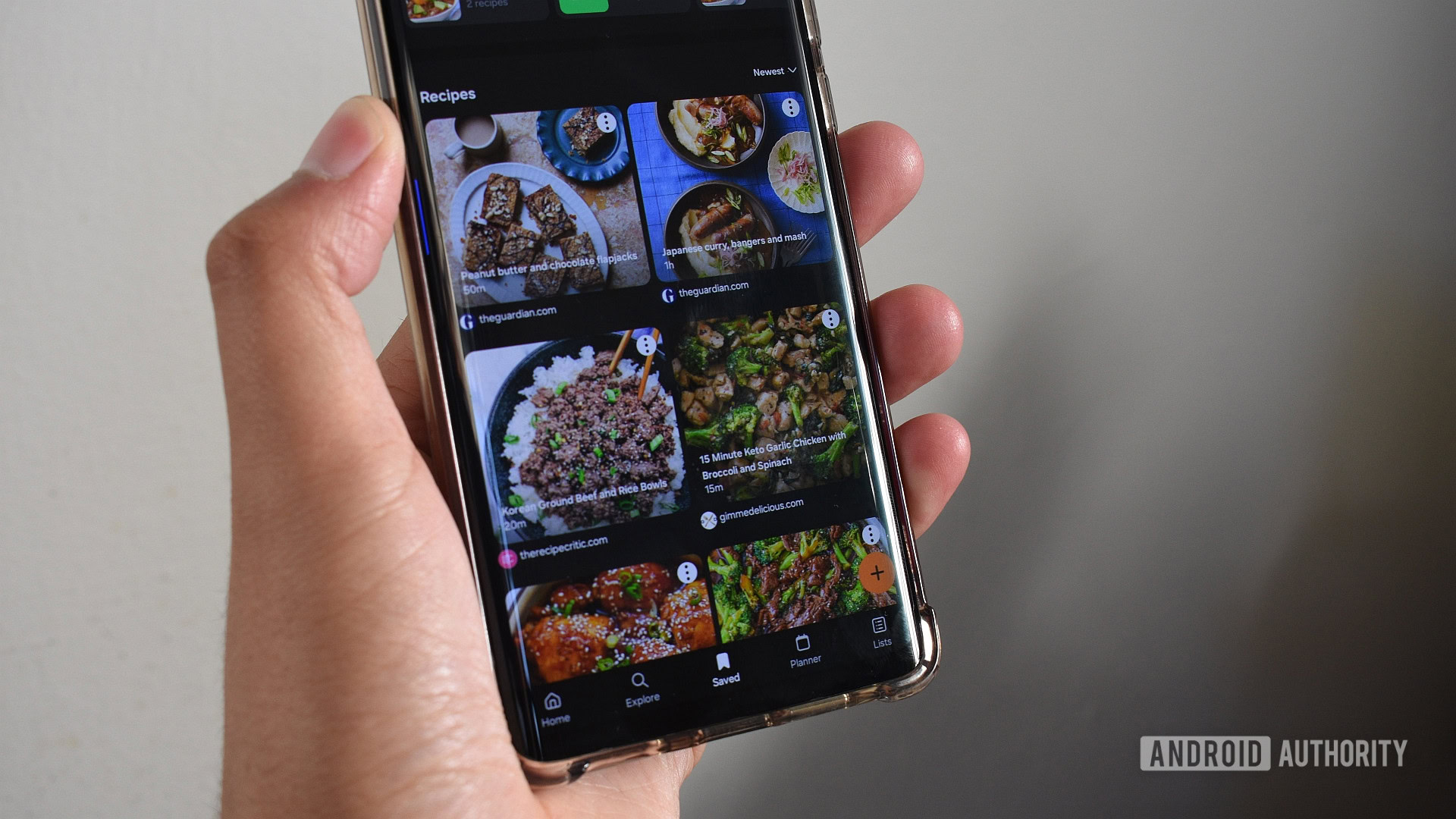
For those who enjoy cooking, integrating smartphone assistance into the kitchen environment can be highly beneficial. A routine centered around the kitchen can launch Samsung Food, an often-underappreciated application that stores a vast collection of recipes. This routine can be paired with Google Clock, providing quick access to setting timers, which is particularly useful during baking or when precise cooking durations are required.
An additional NFC tag, perhaps affixed to the refrigerator, can be programmed to open Google Keep, where a master grocery list is maintained. This allows for easy access to essential shopping items while meal planning or during grocery trips. Combining these functions ensures that recipe access and ingredient tracking are readily available, reducing the mental load associated with culinary endeavors.
The Routine:
- Trigger: Scan NFC tag in the kitchen.
- Actions:
- Launch Samsung Food.
- Launch Google Clock.
- (Optional) Open Google Keep grocery list.
- Placement Suggestion: Kitchen, side of the fridge, or cooktop.
The Evening Wind-Down: Preparing for Rest
As the day concludes, a dedicated routine can help transition the smartphone into a state conducive to sleep. This routine can launch "CareSleep," a white noise application that aids in relaxation and sleep quality. By automating the launch of this app, users are discouraged from browsing their phones and potentially engaging with stimulating content before bed.
Following the launch of CareSleep, the routine can be programmed to pause for three minutes before opening Google Keep. This pause allows for a moment of reflection before reviewing memos or notes saved throughout the day. This review process helps consolidate thoughts, organize tasks for the following morning, and ensure that no important information is overlooked.
Crucially, the bedtime routine also adjusts device settings to promote rest. "Battery Protection" can be increased to 95%, while "Eye Comfort Shield" and "Extra dim" are activated and set to near maximum levels. These settings minimize blue light exposure and reduce screen brightness, creating an environment that supports natural sleep cycles.
The Routine:
- Trigger: Scan NFC tag on the bedside table.
- Actions:
- Launch CareSleep (white noise app).
- Wait 3 minutes.
- Open Google Keep (master note review).
- Set Battery Protection to 95%.
- Activate Eye Comfort Shield (maximum).
- Activate Extra Dim (maximum).
- Placement Suggestion: Bedside table.
The Broader Impact and Future Potential
The examples provided represent a fraction of the possibilities unlocked by NFC tags and Samsung’s Modes and Routines. The true power lies in the user’s ability to customize and integrate these automations into their unique daily workflows. As technology evolves, we can anticipate even more sophisticated integrations and expanded functionality. The potential for NFC to act as a physical bridge to digital actions is immense, offering a tangible and intuitive way to interact with our increasingly connected devices. Encouraging community sharing of innovative NFC routines, as the author of the original article suggests, can further accelerate the discovery and adoption of these practical automation solutions, solidifying NFC’s place as an indispensable, albeit often overlooked, smartphone feature.