Metty Iskandar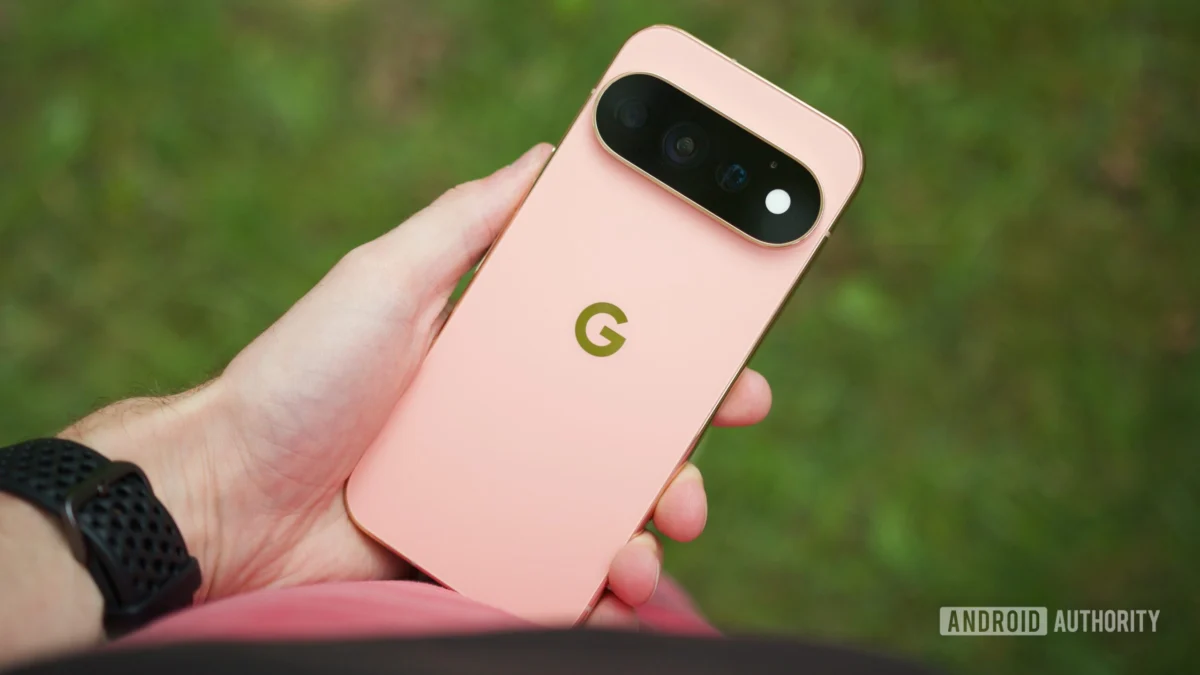
The highly anticipated Google Pixel 11 series has officially landed, ushering in a new era of smartphone innovation for the tech giant. However, as is often the case with new Pixel releases, these cutting-edge devices are not always configured to deliver the optimal user experience straight out of the box. A wealth of valuable features and settings are either dormant by default or necessitate manual activation and customization. With the Pixel 11 series boasting an impressive array of new software enhancements, the importance of fine-tuning these devices has never been greater. For new Pixel 11 owners, this guide highlights ten crucial settings and features that warrant immediate attention to maximize the device’s capabilities.
The Pixel Legacy: A Tradition of Post-Purchase Optimization
Google’s Pixel line has consistently been praised for its intelligent software, seamless integration with Google services, and exceptional camera performance. However, a recurring theme across generations of Pixel phones is the need for users to actively engage with their devices to unlock their full potential. This approach, while sometimes requiring a learning curve, empowers users to tailor their experience precisely to their preferences. The Pixel 11 series continues this tradition, introducing innovative features that require a proactive user to fully appreciate. This editorial aims to demystify these settings, ensuring that every Pixel 11 owner can immediately benefit from the advanced technology at their fingertips.
Mastering Your Photos: The Power of Camera Looks
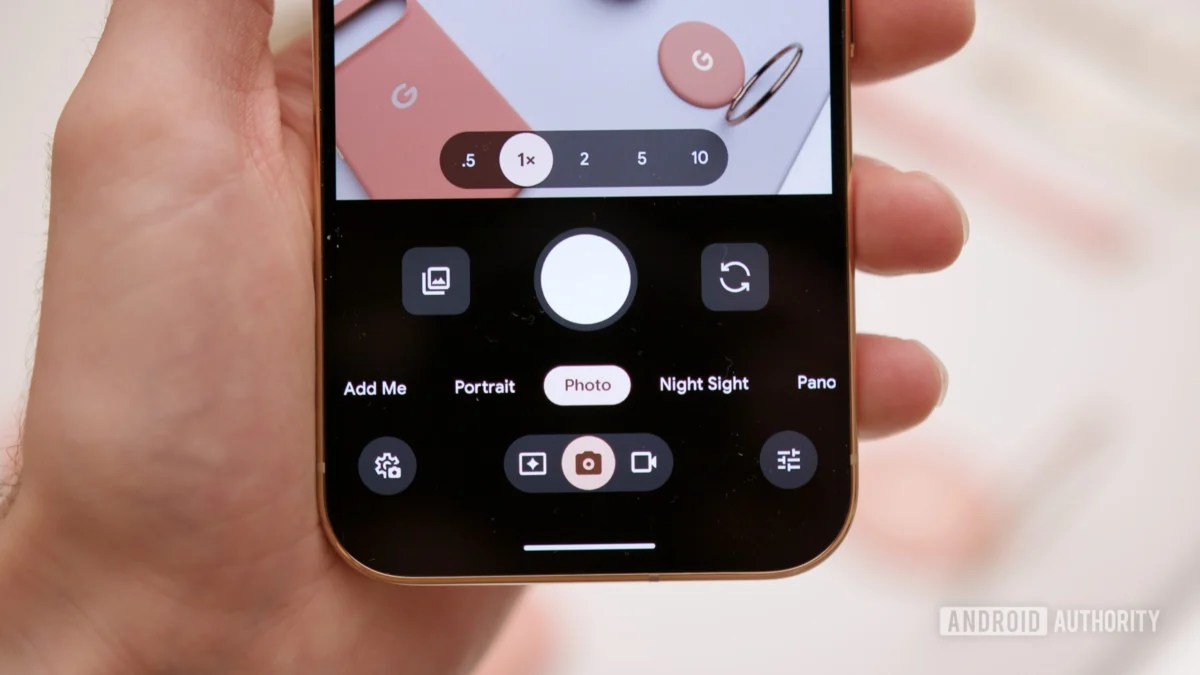
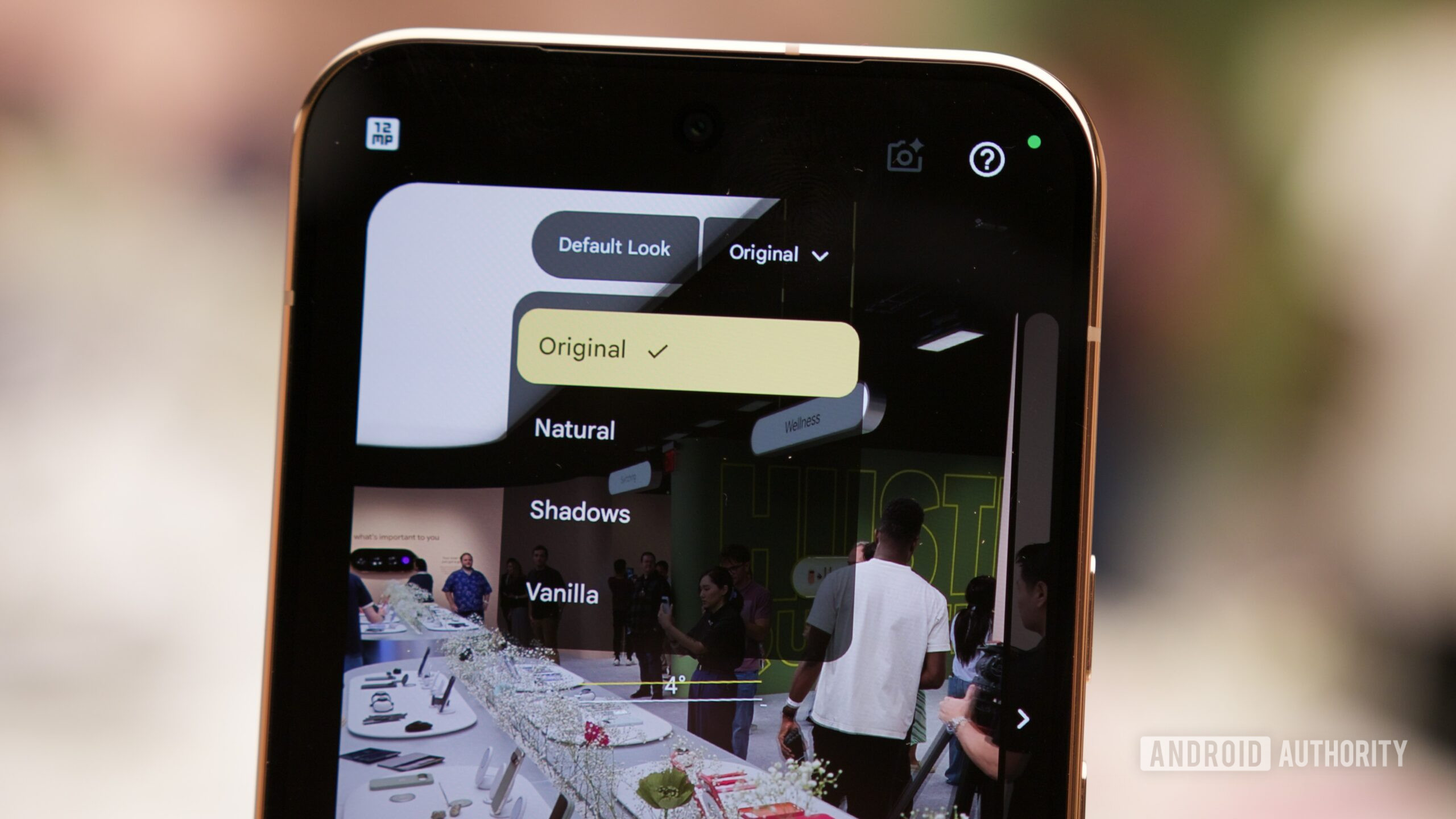
Pixel phones have long been synonymous with photographic excellence, and the Pixel 11 series elevates this reputation with the introduction of "Camera Looks." This innovative feature grants users unprecedented control over the aesthetic of their photos before the shutter even clicks. Unlike post-processing filters, Camera Looks allows for real-time adjustments to color and tone, enabling a more intuitive and personalized photographic workflow.
The default "Standard Look" offers a familiar baseline, with adjustable HDR processing levels. However, users can explore a range of stylized "Looks" that dramatically alter the color saturation, contrast, and overall mood of an image. To access and customize these powerful tools:
- Open the Camera app.
- Tap the Looks icon (often represented by three overlapping circles or a palette symbol) located above the shutter button.
- Swipe through the available Looks, such as "Vibrant," "Natural," or "Cinematic," to preview their effects.
- Select your preferred Look.
- For the "Standard" Look, you can fine-tune the HDR processing strength by tapping the HDR icon and adjusting the slider.
- To save your preferred Look as the default, select it and look for an option to set it as default or remember your last choice.
This feature is particularly beneficial for content creators and photography enthusiasts who seek to establish a consistent visual style across their portfolios. The ability to define a specific photographic mood before capturing a shot streamlines the editing process and ensures a cohesive final output.
Unleashing Creativity: The Creator Suite Tools
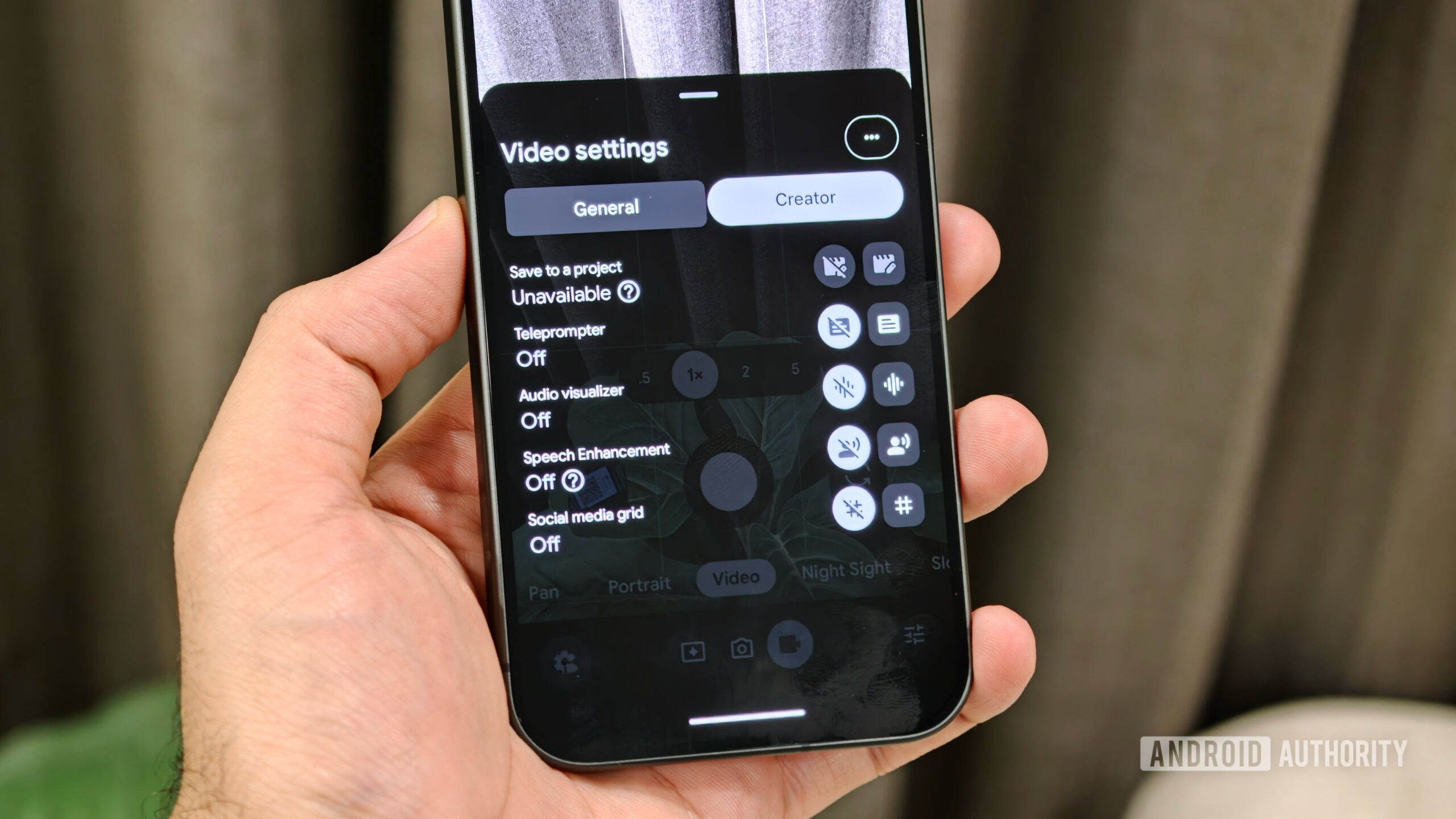
Google has demonstrably focused on empowering social media creators with the Pixel 11 camera. The introduction of the Creator Suite offers sophisticated tools designed to enhance video production directly on the device. A standout feature is the integrated teleprompter, which allows users to read scripts seamlessly while recording video, a functionality often only found in dedicated professional setups. Complementing this is the inclusion of social media grid lines, which provide a visual guide for where key UI elements like usernames, captions, and like buttons will appear on various platforms after uploading. This thoughtful addition addresses a common pain point for creators aiming for polished social media content, offering a competitive edge not even natively found on competing platforms like the iPhone.
These powerful creative aids are not enabled by default and require user intervention:
- Navigate to Settings.
- Select Camera.
- Tap on Creator Suite.
- Toggle on Teleprompter and Social Media Grid Lines to activate these functionalities.
The inclusion of these tools signifies Google’s commitment to the burgeoning creator economy, positioning the Pixel 11 as a potent mobile studio for aspiring and established content creators alike.
Optimizing Power: The Mechanics of Extreme Charging
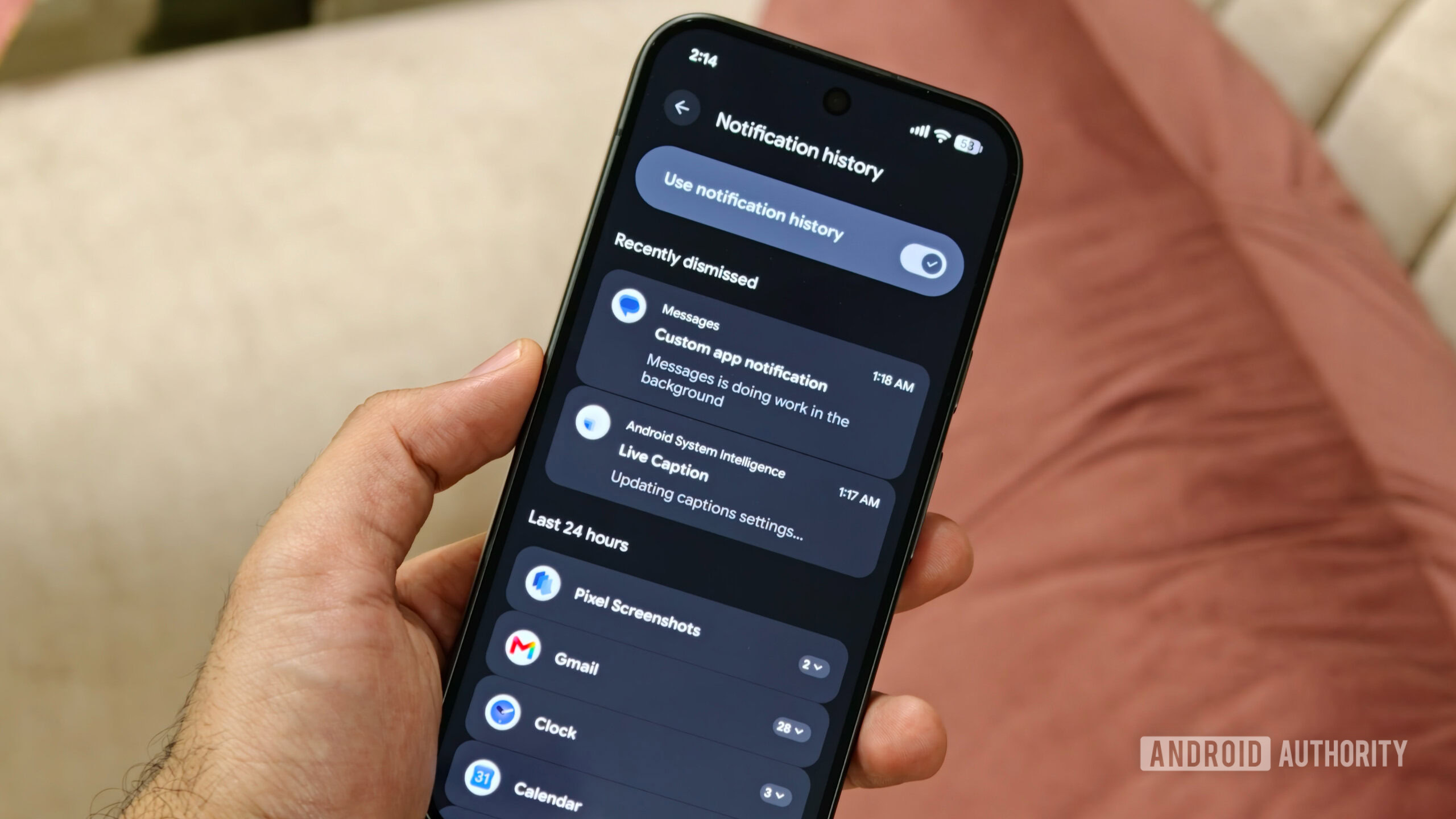
While battery capacities have seen incremental improvements, Google has introduced a significant charging enhancement with "Extreme Charging" on the Pixel 11 series. Mirroring advancements seen in devices from OnePlus, Oppo, and Vivo, this feature allows the Pixel to prioritize accelerated charging speeds when users are pressed for time. However, this convenience comes with specific conditions.
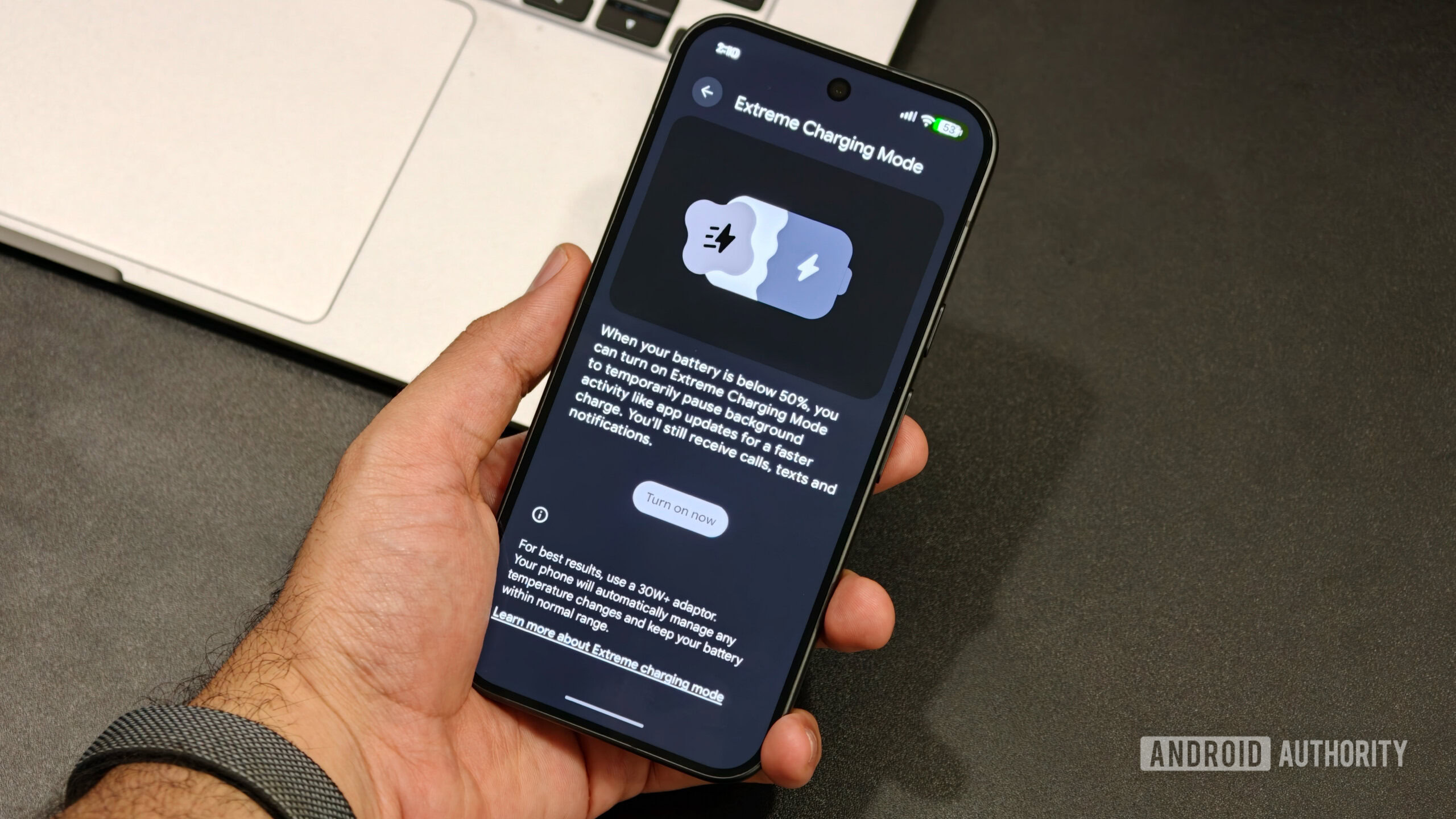
Extreme Charging is exclusively available when the device’s battery level is below 50%. Furthermore, it requires manual activation each time the faster charging speed is desired. This intentional design likely aims to balance the benefits of rapid charging with long-term battery health, preventing constant high-speed charging that could potentially degrade the battery over time.
To leverage this feature:
- Connect your Pixel 11 to a charger when the battery is below 50%.
- Open the Settings app.
- Navigate to Battery & charging.
- Select Extreme Charging.
- Tap Turn on now to initiate the accelerated charging session.
This feature is a testament to Google’s focus on user convenience, providing a practical solution for those moments when a quick battery top-up is essential.
Precise Power Management: Displaying Exact Battery Percentage
Within the Battery settings, another highly recommended adjustment is enabling the precise battery percentage display. For reasons that remain unclear, Pixel phones have historically omitted this crucial detail from the status bar by default. In an era where battery life is a constant concern, knowing the exact remaining percentage offers a far more accurate assessment than relying on the visual cues of a battery icon.
To activate this straightforward yet impactful setting:
- Go to Settings.
- Tap on Battery & charging.
- Locate and enable the Battery Percentage toggle.
This simple change provides immediate clarity and empowers users to better manage their device’s power consumption throughout the day.
Personalized Communication: Customizing HiLight for Key Contacts
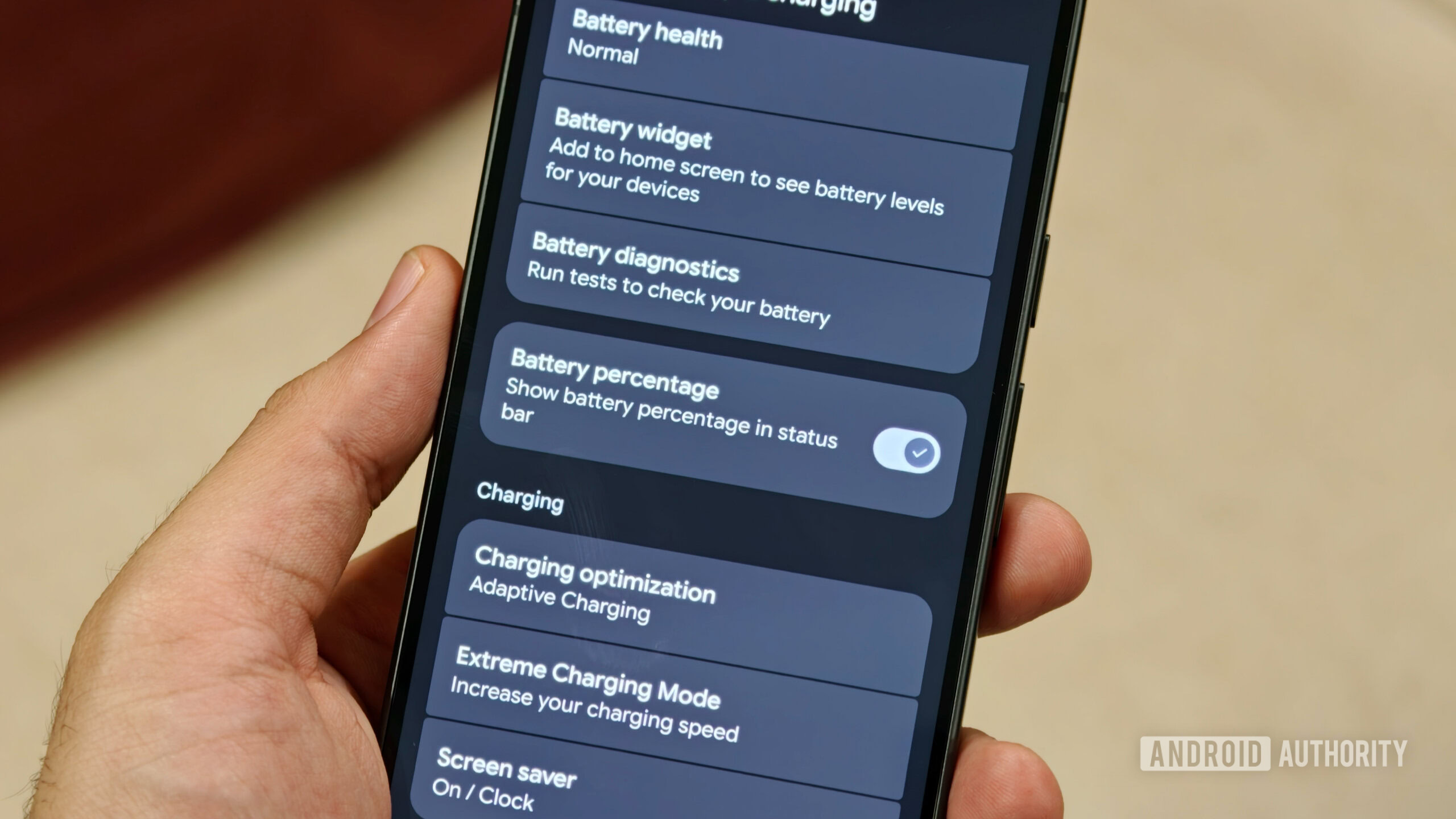
A unique and visually engaging feature introduced on the Pixel 11 Pro models is "HiLight," a sophisticated multicolor LED integrated into the device’s rear. This intelligent lighting system serves multiple purposes, including providing visual feedback during Gemini interactions when the phone is face down. More importantly for daily communication, HiLight can illuminate in distinct colors to signify incoming calls from specific contacts. However, the personalization aspect necessitates user setup.
The ability to assign custom colors to contacts is restricted to those designated as "favorites." This ensures that the HiLight serves as a quick, at-a-glance identifier for the most important individuals in your contact list.
To configure HiLight:
- Open the Contacts app.
- Select a contact you wish to assign a HiLight color to.
- Tap the star icon located at the top of the contact’s profile to mark them as a favorite.
- Upon marking them as a favorite, the HiLight option will become accessible within the contact’s settings or within the main HiLight configuration menu.
- Tap on the HiLight option and choose from a spectrum of colors to represent that contact.
This feature transforms a subtle hardware element into a functional and personalized communication tool, adding a layer of visual flair to incoming calls.
Network Adaptability: Smart Wi-Fi Switching
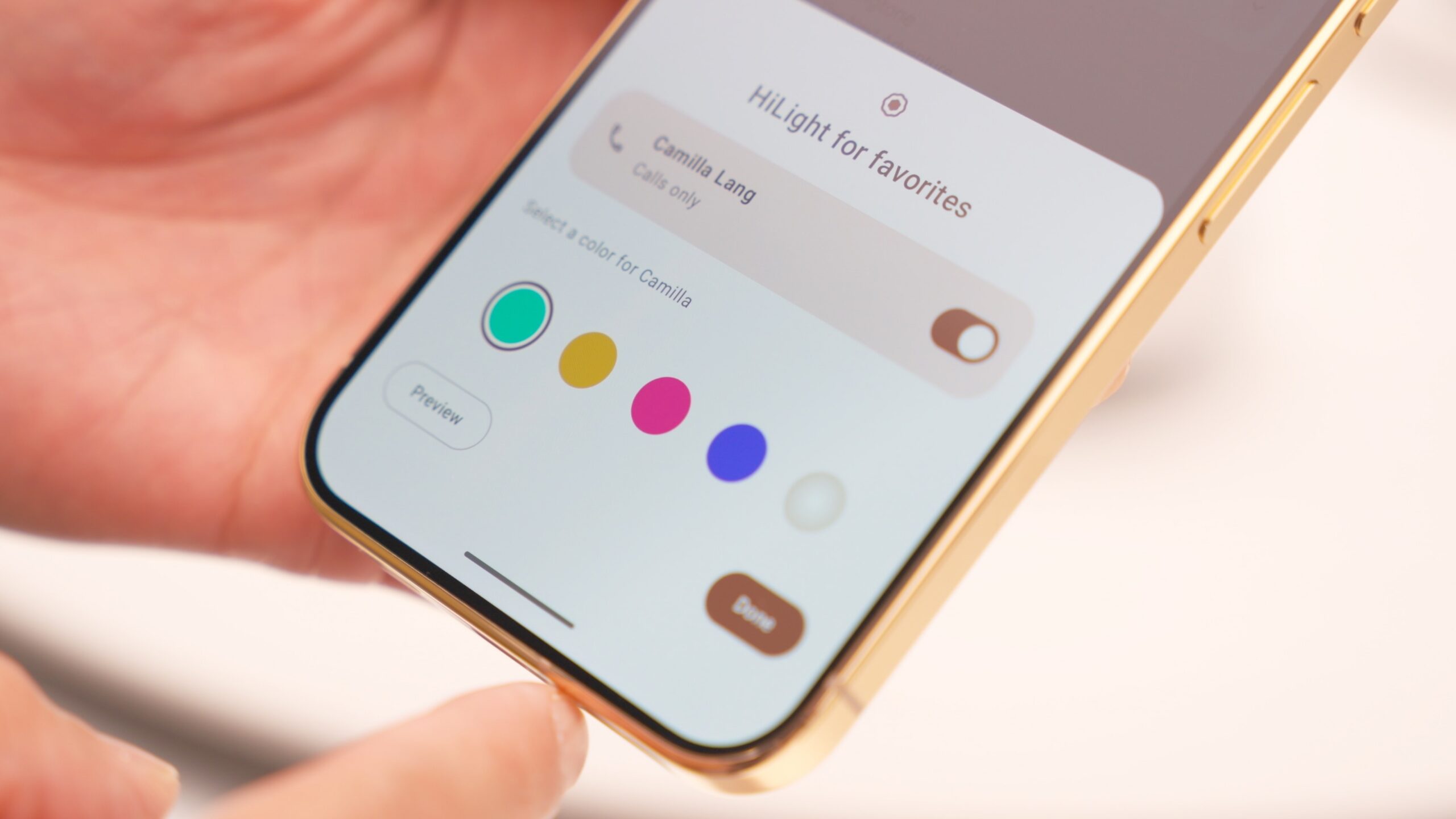
Google’s adoption of a MediaTek modem for the Pixel 11 series brings with it a refined approach to network connectivity. A key setting to enable for a consistently reliable internet experience is "Adaptive Connectivity." This intelligent feature ensures that your Pixel 11 can seamlessly transition between Wi-Fi and cellular data.
When connected to a weak or unstable Wi-Fi network, Adaptive Connectivity automatically switches to a cellular connection, guaranteeing a faster and more robust internet experience. This is particularly advantageous when moving throughout one’s home or in environments with inconsistent Wi-Fi coverage, preventing frustrating slowdowns caused by poor wireless signals.
To activate this connectivity optimization:
- Navigate to Settings.
- Select Network & internet.
- Tap on Adaptive Connectivity.
- Enable the Auto switch to mobile network option.
This setting underscores Google’s commitment to providing a fluid and uninterrupted online experience, intelligently managing network resources to prioritize user connectivity.
Never Miss a Beat: The Utility of Notification History
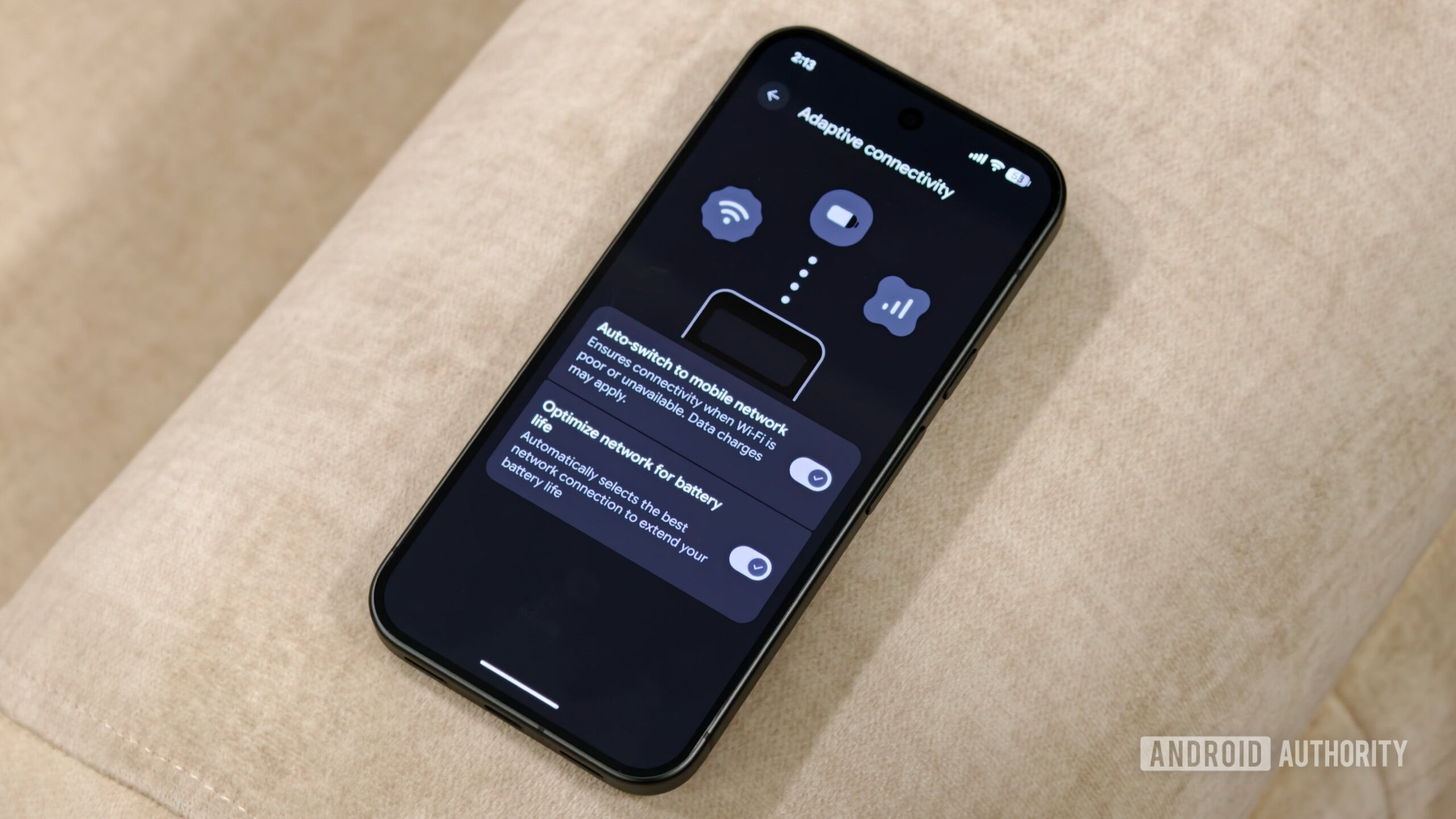
In today’s notification-heavy digital landscape, accidentally dismissing an important alert is an all-too-common occurrence. Fortunately, Android provides a robust "Notification History" feature that diligently records all incoming notifications, including those that have been swiped away. This invaluable tool acts as a safety net, ensuring that no crucial information is lost.
Unfortunately, this essential feature remains disabled by default. To re-enable it and safeguard against missed alerts:
- Go to Settings.
- Select Notifications.
- Tap on Notification history.
- Toggle the Use notification history switch to the ON position.
Beyond the basic history, the Pixel 11 series also supports AI-powered notification summaries, leveraging the on-device Gemini model to condense lengthy notifications into easily digestible snippets. These can also be activated within the Notifications settings, further enhancing the user’s ability to manage incoming information efficiently.
Enhancing Accessibility: Lock Screen Widgets for Instant Information
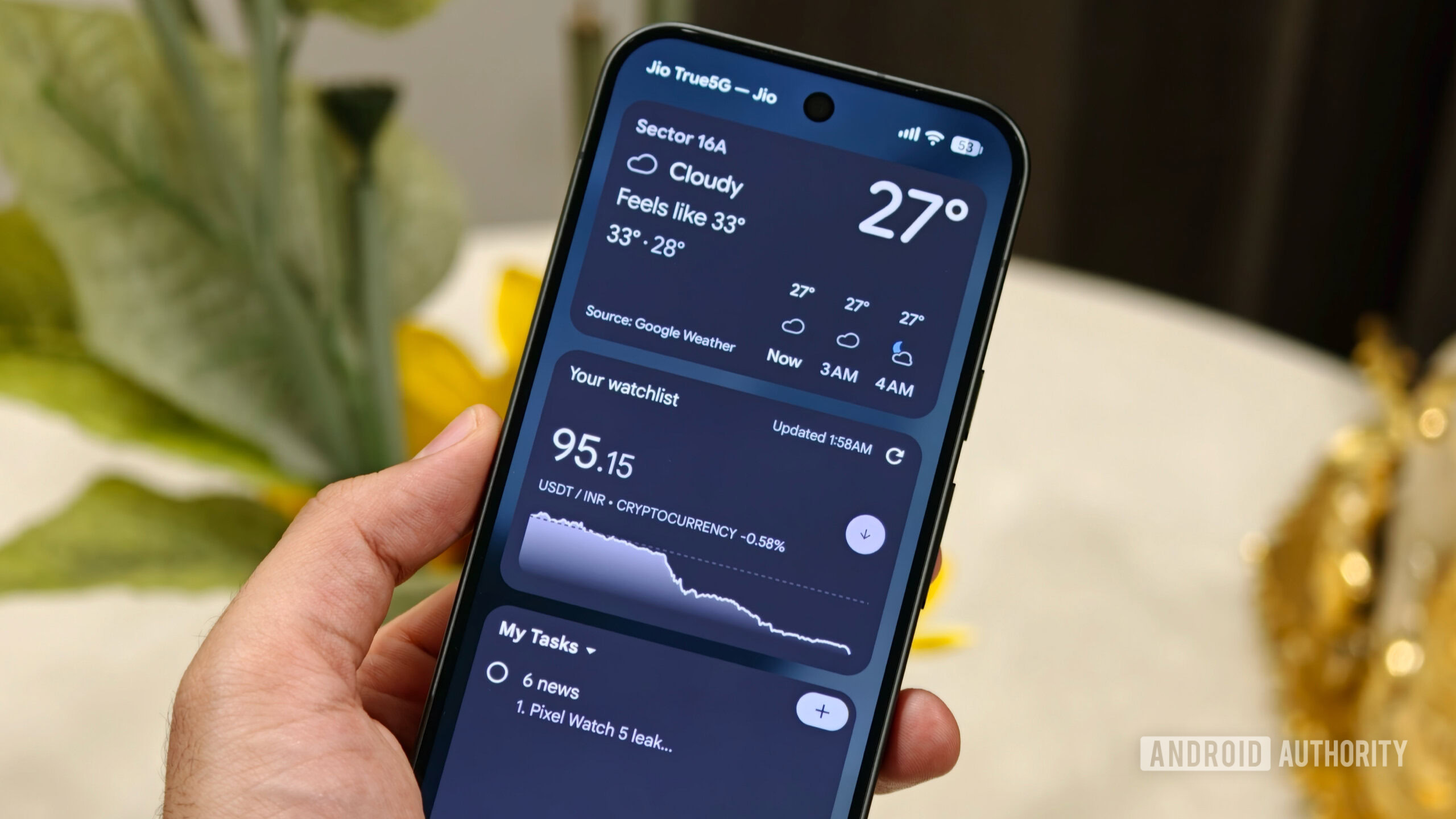
With the advent of Android 16, Google reintroduced the highly requested lock screen widgets functionality to Pixel phones, and the Pixel 11 series benefits from this enhancement. However, similar to other features, these widgets are disabled by default, requiring manual activation.
Lock screen widgets provide instant access to frequently used information and applications without the need to unlock the device. This significantly streamlines user interaction, allowing for quick checks of weather forecasts, stock prices, calendar events, or task lists.
To configure your lock screen widgets:
- Navigate to Settings.
- Select Display.
- Tap on Lock screen.
- Enable the Show widgets toggle.
- Once enabled, from the lock screen, swipe right to access the widget panel. Tap the "+" button to add new widgets from your installed applications.
This feature transforms the lock screen from a passive display into an interactive hub, offering immediate access to personalized information and shortcuts. Additionally, while within the lock screen settings, users are encouraged to customize the lock screen shortcuts for quick access to essential functions like the camera or flashlight.
Reliving Musical Moments: The Enduring Appeal of Now Playing
Even in 2026, the "Now Playing" feature remains a standout, albeit often underestimated, capability of Pixel devices. This intelligent function automatically identifies music playing in the vicinity and displays the song title directly on the lock screen. Furthermore, it maintains a comprehensive history of identified songs, proving immensely useful when encountering an unfamiliar yet captivating track in a public setting.
The Pixel 11 series simplifies access to this feature with a dedicated application. To ensure Now Playing is fully operational:
- Open the Now Playing app.
- Review the app’s permissions, ensuring it has access to your microphone and storage.
- Confirm that the "Recognize music" toggle is enabled.
- Explore the "History" tab to view previously identified songs and manage your music library.
Now Playing’s seamless integration and its ability to catalog musical discoveries make it an indispensable tool for music lovers.
Prioritizing Safety: Configuring Emergency Features
While a feature that users hope to never need, the built-in emergency capabilities of the Pixel 11 are paramount for user safety. Chief among these is "Car Crash Detection." This advanced system utilizes the phone’s sensors to detect severe vehicular accidents.
Upon detecting a crash, the Pixel 11 will vibrate, emit a loud alarm, and prompt the user to confirm if they require assistance. If the user confirms their need for help or fails to respond within a set timeframe, the device will automatically contact emergency services and share the user’s precise location with pre-designated emergency contacts.
To activate this critical safety feature:
- Go to Settings.
- Select Safety & emergency.
- Tap on Car Crash Detection.
- Enable the main toggle for the feature.
- Optionally, activate Emergency Sharing to ensure your location is automatically transmitted to your emergency contacts in critical situations.
Configuring these emergency features is a proactive step that can have a profound impact in a crisis, providing a vital link to help when it is needed most.
Conclusion: Embracing the Full Pixel 11 Experience
The Google Pixel 11 series represents a significant leap forward in mobile technology, offering a suite of innovative features designed to enhance productivity, creativity, and safety. By proactively engaging with the device’s settings and enabling these key features, users can unlock the full potential of their new Pixel 11. From fine-tuning photographic styles and empowering content creation to optimizing battery life and ensuring personal safety, these recommended adjustments transform the Pixel 11 from a capable smartphone into an indispensable personal assistant. As users delve deeper into the capabilities of their devices, they will undoubtedly discover even more ways to personalize their experience, solidifying the Pixel 11’s position as a leading contender in the competitive smartphone market.