George Chandra Eka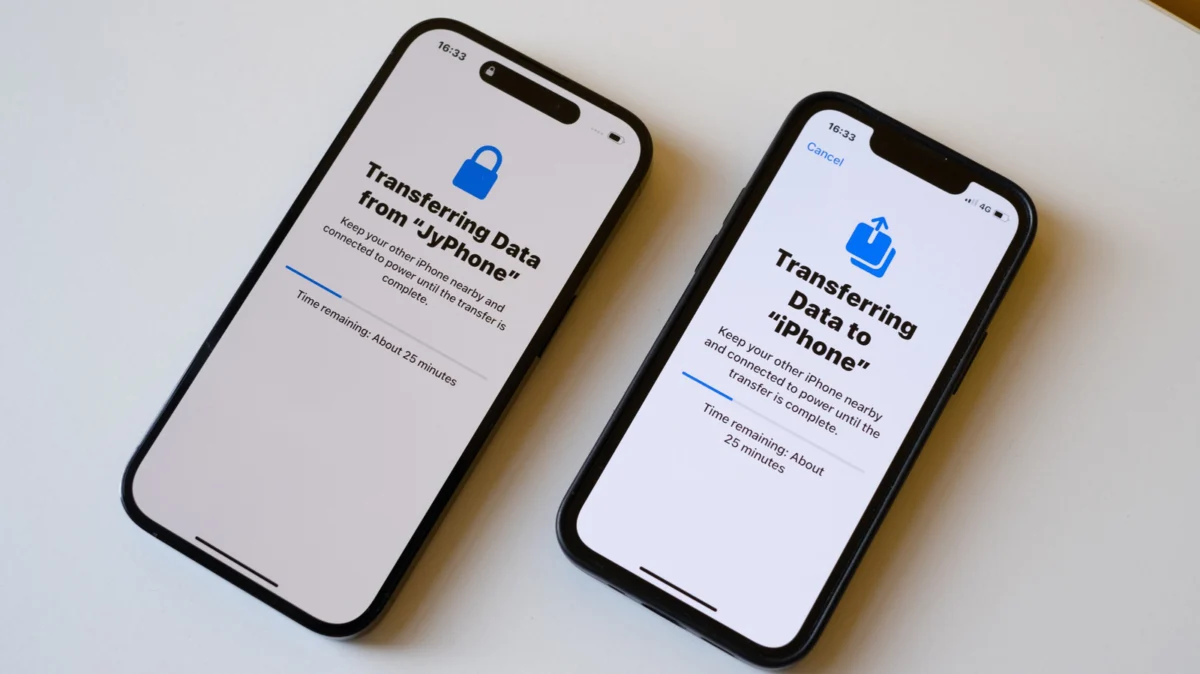
For years, upgrading to a new iPhone often came with an unspoken dread: the tedious and often incomplete process of transferring data. Users frequently faced the frustration of lost settings, apps requiring reinstallation from scratch, and the disheartening realization that years of accumulated app data had vanished. This era, marked by reliance on cumbersome manual methods or tethered connections to a Mac or PC, presented a significant friction point in the otherwise polished Apple ecosystem. However, with the introduction of Quick Start, Apple fundamentally transformed this experience, ushering in an age of effortless and comprehensive data migration that has since become a cornerstone of the iPhone upgrade cycle.
The Evolution of iPhone Data Migration: A Historical Perspective
Before Quick Start’s debut with iOS 11 in September 2017, transferring data between iPhones was far from intuitive. The primary method involved connecting the old iPhone to a computer running iTunes. Users would first create a local backup of their device, a process that could be time-consuming depending on the amount of data and the computer’s specifications. Once the backup was complete, the new iPhone would then be connected, and the backup would be restored. This method, while functional, was prone to issues. Corrupted backups, compatibility problems between iOS versions, and the sheer inconvenience of needing a computer made it a less-than-ideal solution. Furthermore, not all data transferred seamlessly; certain app data, settings, and even the precise arrangement of app icons on the home screen could be lost, forcing users to spend significant time reconfiguring their new device.
iCloud offered an alternative, allowing users to back up their data to Apple’s cloud servers and restore it to a new device. While this removed the need for a physical computer, it introduced its own set of challenges. iCloud storage limits often meant users had to purchase additional space, and the restoration process was heavily dependent on internet speeds, sometimes taking many hours or even days for large backups. Moreover, a robust Wi-Fi connection was paramount, and any interruption could lead to a stalled or failed transfer. The overall user experience prior to Quick Start was characterized by anxiety and a significant time investment, detracting from the excitement of acquiring a new device. Apple recognized this pain point as an opportunity to enhance user satisfaction and reinforce loyalty within its hardware and software ecosystem.
Quick Start: A Paradigm Shift in User Experience
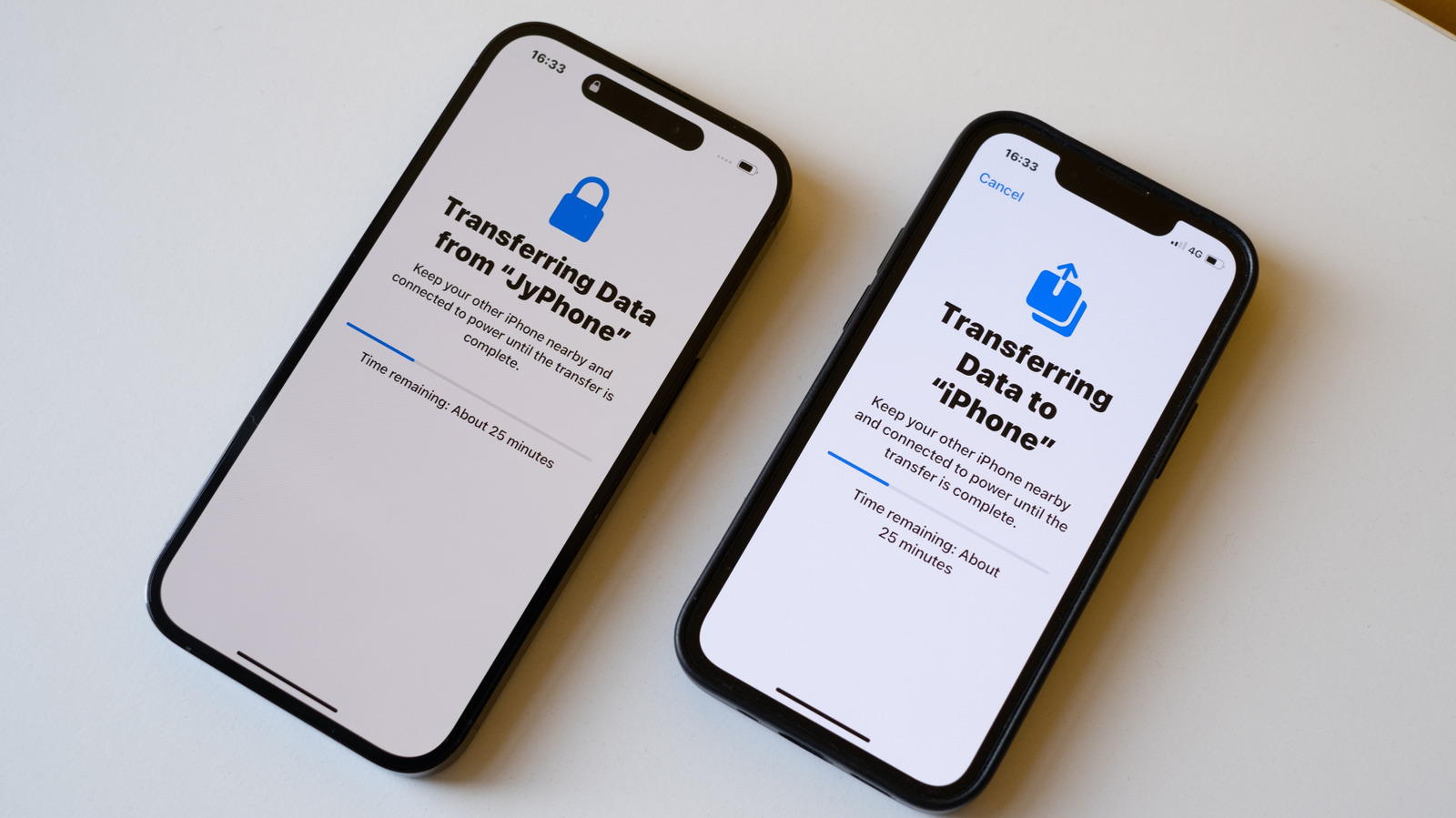
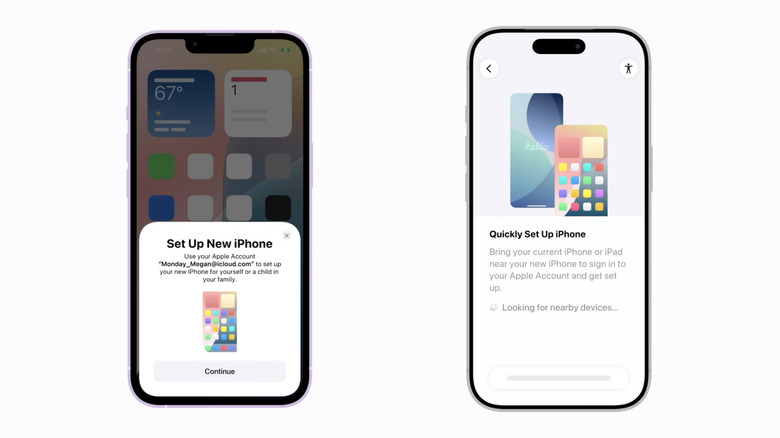
Quick Start was designed to be a "magical" Apple feature, embodying the company’s philosophy of intuitive and seamless technology. It leverages a combination of Bluetooth and Wi-Fi Direct technologies to facilitate a direct, device-to-device transfer, eliminating the need for a computer or even a strong internet connection for the primary data migration. The process begins simply: turning on a new iPhone in close proximity to an existing one running iOS 11 or later. The old iPhone detects the new device and prompts the user to set it up using their Apple ID. This initial pairing is secured through an animation displayed on the new iPhone, which the old iPhone’s camera scans, establishing a cryptographically secured connection between the two devices.
Following this initial handshake, users are guided through a series of familiar setup steps, including entering their current device passcode and configuring Face ID or Touch ID on the new phone. The critical choice then arises: whether to restore from a recent iCloud backup or to perform a direct transfer of data from the old iPhone.
Direct Transfer vs. iCloud Restore: Strategic Choices for Data Migration
Each method offers distinct advantages depending on the user’s specific circumstances:
-
Direct Transfer (Device-to-Device): This method involves a direct, encrypted wireless transfer of virtually all data from the old iPhone to the new one. This includes contacts, messages, photos, videos, app data, home screen layout, and even system settings. Its primary advantage is completeness and data integrity, as it replicates the old phone’s state almost perfectly. For users with large local media libraries or extensive app data, this can be the most thorough option. However, it requires both devices to remain powered on and in close proximity for the duration of the transfer, which can range from minutes to several hours depending on the total data volume. While typically robust, wireless direct transfer can be affected by environmental factors like Wi-Fi interference or distance.
-
iCloud Restore: Choosing this option initiates a restore from the most recent iCloud backup. The immediate benefit is speed, as the new iPhone can begin downloading essential apps and data in the foreground, allowing users to start using their new device sooner. The remaining data, particularly large media files, is then downloaded in the background. This method is ideal when the old iPhone is no longer available (e.g., traded in or lost) or when a user prioritizes quick access to core functionalities over a complete, immediate data transfer. It is heavily reliant on a stable and fast Wi-Fi connection and the size of the iCloud backup. Users must also ensure they have sufficient iCloud storage to accommodate their backup, often necessitating paid upgrades for those with extensive data.
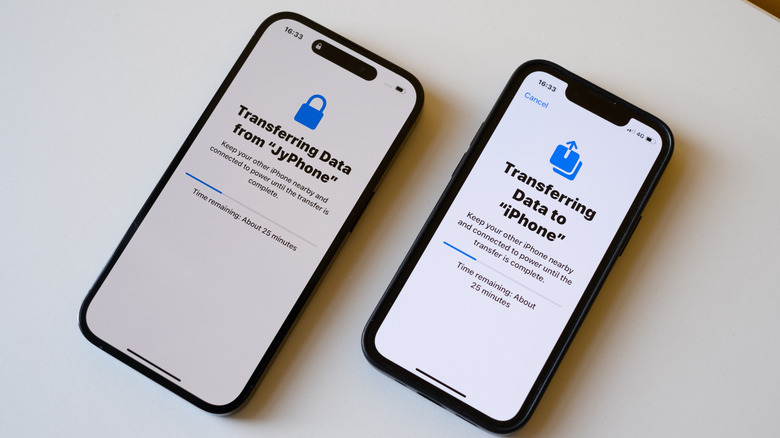
Apple’s design allows for flexibility, letting users choose the method that best fits their immediate needs and network conditions. For instance, if a user is in a hurry and has a robust Wi-Fi connection, iCloud restore might be preferred. If data integrity and a complete replication of the old device are paramount, and both devices are readily available, direct transfer offers a compelling solution.
Troubleshooting Common Transfer Challenges
While Quick Start is remarkably efficient, issues can occasionally arise. Understanding common pitfalls and their solutions is crucial for a smooth transition:
-
Stalling or Slow Transfers: The most frequent cause for a stalled or excessively slow wireless transfer is a weak or unstable Wi-Fi signal, or significant wireless interference. Both devices should be placed close to each other and ideally near the Wi-Fi router. Minimizing other Wi-Fi usage during the transfer can also help. If the process stalls, restarting both iPhones safely cancels the current transfer, allowing the user to initiate it again. This often resolves transient network glitches.
-
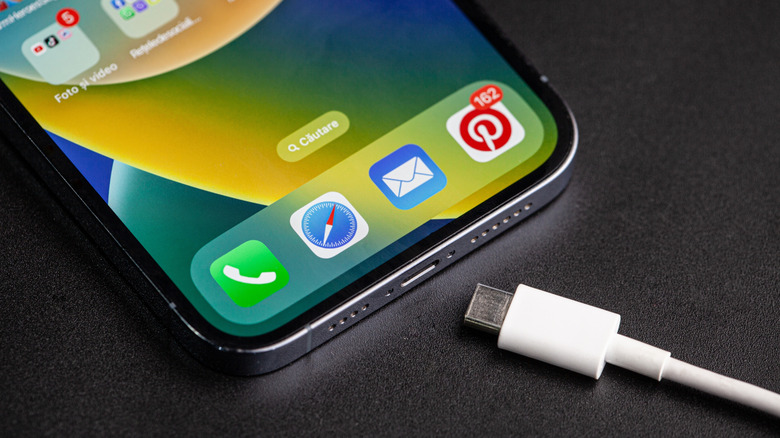
Wired Transfer as a Reliable Alternative: When wireless methods prove problematic, a wired connection offers a robust fallback. This involves connecting the old and new iPhones directly with a cable. For older iPhones, this typically means a Lightning-to-Lightning or Lightning-to-USB-C cable. Newer iPhone 15 Pro and Pro Max models, which feature USB-C ports with USB 3 speeds, can utilize a USB-C to USB-C cable.
The choice of cable significantly impacts transfer speed. The standard Lightning-to-USB-C cable often included with iPhones supports USB 2.0 speeds, which max out at 480 Mbps (megabits per second). While adequate for charging, this can be slow for transferring hundreds of gigabytes of data. In contrast, iPhone 15 Pro and Pro Max models, with their USB 3.0 ports, can achieve transfer speeds of up to 10 Gbps (gigabits per second) when paired with a compatible USB 3.0 (or higher) certified USB-C cable. This represents a more than 20-fold increase in speed compared to USB 2.0, dramatically reducing transfer times for large datasets. Users with these Pro models who frequently transfer large files are strongly advised to invest in a high-speed USB-C cable for optimal performance.
-
Insufficient Storage Space: A common issue arises when switching from an iPhone with larger storage capacity to a new one with less. If the data on the old device exceeds the available storage on the new one, the transfer will fail. To preempt this, users should review their old iPhone’s storage usage before initiating the transfer. Offloading large files (e.g., moving old photos/videos to cloud storage or a computer), deleting unnecessary apps, or clearing large app caches can free up crucial space. Alternatively, opting for a new iPhone with comparable or greater storage capacity is the most straightforward solution.
-
Mismatched iOS Versions: Both the old and new iPhones should ideally be running the latest compatible version of iOS. Significant discrepancies in iOS versions can lead to compatibility issues that prevent Quick Start from initiating or completing successfully. Before starting the transfer, users should connect both devices to Wi-Fi and update their software via Settings > General > Software Update. This ensures maximum compatibility and access to the latest features and bug fixes.
Transferring Data Without the Old iPhone on Hand
There are scenarios where the old iPhone may not be physically present when the new one arrives, such as after a trade-in, loss, or theft. Apple has accounted for these situations by providing robust cloud and local backup options:
-
iCloud Backup: This is the most convenient method when the old device is unavailable. Users should ensure they have a recent iCloud backup created before parting with their old iPhone. To verify a backup, navigate to Settings > [Your Name] > iCloud > iCloud Backup on the old device. On the new iPhone, during the initial setup process, users will be prompted to sign in with their Apple ID and choose to restore from an iCloud backup. This method retrieves all essential data, including app data, settings, photos (if iCloud Photos is enabled), and messages.
-
Mac or PC Backup: For those who prefer local control or have privacy concerns about cloud storage, backing up to a Mac or PC is a viable option.
- macOS (macOS Catalina or later): Connect the old iPhone to a Mac, and it will appear in the Finder sidebar. Select the device, click "Back Up Now" under the General tab, and ensure "Encrypt local backup" is selected for comprehensive data protection (including passwords and health data).
- Windows: Users need to download and install the free "Apple Devices" app from the Microsoft Store. Once installed, connect the iPhone, and it will appear in the app. The process is similar to macOS, allowing for local backups and restoration.
With the new iPhone in hand, connect it to the same Mac or PC. The device will be recognized in Finder or the Apple Devices app. Select "Restore Backup" and choose the most recent backup. This process can be significantly faster than iCloud restore for very large datasets, especially with a direct wired connection, and offers a complete restoration of the device’s state.
Broader Implications and the Future of iPhone Data Migration
Apple’s Quick Start feature represents more than just a convenience; it’s a strategic enhancement that profoundly impacts user satisfaction and reinforces the loyalty to the Apple ecosystem. By minimizing the friction associated with device upgrades, Apple encourages users to stay within its walled garden, making the transition between iPhones so seamless that switching to another platform appears comparatively daunting. This contributes to high customer retention rates, a key metric for tech giants.
Furthermore, Quick Start embodies Apple’s commitment to security and privacy. The direct device-to-device transfer is encrypted, ensuring that sensitive personal data remains protected during migration. The reliance on Apple ID verification adds another layer of security, preventing unauthorized transfers.
Looking ahead, the evolution of data transfer will likely continue to leverage advancements in wireless technologies, such as faster Wi-Fi standards (e.g., Wi-Fi 6E, Wi-Fi 7) and even more efficient direct peer-to-peer protocols. Cloud-based solutions will also likely become even more integrated and intelligent, potentially offering selective data restoration or continuous background syncing that makes "transferring" data almost obsolete, as devices simply access a persistent, up-to-date personal cloud profile. The aim remains consistent: to make the user experience as effortless and invisible as possible, allowing users to focus on enjoying their new device rather than grappling with its setup. Quick Start was a monumental step in that direction, solidifying Apple’s position as a leader in user-centric design.