George Chandra Eka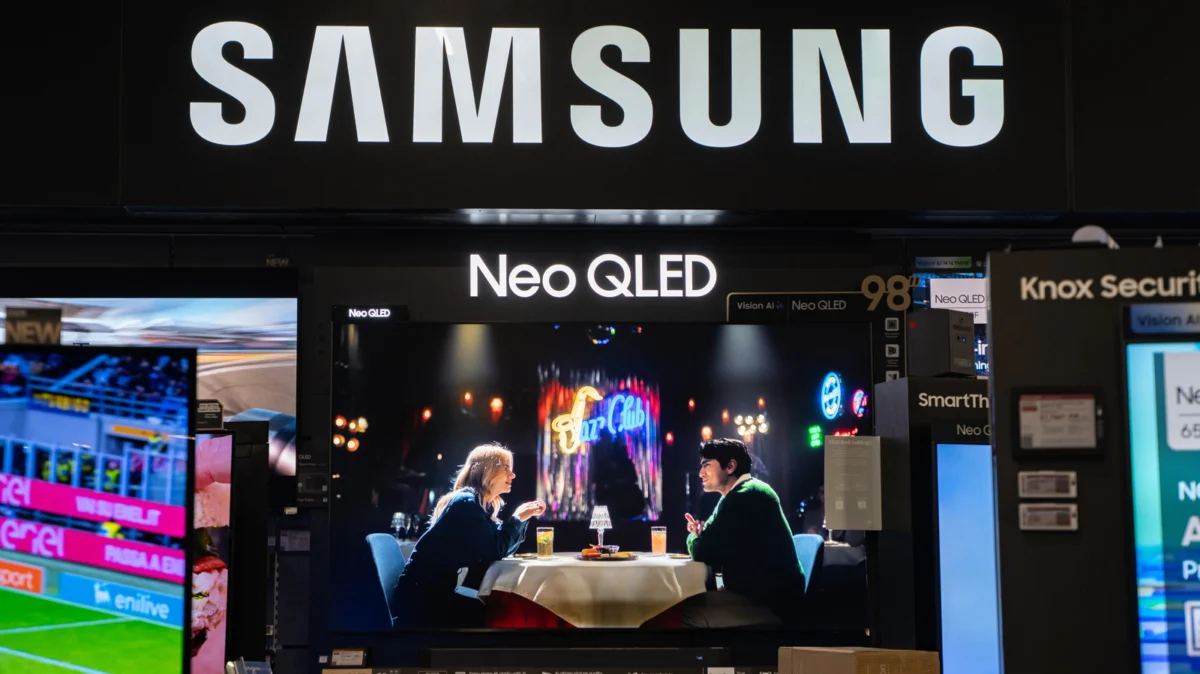
The excitement of unboxing a brand-new television, connecting it to an array of streaming devices and game consoles, and settling in for an immersive viewing experience is a modern ritual. Yet, for countless consumers, this anticipation quickly gives way to confusion and frustration when the pristine picture quality they expected is replaced by an unnaturally vibrant, overly bright, and often jarring display. This perplexing phenomenon, frequently described as a "weird" or "awful" picture, is overwhelmingly attributable to a factory default setting known as "Store Mode," "Demo Mode," or "Retail Mode," a crucial but often overlooked configuration designed not for your living room, but for the harsh, competitive environment of an electronics showroom.
The Initial Disappointment: A Common Scenario
Imagine the scene: After weeks of meticulous research and careful consideration, you’ve finally acquired that sleek, cutting-edge 4K OLED or QLED television. The box is opened, the screen carefully mounted or placed, and all necessary cables – HDMI for your streaming stick, soundbar, and gaming console – are meticulously connected. Power on. The initial setup wizards guide you through Wi-Fi connectivity and channel scans. Finally, the moment arrives to launch your favorite streaming service, perhaps HBO Max for a cinematic drama or a fast-paced game on your console. Instead of the rich, nuanced visuals promised by the marketing materials and review sites, the screen assaults your senses with blinding brightness, oversaturated colors that look almost neon, and a peculiar smoothness of motion that makes everything appear like a cheap daytime soap opera. Before you reach for the remote to delve into complex manual picture adjustments, there’s one critical setting that demands immediate attention, a simple toggle that can transform your viewing experience from dismal to dazzling in mere moments. This common scenario underscores a widespread issue impacting consumer satisfaction right out of the box.
Understanding Store Mode: A Deep Dive into Retail Optimization
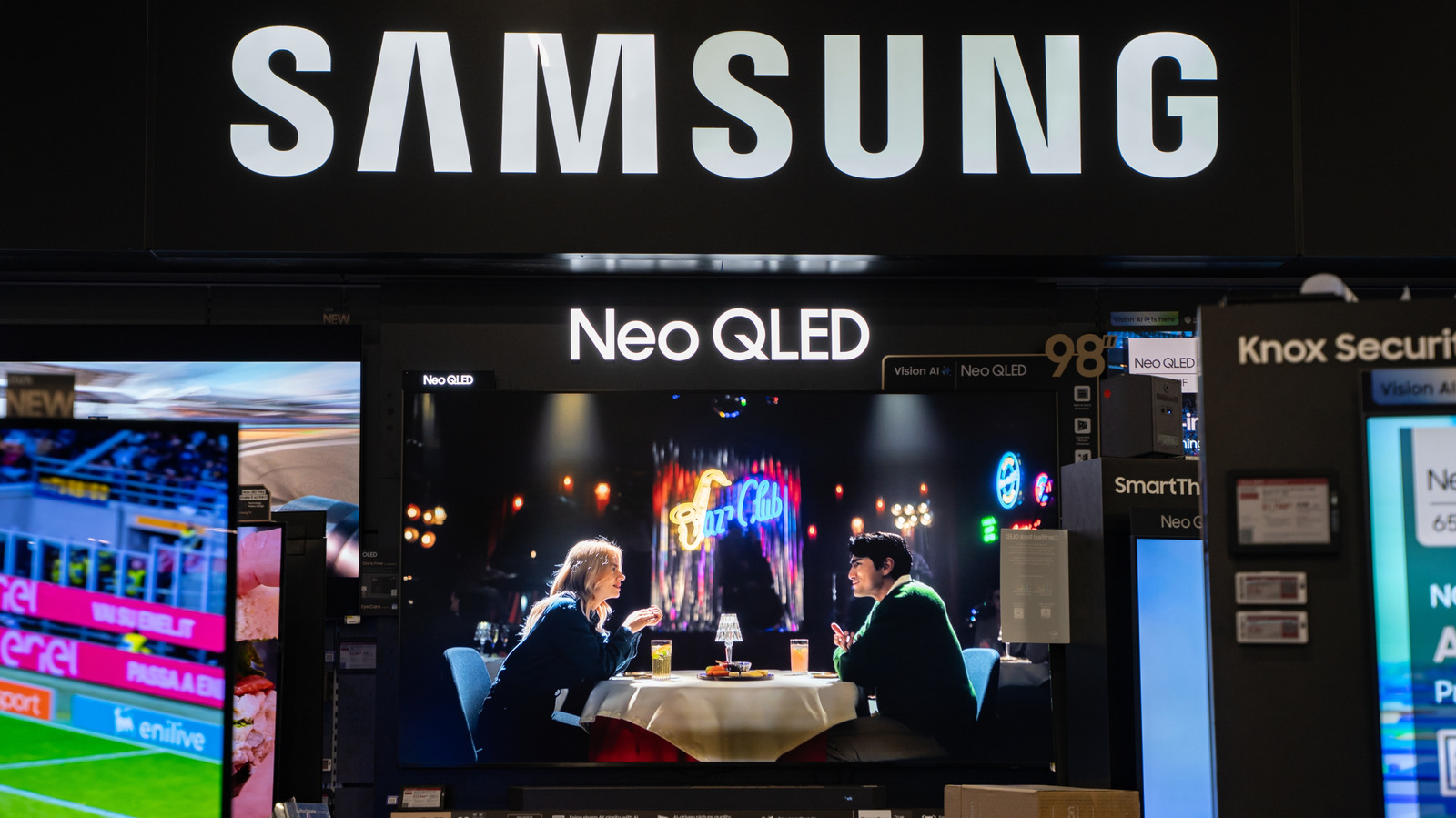
Store mode is not a malfunction but a deliberate manufacturer setting engineered to maximize a television’s visual impact in a brightly lit retail environment. Its primary objective is to make the TV stand out amidst dozens of competing models on a store shelf, drawing the eye of potential customers. To achieve this, it employs a suite of aggressive picture enhancements that, while effective under fluorescent lights, are wholly inappropriate for the nuanced viewing conditions of a typical home.
Historically, this practice evolved alongside the rise of consumer electronics stores. In the competitive landscape of the late 20th and early 21st centuries, manufacturers needed a way to showcase their products’ perceived superiority. Older display technologies like CRTs, and later early LCDs and plasmas, often had dedicated "demo loops" or "vivid" modes. As display technology advanced, these modes became more sophisticated, integrating aggressive algorithmic adjustments. Today, even with the significant shift towards online purchasing, the vast majority of televisions still ship with store mode enabled by default, a legacy of the brick-and-mortar retail model. This means that a TV ordered online and delivered directly to a consumer’s home is just as likely to suffer from this default setting as one purchased from a physical store. Data from consumer electronics support forums consistently shows "poor picture quality" and "colors too bright" as top complaints for new TV owners, with store mode being the primary resolution.
Key Characteristics and Technical Adjustments of Store Mode:
-
Maximum Backlight/Brightness: This is perhaps the most noticeable adjustment. Store environments are typically flooded with overhead fluorescent or LED lighting, often ranging from 500 to 1000 lux, far exceeding the typical home viewing environment of 50-100 lux. To ensure the TV’s image remains visible and impactful against this intense ambient light, the backlight (for LCD/LED TVs) or pixel brightness (for OLEDs) is cranked to its absolute maximum. While this makes the image punchy in a store, it leads to eye strain, washed-out blacks, and exaggerated highlights in a dimly lit home, crushing detail in both ends of the luminance spectrum.
-
Aggressive Color Saturation: Colors are often artificially boosted far beyond natural levels, sometimes pushing color gamut saturation by 30-50% compared to standard color spaces like Rec. 709. Reds become fiery, greens become neon, and blues achieve an unnatural vibrancy. This "pop" grabs attention in a store but results in cartoonish, inaccurate skin tones and an overall unrealistic palette in a home setting, severely ruining the filmmaker’s intended color grading and artistic vision.
-
Enhanced Contrast and Sharpness: Store mode typically employs aggressive dynamic contrast algorithms, pushing whites to their brightest and blacks to their deepest, often at the expense of subtle detail in both highlights and shadows. Similarly, sharpness settings are frequently over-amplified, creating artificial edges and halos around objects, which can appear crisp from a distance in a store but unnatural, fatiguing, and detail-destroying up close. Many display experts recommend setting sharpness to zero for the most accurate picture.
-
Motion Interpolation (The "Soap Opera Effect"): Many manufacturers enable or heavily exaggerate motion smoothing features (often called "TruMotion," "MotionFlow," "Auto Motion Plus," "Clear Motion," etc.) in store mode. These technologies insert artificial frames between original frames to make motion appear smoother, particularly beneficial for showcasing fast-paced sports or action sequences in a demo loop. However, this process dramatically alters the cinematic look of film content (typically shot at 24 frames per second), creating an unsettlingly smooth, hyper-real, and often jarring aesthetic commonly referred to as the "soap opera effect." This effect is widely disliked by cinephiles and film directors for stripping away the intended artistic presentation of movies and TV shows, making them look like low-budget video productions.
-
Periodic Settings Resets: A crucial, and often frustrating, aspect of store mode is its tendency to periodically reset any manual picture adjustments made by a curious customer. If a shopper begins to explore the settings menu and tweak brightness or color, store mode will typically revert these changes after a few minutes of inactivity or when the TV is powered off and on again. This ensures that every new customer encounters the manufacturer’s preferred, eye-catching demo display, but it renders any attempts at home calibration futile until the mode is deactivated. This mechanism ensures consistent retail presentation but creates a significant barrier to home user customization.
-
Looping Demo Content and Overlays: Some store modes also include looping promotional videos, on-screen text overlays displaying key specifications (resolution, refresh rate, smart features), or branding elements specific to the model. These are clear indicators that the TV is operating in a retail environment and not in a user-friendly home mode.
The Peril of Premature Adjustments
The common instinct when faced with poor picture quality is to dive into the settings menu and manually adjust brightness, contrast, color, and sharpness. However, attempting these adjustments while store mode is active is not only ineffective due to the periodic resets but can also lead to further confusion. A user might spend considerable time trying to "fix" a picture that is fundamentally flawed by an underlying mode, only to find their efforts erased or the picture still looking unnatural because the base settings are so extreme. This often leads consumers to believe their new TV is defective or simply has poor picture quality, when in reality, a single setting is the root cause. This cycle of frustration can significantly dampen the initial enjoyment of a new purchase.
Navigating the Menus: How to Deactivate Store Mode
Fortunately, disabling store mode is a straightforward process, though its exact location varies slightly across different television brands and operating systems. The core principle remains consistent: locate the "Usage Mode" or "Environment Mode" setting and switch it from "Store," "Demo," or "Retail" to "Home" or "Standard."
Here’s a general guide to help you find it:
- Access the Settings Menu: On your TV remote, look for a button labeled "Settings," "Menu," "Home," or a gear icon. Press this to bring up the main on-screen menu.
- Navigate to System or General Settings: Within the main menu, you’ll typically find categories such as "Picture," "Sound," "Network," "System," "General," or "Advanced Settings." The usage mode setting is usually nestled under "System," "General," or "Advanced Settings."
- Locate "Usage Mode" or Similar: Look for options like:
- "Usage Mode"
- "Environment Mode"
- "Mode Selection"
- "Retail Mode Settings"
- "Location" (e.g., "Home" or "Shop")
- Select "Home Mode": Once you find the relevant setting, you’ll typically be presented with choices like "Home Mode," "Standard Mode," "Retail Mode," or "Demo Mode." Select "Home Mode" or "Standard Mode." Some TVs might also have an "Auto Store Mode" option; ensure this is turned off.
Brand-Specific Examples (Illustrative, consult your manual for exact steps):
- Samsung TVs: Often found under
Settings > General > System Manager > Usage ModeorSettings > Support > Retail Mode. - LG TVs: Typically located via
Settings > General > System > Mode Settings > Home/Store ModeorSettings > Picture > Picture Mode Settings > Mode Selection. - Sony TVs: Frequently under
Settings > System > Retail Mode SettingsorSettings > Display & Sound > Picture > Advanced settings > Retail Mode. - TCL/Roku TV/Google TV: As mentioned in the original context, it might be under
Settings > Advanced Settings > Usage ModeorSystem > Power > Power On Behavior.
If you struggle to locate the setting, your TV’s user manual is an invaluable resource. Alternatively, a quick online search for "turn off demo mode [your TV brand and model number]" will almost certainly yield precise instructions from the manufacturer’s support website or user forums. This simple query often saves hours of frustration.
The Immediate Transformation: Beyond Store Mode
The moment you switch from Store Mode to Home Mode, the change in picture quality is usually immediate and dramatic. The blinding brightness will recede, colors will become more natural and subdued, and the aggressive contrast will soften, revealing lost detail in shadows and highlights. The "soap opera effect" will likely disappear, restoring the cinematic integrity of your movies and TV shows.
However, deactivating store mode is merely the first step towards achieving optimal picture quality. While the immediate improvement is significant, your TV will now typically revert to a "Standard" or "Vivid" picture preset within Home Mode. To truly unlock your television’s potential and personalize your viewing experience, further adjustments are often recommended, moving beyond these generic defaults.
Post-Deactivation Optimization: Fine-Tuning Your Home Viewing
Once store mode is disabled, you can begin to fine-tune your TV for your specific viewing environment and preferences.
-
Explore Picture Presets: Most TVs offer several pre-calibrated picture modes designed for different content types:
- Cinema/Movie: Generally the most accurate preset, aiming to reproduce content as the creators intended. Colors are natural, motion processing is minimal, and brightness is suitable for darker rooms. This is often the best starting point for movies and cinematic TV shows.
- Standard: A balanced mode, often brighter and slightly more vibrant than Cinema, suitable for everyday viewing in rooms with moderate ambient light.
- Game: Reduces input lag (the delay between your controller input and the action on screen) at the expense of some picture processing. Essential for serious gamers to ensure responsive gameplay.
- Sports: Often increases brightness, sharpness, and motion smoothing to enhance fast-paced action, though it can still introduce artifacts that some viewers find distracting.
- Vivid/Dynamic: These are essentially toned-down versions of store mode, still overly bright and saturated. Generally best avoided for critical viewing due to color inaccuracies.
-
Basic Calibration Settings:
- Brightness (or Black Level): This adjusts how dark the darkest parts of the image appear. Too high, and blacks look gray; too low, and shadow detail is crushed. Use test patterns (easily found online) to set this correctly, ensuring proper detail in dark scenes.
- Contrast (or White Level): Controls the intensity of the brightest parts of the image. Too high, and highlights are clipped; too low, and the picture looks flat. This balances the dynamic range without sacrificing detail.
- Color Saturation: Adjusts the intensity of colors. Aim for natural skin tones and vibrant but not cartoonish hues, respecting the content’s original grading.
- Tint: Primarily for fine-tuning green/magenta balance. Usually best left at default unless specific color issues are apparent, often tied to regional broadcast standards.
- Sharpness: Often best set very low or even to zero. Digital sharpening can introduce artifacts and make the image look unnatural. The source material should dictate sharpness, not artificial enhancement.
- Motion Settings: For a cinematic experience, most experts recommend turning off or minimizing motion interpolation features (e.g.,
TruMotion,MotionFlow,Auto Motion Plus) to avoid the "soap opera effect." Some users may prefer minimal settings for sports. - Local Dimming/Contrast Enhancer: Experiment with these settings. They can improve contrast by dimming specific areas of the backlight, but overly aggressive settings can sometimes lead to "blooming" or loss of detail around bright objects against dark backgrounds.
- Ambient Light Sensor: Many modern TVs include a sensor that automatically adjusts brightness based on room lighting. Activating this (if available) can provide a more comfortable viewing experience throughout the day and contribute to energy efficiency.
-
Professional Calibration: For enthusiasts seeking the absolute best picture quality, professional calibration services are available. A calibrator uses specialized equipment, such as colorimeters and spectrophotometers, to measure and adjust your TV’s picture settings to industry standards (e.g., Rec. 709, DCI-P3), ensuring the most accurate color, contrast, and brightness reproduction possible for your specific display panel.
Implications and Broader Context
The pervasive issue of store mode highlights several broader implications for consumers and the electronics industry:
- Consumer Experience and Brand Perception: An initial negative viewing experience due to store mode can significantly sour a consumer’s perception of a brand, even if the TV is technically capable of excellent performance. This can lead to unnecessary returns or dissatisfaction, impacting brand loyalty and sales. Consumer advocacy groups frequently highlight this issue, urging manufacturers to make "home mode" the default setting or at least provide clearer and more prominent guidance during initial setup.
- Manufacturer Responsibility vs. Retail Demands: Manufacturers face a dilemma. While they want consumers to experience their products optimally at home, they also need to satisfy retail partners who demand eye-catching displays to drive sales in a highly competitive market. The current compromise often results in TVs shipping in store mode, catering to the retail environment first. This illustrates a tension between marketing strategy and user experience.
- Environmental Impact: Running a television in store mode, with its maximum brightness and aggressive processing, consumes significantly more power than when it’s operating in a properly calibrated home mode. According to various energy efficiency studies, a TV in store mode can consume 30-50% more energy than in an optimized home setting. Switching to home